DeepSeek for Beginners: Your First Chat in 10 Minutes
Never used an AI chatbot before? This guide takes you from opening the DeepSeek website to your first useful answer — every step shown with a real screenshot.
Short answer: DeepSeek is a free AI chatbot. You open chat.deepseek.com in your browser, sign in with a free account, type what you need in the message box, and press Enter. That's the whole basics — the rest of this guide shows each step in detail, with screenshots of exactly what you will see.
What is DeepSeek?
DeepSeek is an AI assistant made by the company DeepSeek. You type a question or a task in plain English, and it writes an answer in seconds. People use it to draft emails, explain ideas, summarize documents, plan trips, and much more.
The web version in your browser is free. You don't need to install anything — it works in Chrome, Edge, Safari, or any modern browser.
Step 1: Open DeepSeek and look around
Go to chat.deepseek.com and sign in with a free account (you can use your email). After signing in, you will see a screen like this:
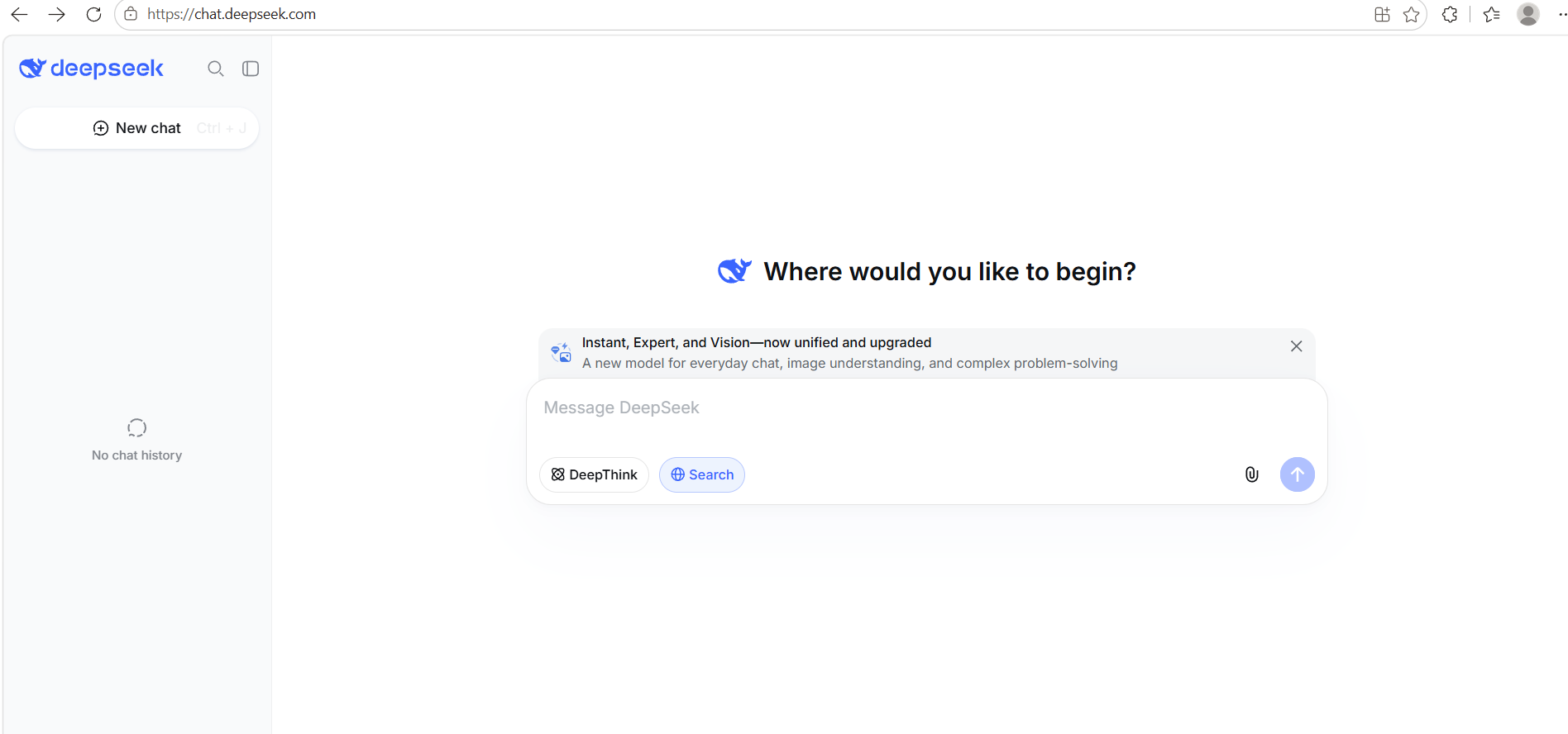
Three things matter on this screen:
- The message box in the middle — this is where you type.
- Two small buttons under the box: DeepThink and Search. More on them in Step 3.
- The left sidebar, where your past chats will be saved.
Step 2: Send your first message
Click the message box and type anything you want to ask. Keep it simple for your first try — for example: "Hello, what's your name?" Then press Enter or click the blue arrow button.
The answer appears within a few seconds:
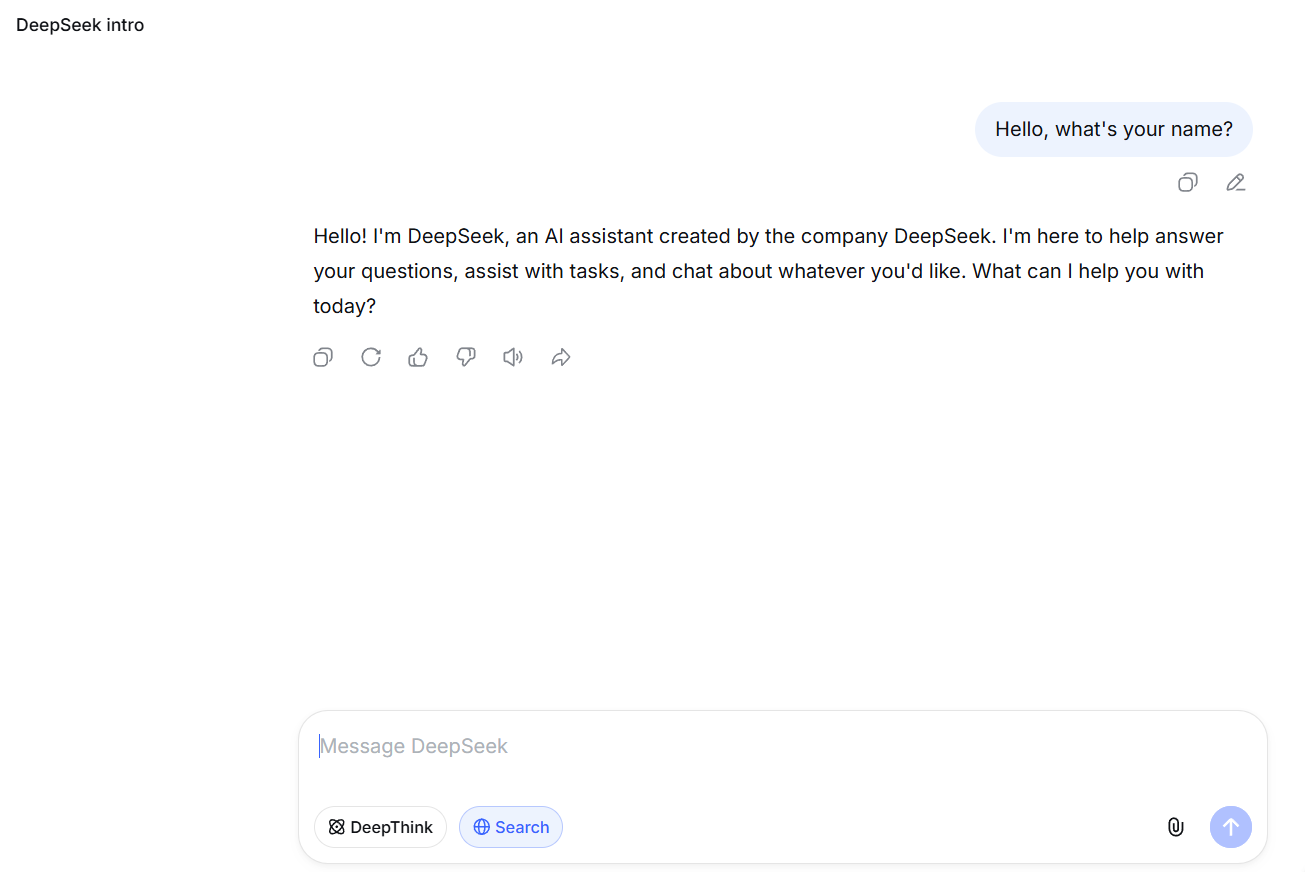
Under each answer there are six small buttons. From left to right:
- Copy — copies the answer so you can paste it anywhere.
- Regenerate — asks for a brand-new answer to the same question.
- Thumbs up / Thumbs down — tells DeepSeek whether the answer helped.
- Read aloud — reads the answer out loud.
- Share — creates a link to this conversation.
Step 3: The two buttons everyone asks about — DeepThink and Search
Under the message box you'll see two toggle buttons. They change how DeepSeek answers.
DeepThink — for harder problems

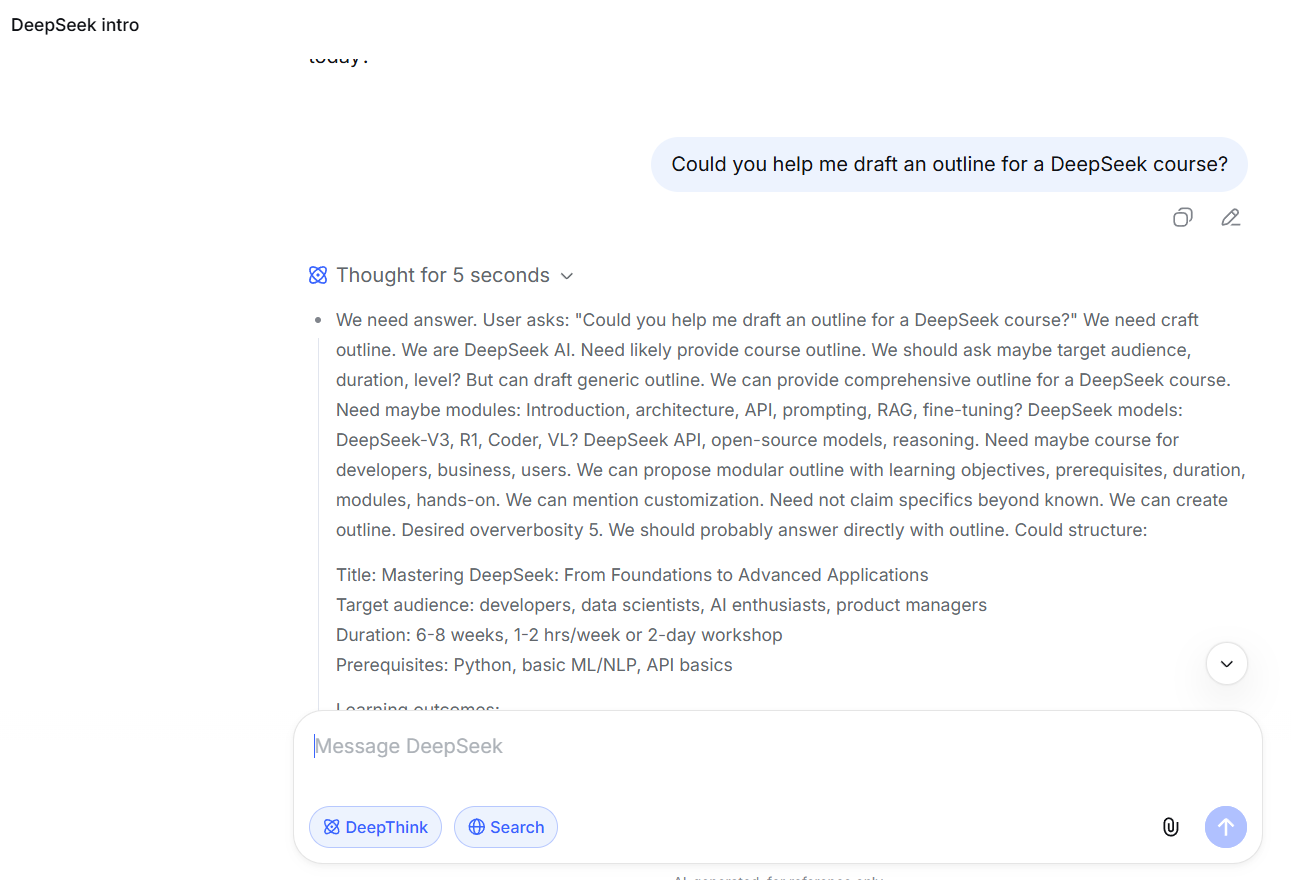
Turn on DeepThink when your question needs thinking, planning, or step-by-step logic — math, comparing options, drafting a course outline, or planning a schedule. The answer takes a little longer because DeepSeek reasons it through first. You can watch it happen: a line appears saying how long it thought, and you can even expand it to read the reasoning.
Search — for anything current
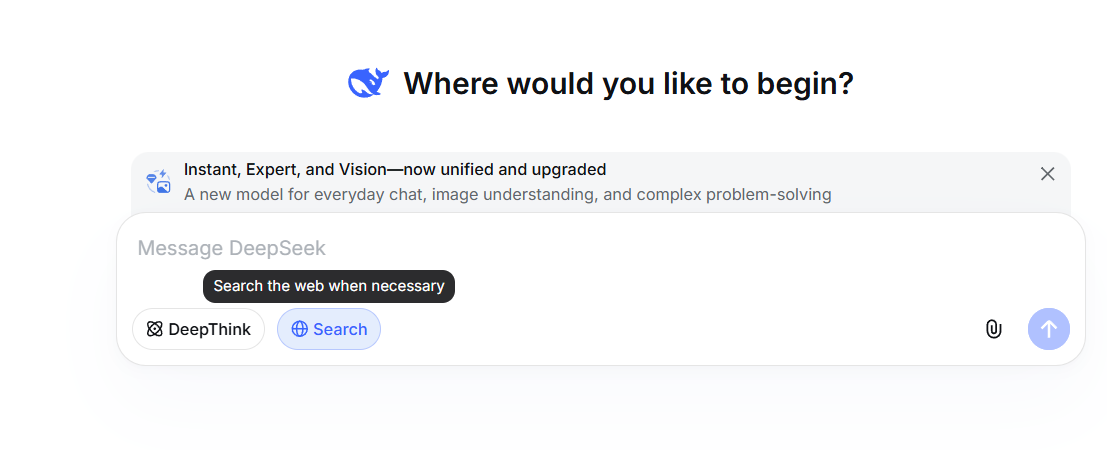
Turn on Search when your question involves recent events, current prices, or anything the AI might not know from its training data. DeepSeek will look at web pages and base its answer on what it finds.
Step 4: Upload a document or image
Click the paperclip icon next to the send button to attach files. DeepSeek can read documents and images and answer questions about them — for example, summarize a PDF or describe a photo.
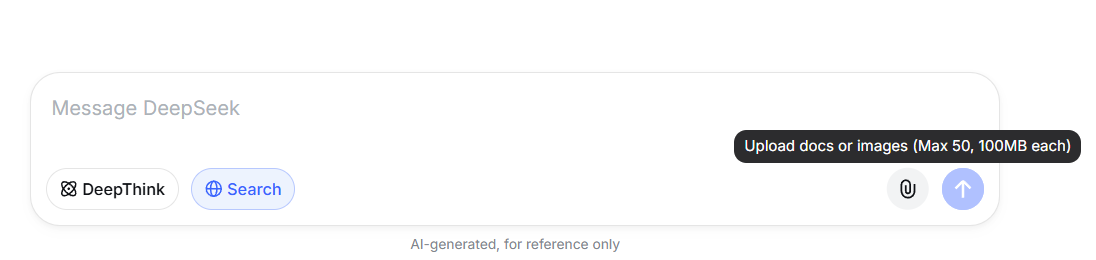
The limits are generous for a free tool: up to 50 files per conversation, each up to 100MB.
Step 5: Where your chats are saved
Every conversation is saved automatically in the left sidebar. When you start, it says "No chat history." After your first chat, conversations appear grouped by day under headings like "Today".

Click New chat any time you want to change topics — starting a new chat keeps unrelated questions from mixing together and usually gets you cleaner answers.
Frequently asked questions
- Is DeepSeek really free?
- Yes. The web chat at chat.deepseek.com is free to use. You only need a free account to sign in.
- Which button should I use — DeepThink or Search?
- Use DeepThink for tasks that need reasoning or planning. Use Search for questions about recent or changing information. For simple everyday questions, leave both off.
- Where did my old conversation go?
- It's still there — check the left sidebar. Chats are grouped by day, so look under "Today" or the day you had the conversation.
That's it — you're using AI
You now know more than most first-time users: sending messages, using DeepThink and Search, uploading files, and finding your history. The best next step is simply to use it for a real task today — draft an email, plan a weekend trip, or ask it to explain something you're curious about.
Want to keep learning? Our guides to Canva and CapCut are coming soon.