Canva Free vs Pro in 2026: What You Actually Get (Tested on a Free Account)
Most "Canva free" articles just repeat Canva's sales page. We did the opposite: we signed up with a completely free account, clicked every tempting button, and photographed exactly what happened — including the paywalls. Here is what a free Canva account really gives you in 2026.
Short answer: the free plan of Canva is genuinely usable — you can browse templates, create a design, add and style text, upload your own photos, and download your work as PNG, JPG, or PDF without paying anything. But the famous one-click tools — AI background remover, AI eraser, one-click resizing — are Pro-only, and Canva reminds you of this with a small crown icon and a lot of "Free trial for 30 days" buttons.
First, know the crown: Canva's honest little warning sign
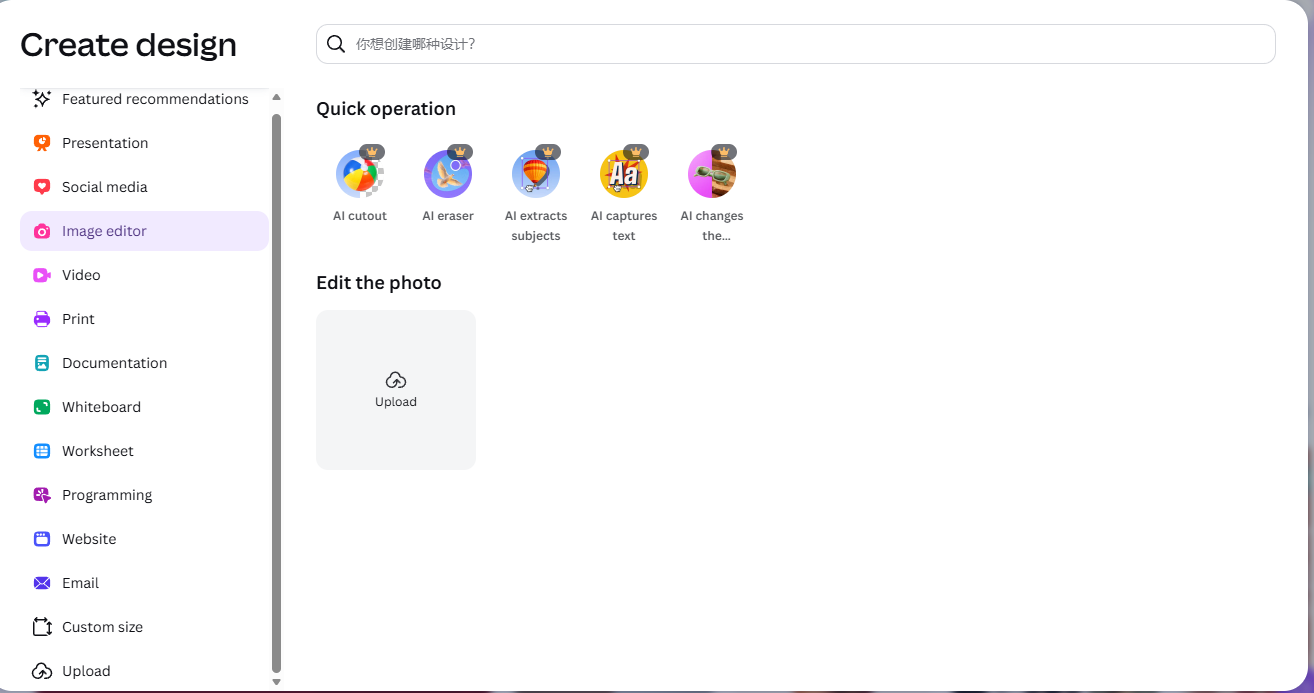
Before anything else, learn one symbol. Everywhere in Canva you will see a small golden crown next to buttons, templates, and photos. That crown means one thing: this feature costs money. Once you can spot the crown, you instantly know what is free and what is not — no guessing needed.
What you CAN do on Canva Free (all tested)
1. Browse and use a huge template library
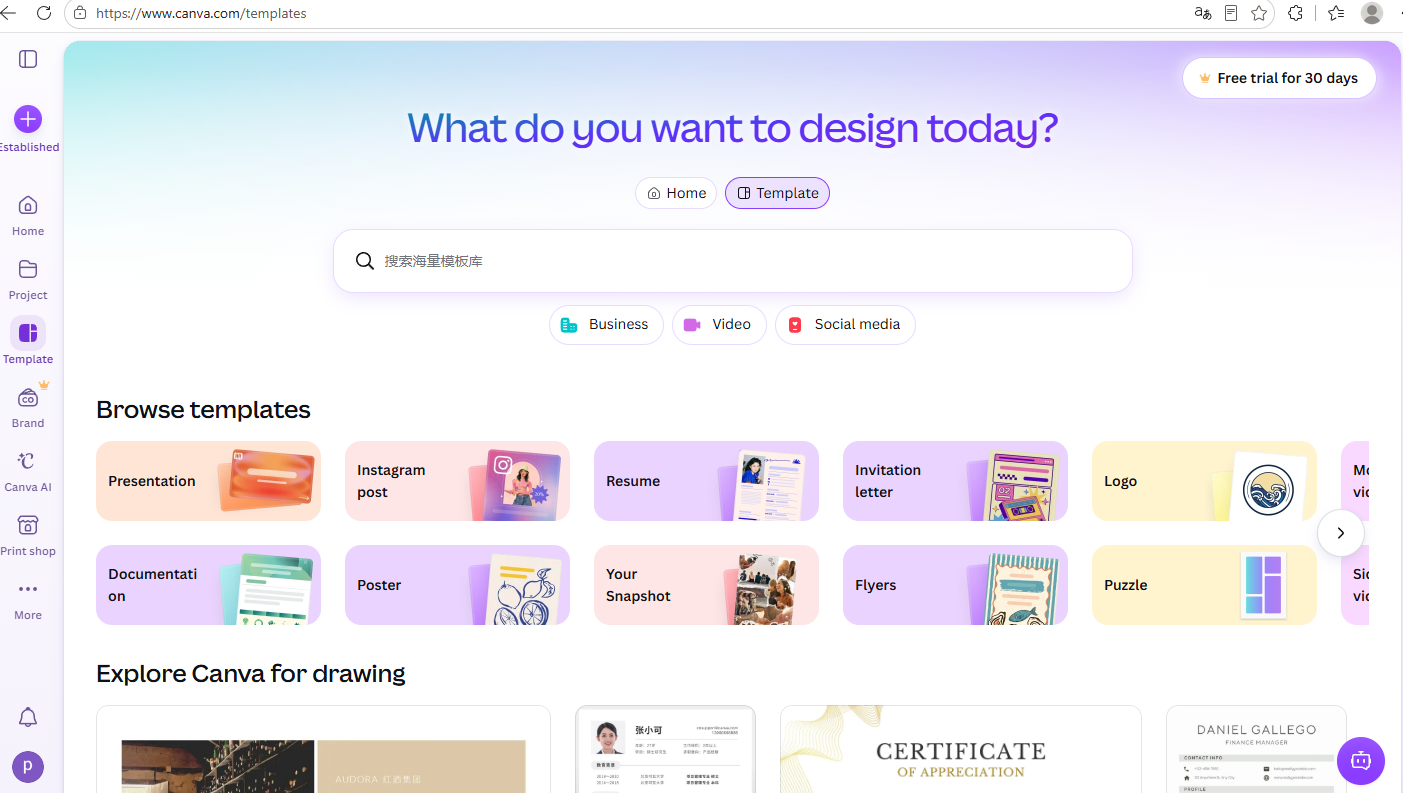
Canva's front door is the template browser. You can search by category — presentations, Instagram posts, resumes, invitations, posters, flyers, logos and more — and start from any design you like.
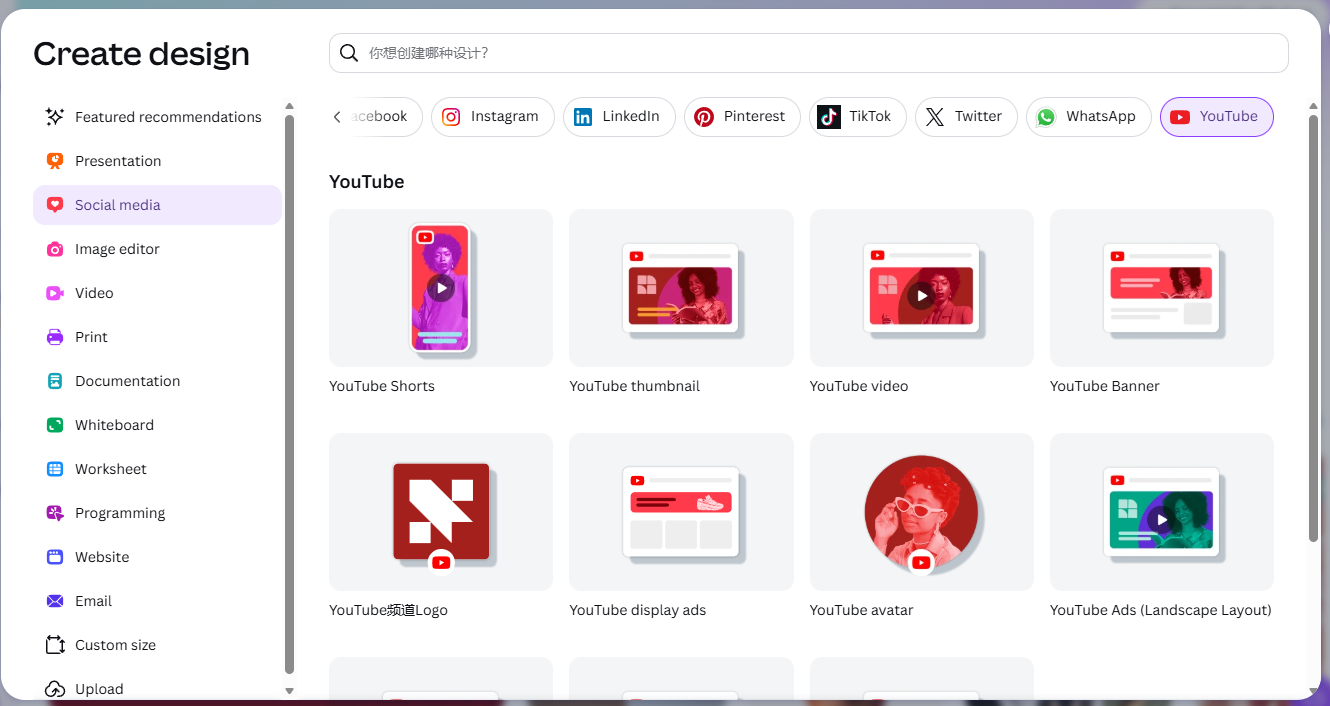
When you click Create a design, Canva offers ready-made sizes for every platform — Instagram, LinkedIn, Pinterest, TikTok, X (Twitter), WhatsApp, YouTube and more:
2. Add and style text
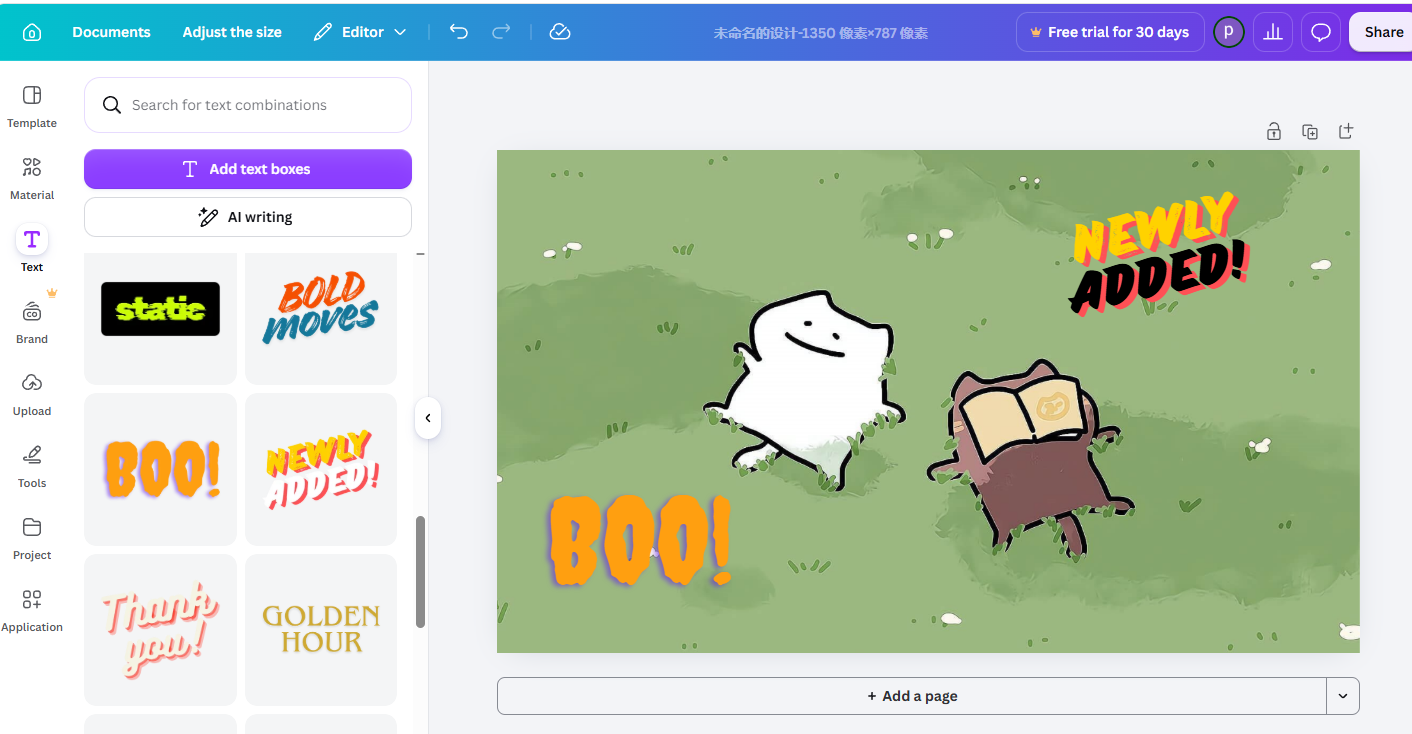
This is where the free plan shines. Click Text in the left sidebar and you can add text boxes, pick from dozens of font styles, change colors, resize, and drag anything anywhere. For social media posts, simple thumbnails, or greeting cards, the free text tools are genuinely all you need.
3. Upload your own photos and download your design
You can upload your own images from your computer and use them in any design. When you are done, click Share → Download and pick a file type:
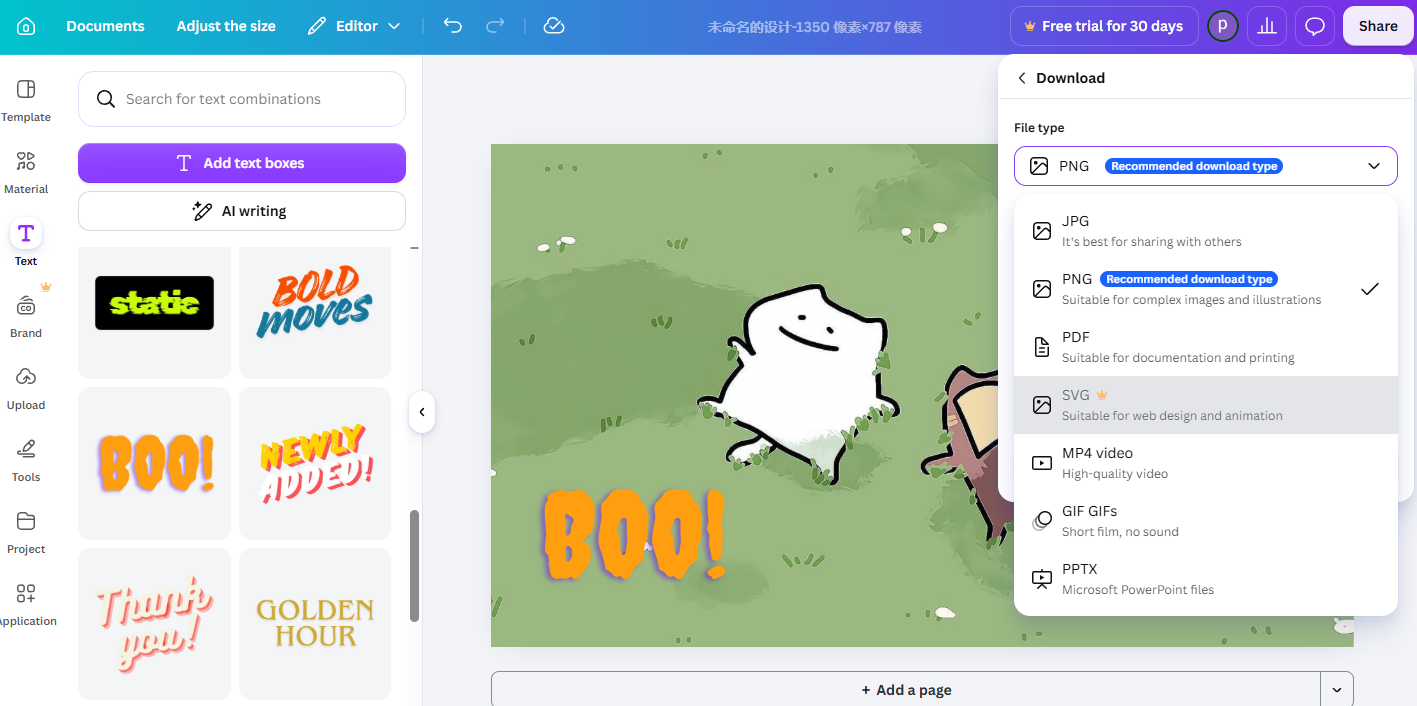
Free downloads cover JPG, PNG, and PDF, plus MP4 video and GIF in most cases. The crown sits on SVG (a vector format mainly designers need). One more catch most articles never mention: the "Transparent background" toggle in the same download panel is also locked on free — your PNG will come out with a solid background unless you pay.
What you CANNOT do on Free (the paywalls, photographed)
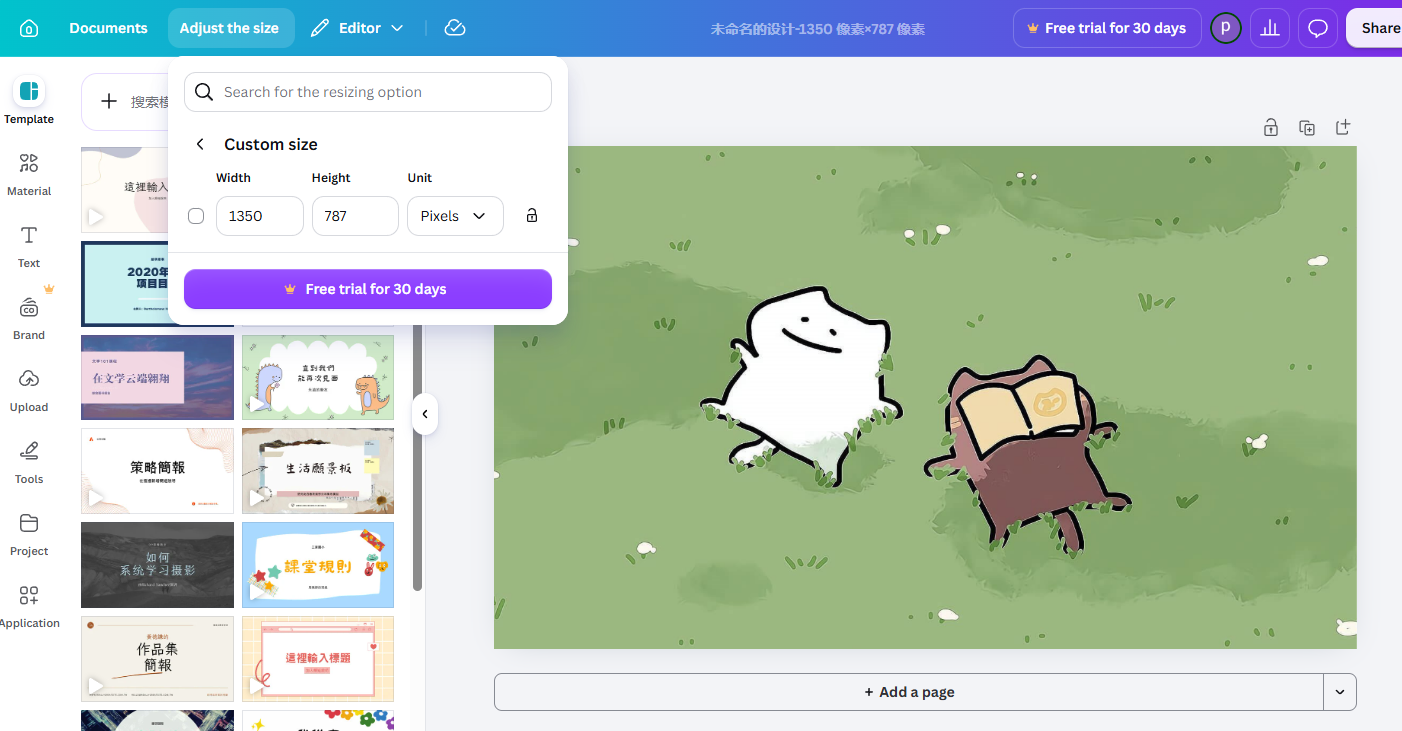
One-click resizing is Pro
Clicking Resize on a free account lets you type a custom size — but the moment you try to apply it, you hit this:
The AI photo tools are all Pro
As shown in the first screenshot: AI cutout, AI eraser, subject extraction, text capture, background replacement — every one of them wears the crown. This matters, because "remove image background in Canva for free" is one of the most-searched Canva questions, and the honest answer is: you can't, not on the free plan. Free users work around it with cropping and frames, or use a dedicated free background-removal site and upload the result.
The free plan runs on monthly AI credits
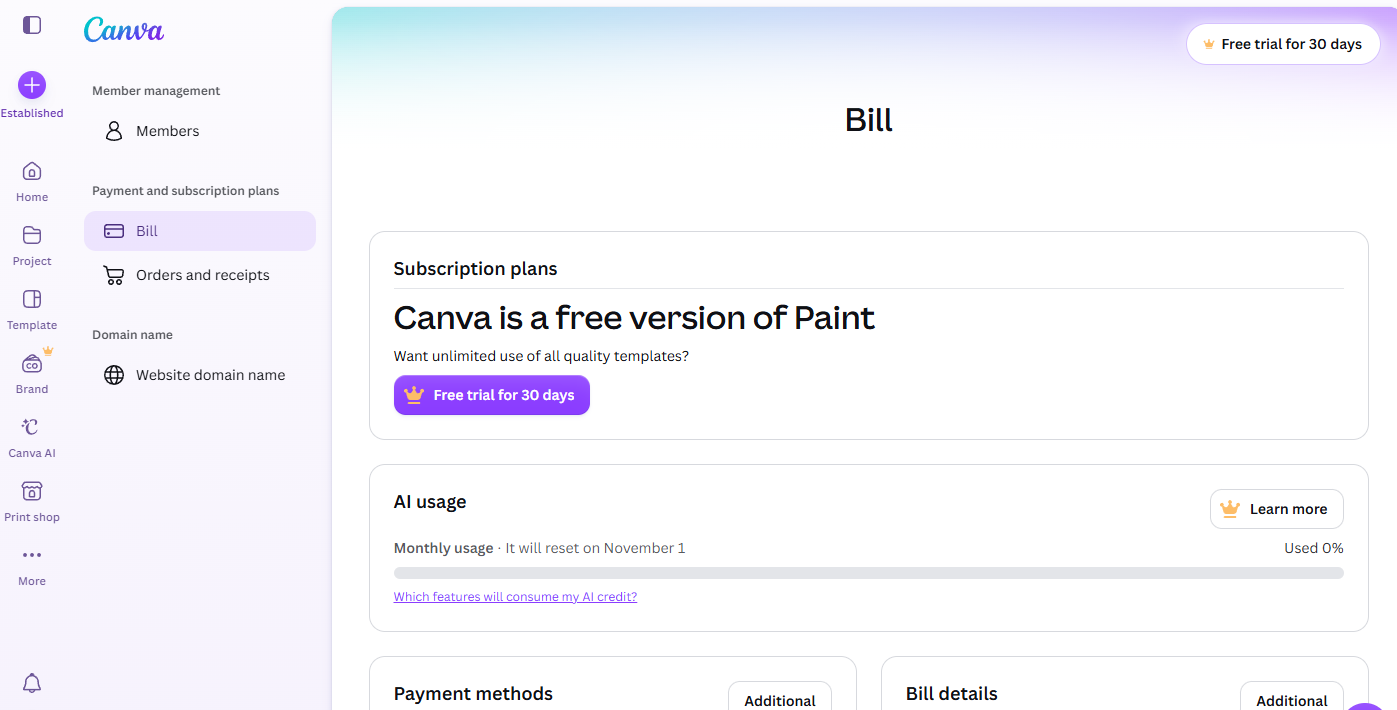
Even the AI features that are technically available on free draw from a monthly AI credit allowance. Heavy users will feel this limit; casual users won't.
What Pro costs (actual price screen, not a guess)
Clicking any "Free trial for 30 days" button opens the pricing screen. Canva offers two paid tiers — here is the exact table from our screen:
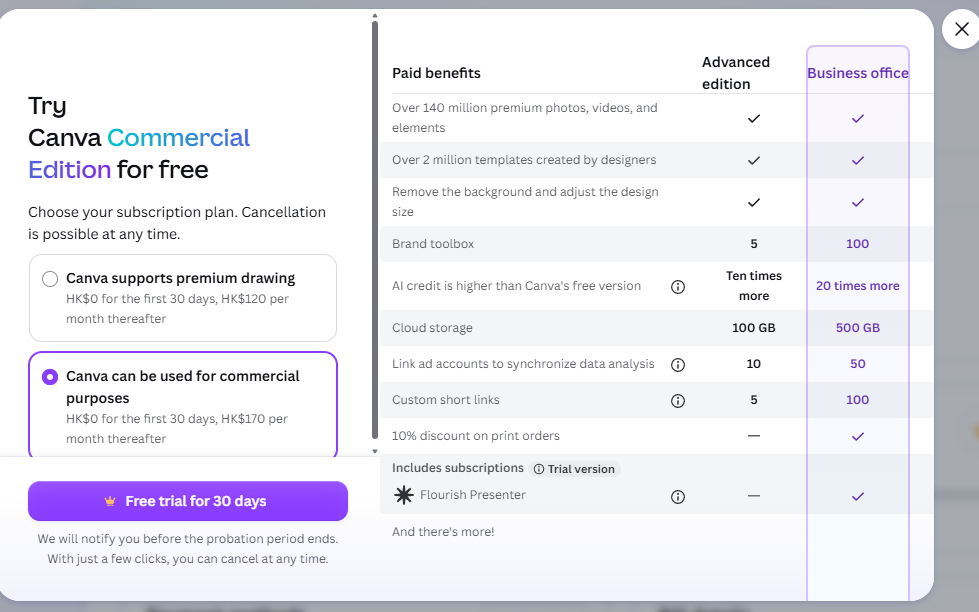
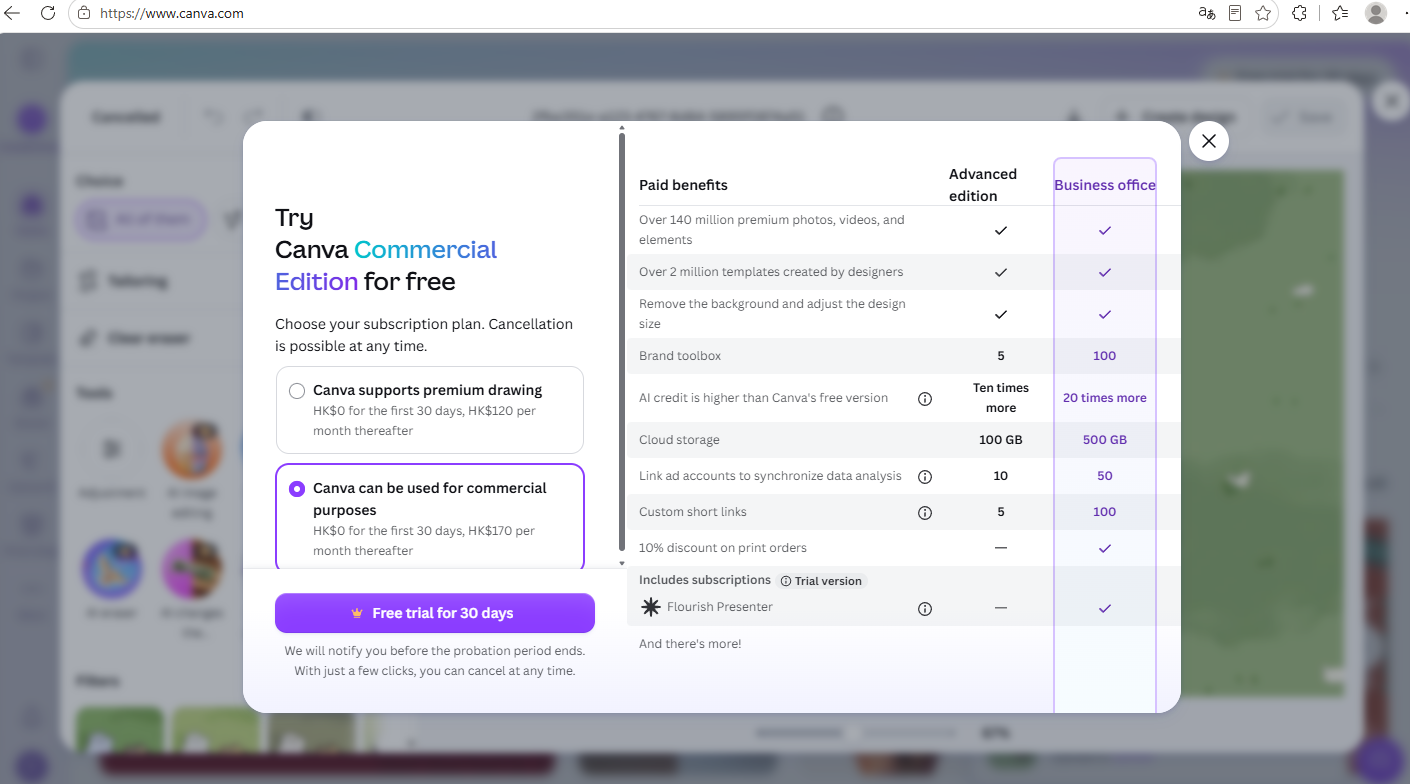
Two honest notes about these numbers:
- Our test account was shown prices in HK$ (roughly US$15 and US$22 per month). Canva adjusts prices by region, so your screen may show a different currency — check the number on your screen before deciding.
- The trial really is free for 30 days, and Canva says it will notify you before it ends. But your card is on file — if you don't cancel, it converts to a paid subscription automatically.
So… is Canva Pro worth it?
Based on our testing, here is the honest breakdown:
- Stay on Free if: you make social posts, simple thumbnails, cards, or documents occasionally. Free templates + free text tools + free PNG/JPG/PDF downloads cover all of that. This is most casual users.
- Consider Pro if: you design every week and specifically need the AI tools (background remover, eraser), one-click resizing, brand kits, or transparent PNG exports. For regular content creators, those time-savers can be worth the monthly fee.
- Don't upgrade just for one image: if you only need a single background removed, a free dedicated background-removal tool does the same job without a subscription.
The 10-second rule to remember
FAQ
Is Canva actually free in 2026?
Yes. Creating an account, browsing templates, designing, adding text, uploading photos, and downloading as PNG/JPG/PDF all worked on our free account with zero payment. The free plan is ad-free too — but expect constant "free trial" buttons in the interface.
Can I remove a background in Canva for free?
No. Background removal is one of Canva's Pro features — every AI photo tool shows the crown on a free account. The free workaround: crop your subject, use frames, or remove the background with a free external tool and upload the result to Canva.
Does the Canva free trial charge you automatically?
The 30-day trial itself costs nothing (our screen showed HK$0 for the first 30 days), but a payment card is required, and the plan converts to a paid subscription when the trial ends unless you cancel. Canva states it will notify you before that happens — still, set your own reminder for day 25.