What Is NotebookLM? 2 Sources, 9 Outputs, Tested
The name on most tutorials is out of date. Google now calls this tool Gemini Notebook, but the idea behind it has not changed: it answers questions from the files you hand it, and shows where every answer came from. We put one web page and one Chinese PDF into a free account, asked three questions, then tried the outputs. Here is what the thing actually is, with our own screens.
NotebookLM is a research assistant that works only from sources you give it. Google renamed it Gemini Notebook in July 2026 and moved it to notebook.google.com, but the old address redirects and the product underneath is the same. On a free account, no card needed, we fed it two sources — one Canva test article by URL and one Chinese resume PDF — and got back answers with clickable citation chips on individual claims. The Studio panel offers nine output types. We tried four of them and ended up with a five-chapter report, a mind map, a 90-second animated video and a 26-minute 34-second podcast with two AI hosts. Three generations of Studio outputs used 73% of the current quota window, which refreshes every five hours rather than once a day. It handled our Chinese PDF in fluent Chinese when asked, with every figure intact.
The name on the door changed
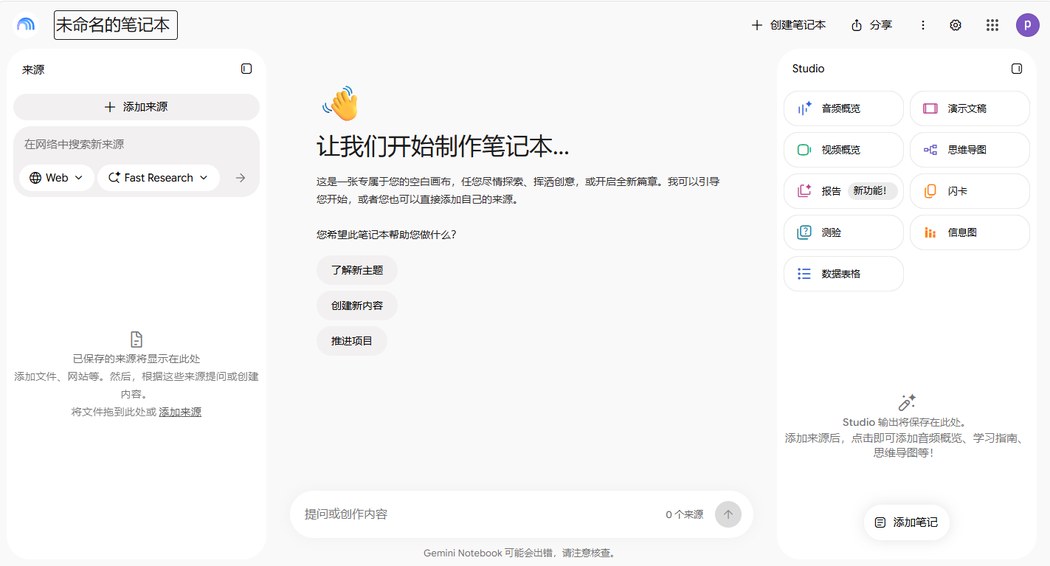
Open the old address and you land at notebook.google.com. The page introduces itself as Gemini Notebook. Search for NotebookLM and you will still find hundreds of guides using the old name, which is why people ask what it is and then fail to find it. Same product, new label.
The interface follows your Google account language. We wanted English screenshots, so we forced it with the ?hl=en parameter. Before that, everything was in Chinese — including the Studio buttons and the warning at the bottom of the page. Worth knowing if your account is set to a language you do not read.
What you put in: sources, not prompts
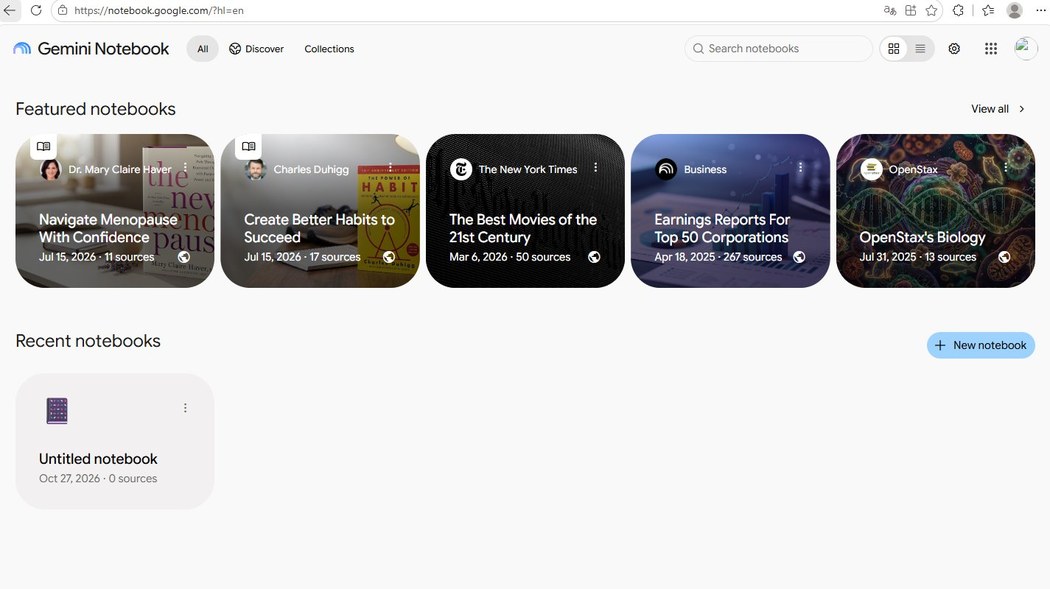
This is the part that separates it from a chatbot. You do not start with a blank question. You start by giving it material — a PDF, a web page, a YouTube link, notes you pasted in. The add-sources panel offers uploaded files, websites, YouTube, Play Books, Google Drive and pasted text. We used two: our own Canva book-cover article by URL and a Chinese resume PDF.
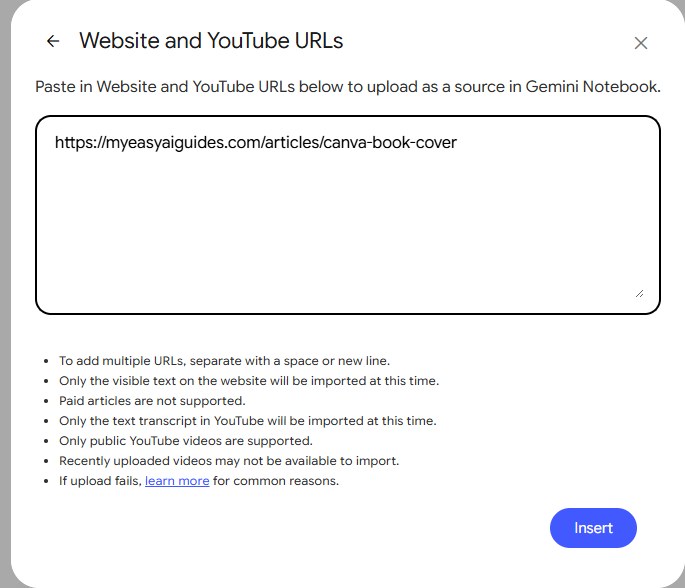
Those notes are not decoration. A page that loads its text through JavaScript may come through half-empty, and a paywalled article will not come through at all. If your source is a screenshot or a scanned document, upload the image rather than linking to it.
Answers come with receipts
Ask it something and every claim in the reply carries a small numbered chip. Click one and it takes you to the exact passage in the source. Our first question was about the key findings across both documents. The answer kept our measured figures — 1410 × 2250 pixels, 350 seasonal swimwear style guides, a 20% saving on materials — each with its own chip. Figures from the English article survived a question asked in Chinese, with the citations still attached.
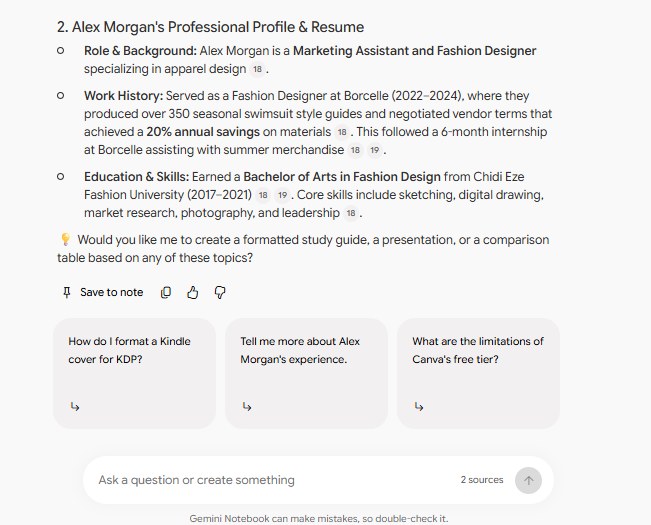
The citations are the useful bit, not a gimmick. When two of our sources disagreed about accepted file formats, the tool reported the disagreement and cited both passages instead of picking one and sounding confident. That is a different failure mode from a chatbot, which will happily invent a resolution.
Nine things it can make
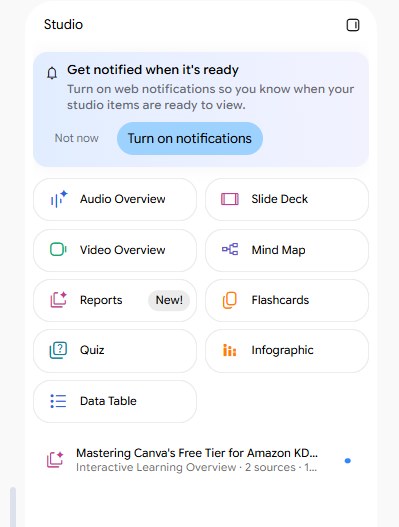
The Studio panel lists nine outputs: Audio Overview, Slide Deck, Video Overview, Mind Map, Reports, Flashcards, Quiz, Infographic and Data Table. Reports carry a "New!" tag. We ran four of them on the same two sources.
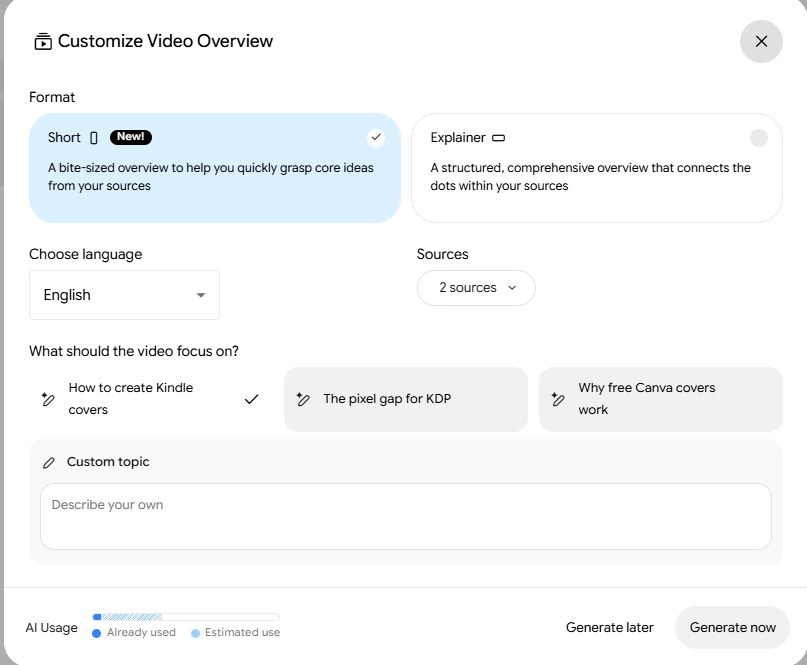
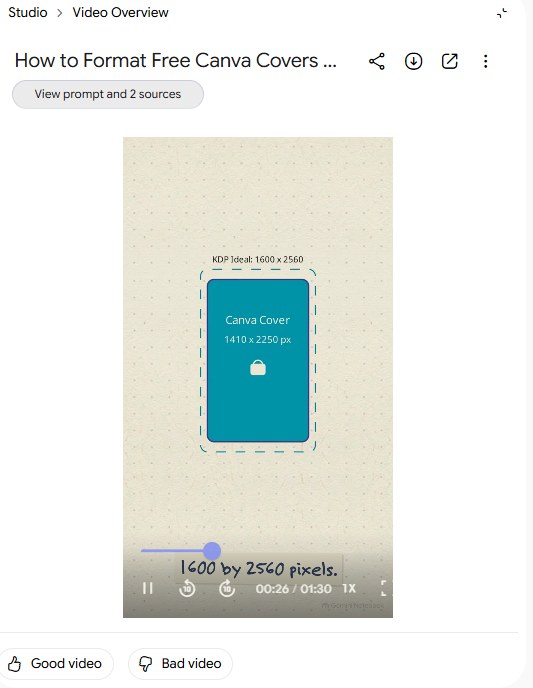
Video Overview is the newest one. The dialog asks what the video should focus on and offers topics pulled from your sources — ours suggested "How to create Kindle covers", "The pixel gap for KDP" and "Why free Canva covers work". We picked Short in English and got a 90-second animated explainer that diagrammed our exact numbers: a dashed frame labelled "KDP ideal 1600 × 2560", a smaller card reading "Canva Cover 1410 × 2250 px" and a padlock icon for the Pro-locked size slider.
Audio Overview is the format that made the tool famous. Four options sit behind it — Deep Dive, Brief, Critique and Debate — with Short, Default or Long length. We ran Deep Dive on Default. Two AI hosts talked through our sources for 26 minutes 34 seconds, interrupting each other and getting the figures right. The download was 51.3 MB at 256 kbps; we compressed it to 12.7 MB to put on a web page.
What it isn't
It is not a search engine. Ask it something outside your sources and it will say the sources do not cover it. It is not a general chat partner either — there is no useful reason to ask it to write a poem. And it is not a substitute for checking the original document. The page itself says Gemini Notebook can make mistakes, so double-check it; we saw a citation lead to the wrong line once in three questions.
The quota is the other thing tutorials gloss over. The old "50 chats a day, 3 audio overviews a day" numbers describe an earlier system. What we found refreshes every five hours, with a separate weekly limit on top. One report, one mind map and one 90-second video took 73% of the window. Generating two more things in the same afternoon is not a reliable plan.
Who this actually helps
Students working through a reading list. Anyone summarising a long contract or a stack of research papers. People who need to interrogate their own documents in a language other than the one they were written in — our Chinese question against an English article and a Chinese PDF worked better than we expected. It is less useful if your work is mostly open-ended writing or general questions, where a normal chatbot is the better tool.
Frequently asked questions
What is NotebookLM used for?
It is a research tool that answers questions using only the documents, web pages and videos you give it. Every claim carries a numbered citation you can click back to the source passage. We used it to turn one Canva test article and one Chinese resume into summaries, a mind map, a study report, a video and a podcast.
Is NotebookLM the same thing as Gemini Notebook?
Yes, same product. Google renamed NotebookLM to Gemini Notebook starting July 2026 and moved it to notebook.google.com. The old notebooklm.google.com address still redirects there. The interface we tested carries the Gemini Notebook name only.
Is NotebookLM free?
Yes. Everything shown in this article was produced on a free Google account with no payment method attached. Google does offer an AI Plus upgrade for double the usage, but we never hit a paywall inside the product during our test.
How is this different from ChatGPT?
A chatbot draws on general training data and can answer almost anything. Gemini Notebook is built around a fixed set of sources you supply, and its answers are tied to those sources with clickable citation chips. It is narrower on purpose: better for working through a stack of documents, worse for open-ended chat.
What kinds of sources can I add?
The add-sources panel accepts uploaded files (PDF, images, docs, audio and more), website and YouTube URLs, Play Books, Google Drive files and pasted text. Its own fine print says only visible website text is imported, paid articles are not supported, and only public YouTube videos with a transcript work.
Can it make audio and video?
Yes. The Studio panel lists nine outputs: Audio Overview, Slide Deck, Video Overview, Mind Map, Reports, Flashcards, Quiz, Infographic and Data Table. From two sources we generated a 26-minute 34-second two-host podcast and a 90-second animated video on the free tier.
Sources and what we could not test
| Claim | Where it came from | Date checked |
|---|---|---|
| The product calls itself Gemini Notebook at notebook.google.com; the old address redirects | Our own browser, both addresses opened on a free Google account | 27 Oct 2026 |
| Nine Studio outputs, Reports tagged "New!" | Studio panel on our free account, screenshotted | 27 Oct 2026 |
| Only visible website text imports; no paid articles; public YouTube videos with a transcript only | The URL dialog's own seven bullet points, screenshotted | 27 Oct 2026 |
| 90-second video and 26:34 two-host podcast, figures preserved | Outputs generated from our two sources; files downloaded and inspected | 27 Oct 2026 |
| Three generations used 73% of a window that refreshes every 5 hours | AI Usage and Limits page on that account, photographed at that moment | 27 Oct 2026 |
What we could not test: we ran four of the nine Studio outputs — report, mind map, video and audio. Slide Deck, Flashcards, Quiz, Infographic and Data Table were not generated, so we cannot say how good they are. Per-source and per-notebook caps often quoted elsewhere (50 sources, 500,000 words) were not shown to us and we only added two sources. Google publishes no numeric free allowance, so the 73% is what one account showed, not an official limit. The embedded audio and video were recompressed for the web; the sizes quoted are the originals.
Testing design tools too? Start with our 18 free-account Canva tests — crown counts, measured exports, print prices and paywalls, all in one place.