Canva Background Remover on a Free Account: What Actually Happens (and 3 Free Alternatives We Tested)
Most tutorials make it sound simple: open Canva, click Background Remover, done. What they don't tell you is what happens when you're on a free account. We clicked the button ourselves to find out — then tested three free alternatives with the exact same photo, and recorded the download sizes, the watermarks, and the catches that never make it into those tutorials. One of the alternatives is even shutting down in December 2026.
Short answer: the Background Remover button exists on Canva Free, but when you click it, you don't get the tool — you get an upgrade screen. Canva's own comparison table on that screen lists "Remove backgrounds" as a paid feature. The good news: we found a free workaround inside Canva itself, and two of the three outside alternatives we tested removed backgrounds perfectly without costing a cent — one of them at full resolution, no watermark, no catch.
The comparison table (every number comes from our own downloads)
| Tool | Free background removal? | Download size we got | Watermark? | The catch |
|---|---|---|---|---|
| Canva Free (the button) | ❌ Paywall | — | — | Upgrade screen; Pro shown at $18/mo |
| Canva Free (our frame workaround) | ✅ A "cutout look" | 1200×1200 PNG | No | Crops to a shape; not a true cutout |
| remove.bg | ✅ Automatic | 500×500 only | No | Full size is paid; site shuts down Dec 1, 2026 |
| Adobe Firefly | ✅ One click | 1264×1264 full size | No | Honestly? We didn't find one |
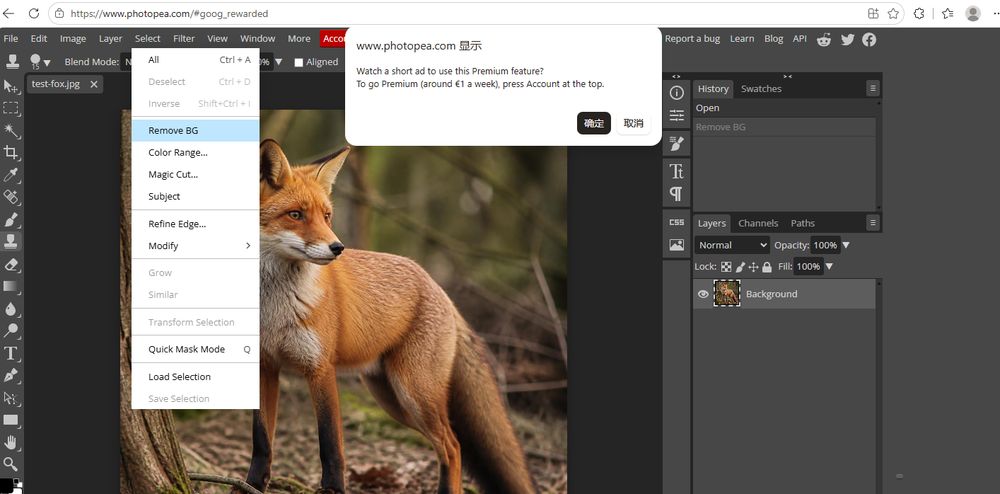
| Photopea | ✅ Manual (Magic Cut) | 1264×1264 full size | No | Needs hand-refining; one-click mode wants you to watch an ad |
How we tested (so you can trust the numbers)
- Same photo everywhere: one image, uploaded to every tool unchanged. The only thing that changes between our screenshots is the tool, not the input.
- Free accounts only: we never clicked "Start free trial", "Upgrade", or anything similar. When a paywall appeared, we photographed it and closed it.
- Only what we saw: every size and price in this article was on our screen or in our downloaded file. When we couldn't verify something, we say so.
- Downloaded, not guessed: "free download size" means the actual file we got after clicking Download on a free account.
Part 1: What happens when you click Background Remover on Canva Free
We logged into Canva with a free account, placed our photo on a 1200×1200 canvas, selected it, and clicked Edit photo. There it is — the Background Remover tool, right in the panel, with a small crown 👑 icon on it. The button is not hidden and not disabled. So we clicked it.
What came up was not a removed background. It was this:
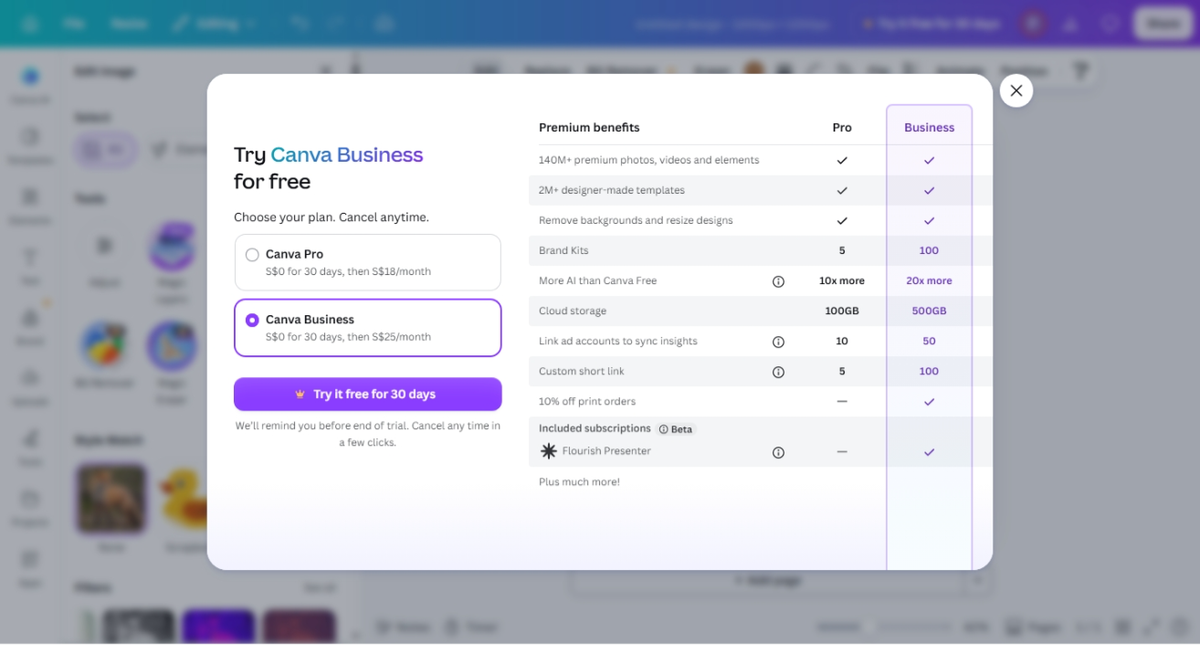
Read that table in the middle of the screen. Canva is being honest here, in its own way: background removal is a paid feature, and the crown icon on the button was the warning sign. The tutorial writers who skip this step aren't lying exactly — they're just showing you the Pro experience and calling it free.
And one more thing most articles never mention: when we later went to download our design, we noticed the export panel locks another thing behind a crown — the Transparent background toggle:
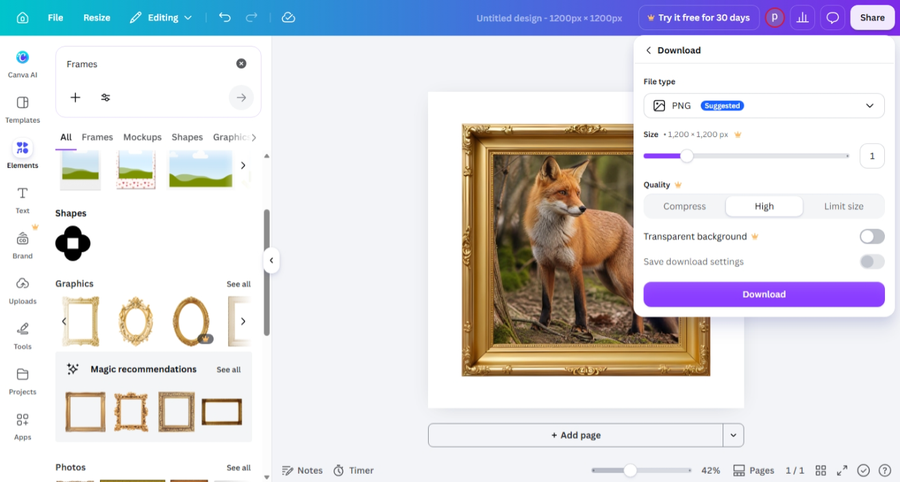
So on Canva Free, both ends of the workflow are locked: removing the background costs money, and exporting with transparency costs money. Keep this in mind — because our workaround below needs neither.
Part 2: The free workaround inside Canva (no payment, no trial)
If what you want is a "cutout look" for a design — a photo neatly cropped into a shape — Canva Free can do that with Frames:
- In the left sidebar, open Elements and search for Frames.
- Pick a shape (circle, square, fancy gold frame — anything) and drop it on the canvas.
- Drag your photo onto the frame. It snaps inside and gets cropped to the shape.
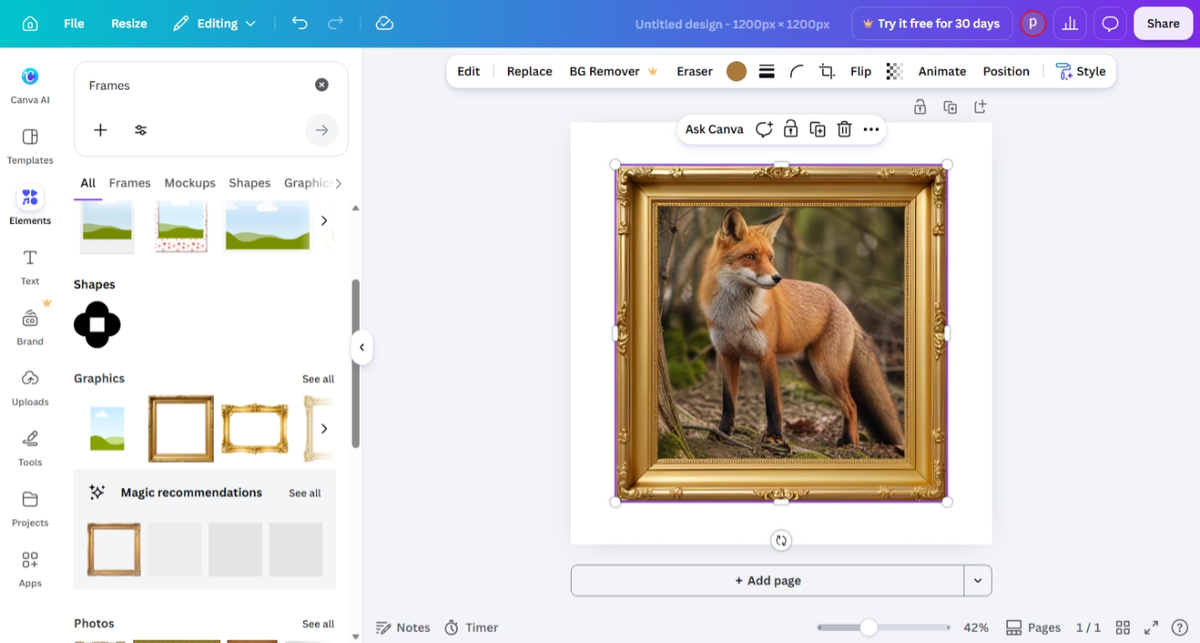
We downloaded the result as a PNG (standard quality, no crown options touched) and got a clean 1200×1200 file. Then, to prove it works inside Canva's own editor, we placed the image back on a page and changed the page background to a gradient:
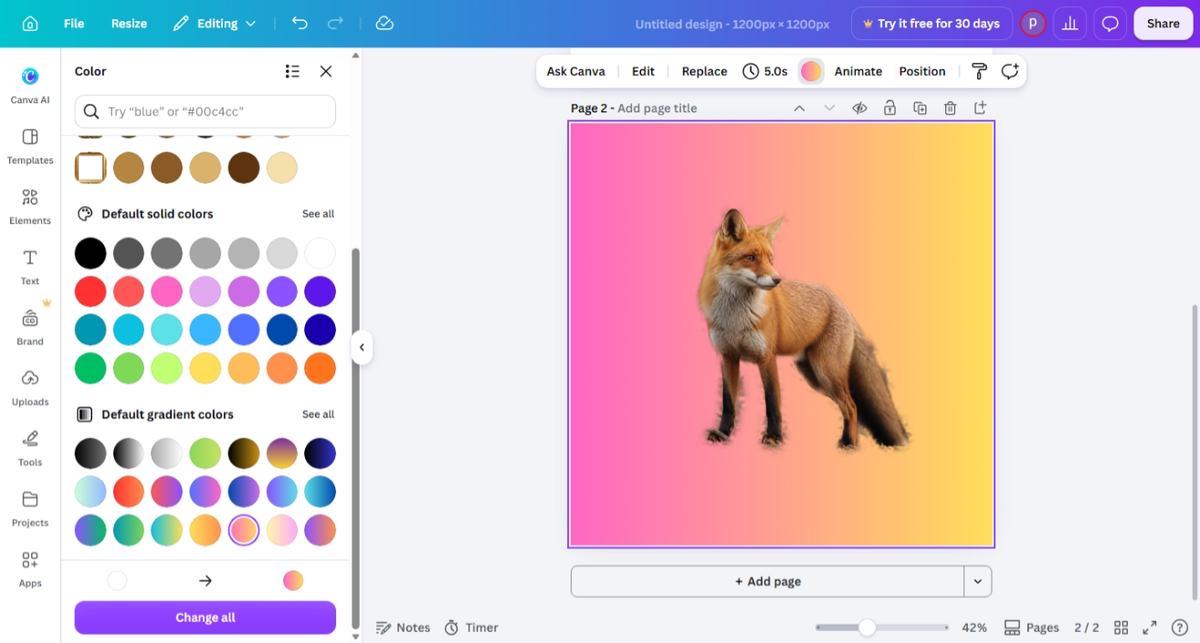
Be clear about what this is and isn't: a frame crops your photo to a shape — it does not intelligently erase the background around a subject. For social posts and simple layouts, that's often enough. For a true "just the fox, nothing else" cutout, you need a real background remover. That's where the next three tools come in.
Part 3: remove.bg — fast and automatic, but tiny downloads (and a deadline)
remove.bg has been the internet's default answer to "how do I remove a background for free" for years. We uploaded our photo, and in seconds it produced a perfect cutout — no account needed.
But two things showed up on the very same screen:
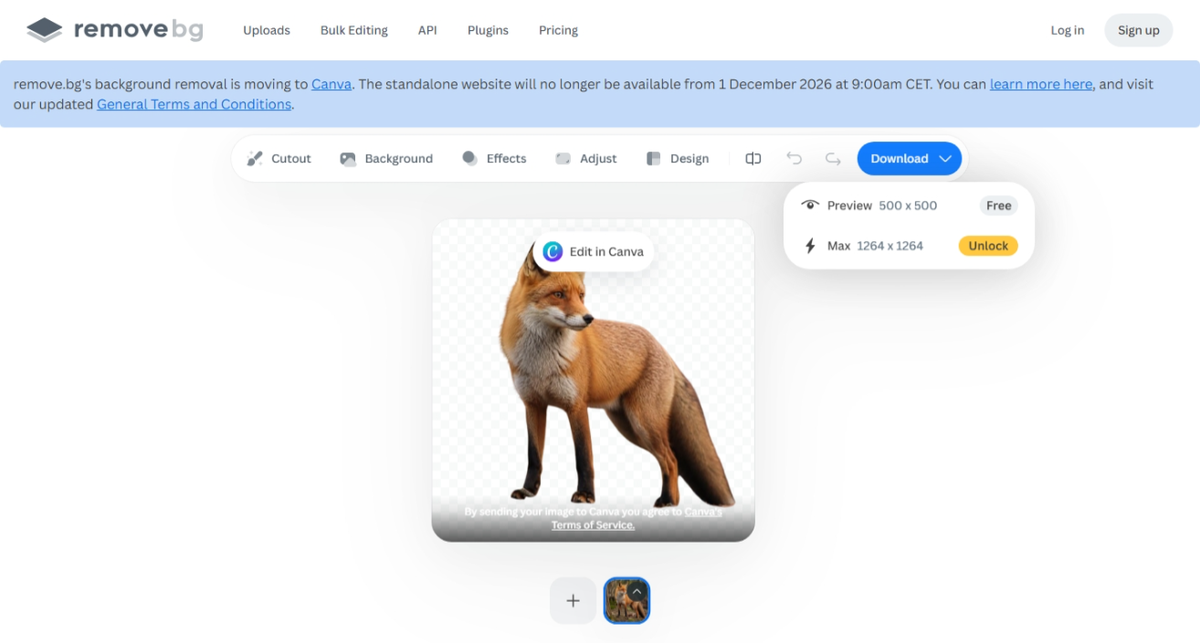
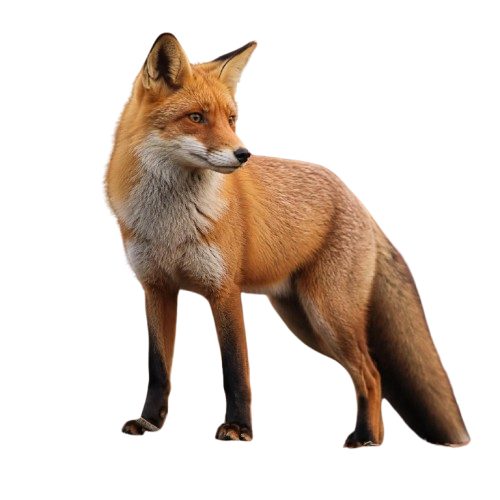
The verdict: remove.bg still works, and the free cutout quality is excellent. But free means a 500×500 file — fine for thumbnails and profile pictures, useless for anything printed or full-screen. And with the site folding into Canva on December 1, 2026, we wouldn't build any workflow around it. Ironically, that means the "free background remover" most blogs recommend will soon funnel you back to... Canva Pro.
Part 4: Adobe Firefly — one click, full size, free
Adobe's free Firefly tool (its background removal is the former Adobe Express feature, now labeled "Powered by Photoshop") was the pleasant surprise of this test. Upload the photo, and it removes the background automatically. No account gymnastics, no watermark, no resolution tax:
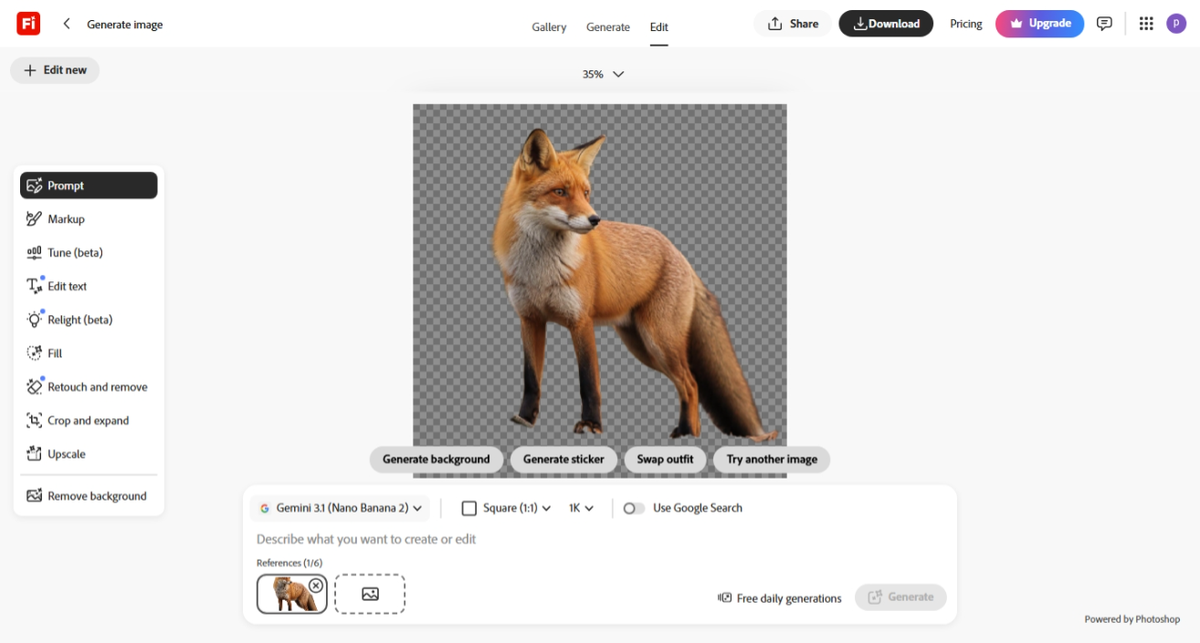
We downloaded the free result and checked the file: 1264×1264 pixels — the exact size of our original photo — with a working transparency channel. Not a shrunken preview. Not watermarked. For a completely free, one-click tool from a major company, this was the best deal in our whole test.
Part 5: Photopea — the free Photoshop in your browser (with homework)
Photopea (photopea.com) is a full photo editor that runs in your browser and looks like Photoshop. It can absolutely remove backgrounds for free at full resolution — but expect to do a little work:
- The one-click route isn't really free: choosing Select → Remove BG popped up a wall asking us to either watch an ad or buy Premium (around €1 per week). We closed it.
- The genuinely free route is manual: Select → Magic Cut lets you paint green over what to keep and red over what to remove.
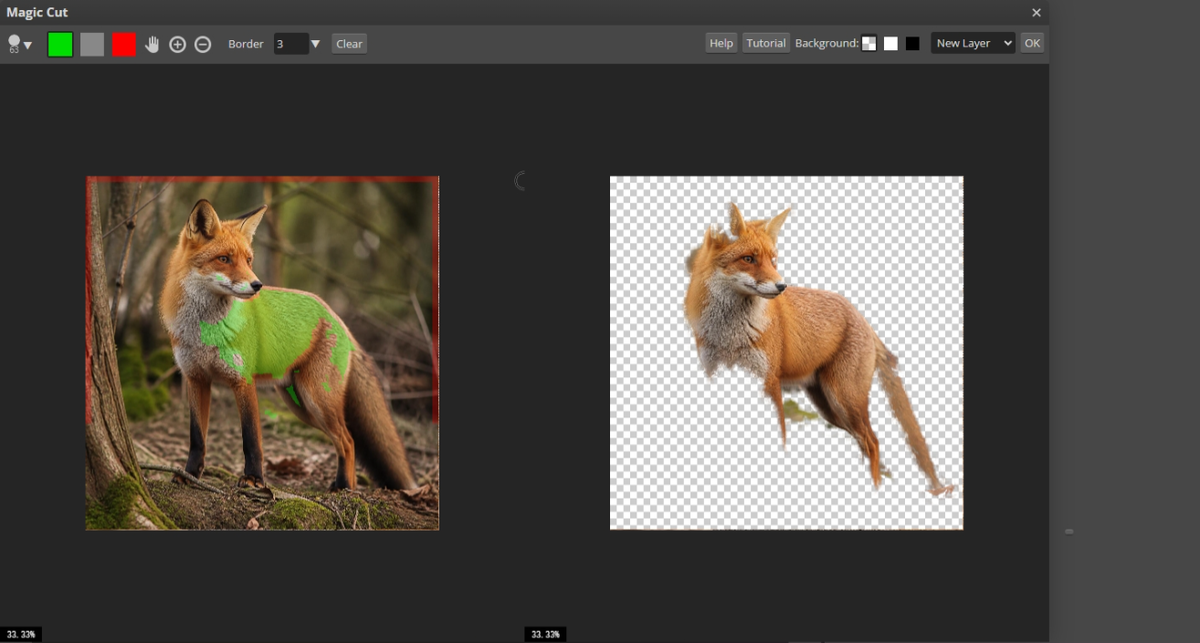
The free downloaded file: 1264×1264, full size, transparency intact, no watermark. If you don't mind two minutes of brushwork, Photopea gives you the same end result as Firefly — with more control over tricky edges, because you decide what stays.
So which one should you use?
| Your situation | Our pick | Why |
|---|---|---|
| You just need a "cutout look" for a Canva design | Canva Frames | Stays inside Canva, free, instant |
| You want a true cutout with zero effort | Adobe Firefly | One click, full resolution, free, no watermark |
| You need precise control over edges | Photopea Magic Cut | Manual but precise, full resolution, free |
| You saw remove.bg recommended somewhere | Skip it (after Dec 1, 2026 it's gone) | 500×500 free downloads; site shutting down |
| You specifically need it inside Canva with one click | Canva Pro ($18/mo on our screen) | The honest price of convenience |
FAQ
Is Canva's Background Remover free?
No. On a free account, clicking it opens an upgrade screen. Canva's own feature table there lists "Remove backgrounds" as a paid capability. Canva Pro was shown to us at $18/month.
How do I remove a background in Canva without paying?
Two ways, depending on what you need: use Frames (Elements → search "Frames") for a shape-cropped "cutout look" that stays free, or remove the background in Adobe Firefly and upload the result back to Canva — which works fine, transparency included, as our verification screenshot shows.
Is remove.bg shutting down?
Per the banner on its own result page when we tested, the standalone remove.bg website "will no longer be available from 1 December 2026" as it moves to Canva. Plan accordingly.
What's the best free background remover in 2026?
In our test: Adobe Firefly for one-click convenience at full resolution, Photopea for control, and Canva Frames for quick shape crops. remove.bg works but gives free users only a 500×500 preview and is sunsetting.
Wrapping up
The Canva Background Remover is genuinely good — if you pay. On a free account, the honest picture is this: the button leads to a paywall, but you're not stuck. A free frame gets you the cutout look, Firefly gets you a real cutout for free at full size, and Photopea gets you one with full manual control. And when you bring a transparent PNG back into Canva Free, everything works — we verified it ourselves.
If you're mapping out what else Canva Free can and can't do, our Canva Free vs Pro: what we actually saw covers it with the same screenshot-first approach. Curious how free AI tools compare beyond editing? Read our 6-tool free AI image generator comparison, or learn which export format to pick in Canva so your cutouts stay crisp.
This guide is one of our 18 free-account Canva tests — crown counts, measured exports, print prices and paywalls, all in one place.