Canva Export Formats Explained: PNG vs JPG vs PDF (Tested on a Free Account)
You finished your design, you click Share, you click Download — and Canva hands you a list of seven formats with cryptic names. We made one test design on a completely free account and exported it in every format we were allowed to, then weighed the files on disk. Here is what each one does, what it costs, and which one you should actually pick.
Short answer: six of the seven export formats are free (JPG, PNG, PDF, MP4 video, GIF, PPTX). Only SVG carries a crown and needs Pro. We exported PNG, JPG and PDF successfully on the free plan with no watermark and no payment screen. The one genuine limitation is transparent background — on our account it triggered an upgrade popup, and we'll show you the proof three different ways below.
This article is the third part of what we call our Canva series. If you haven't made anything yet, start with how to design your first graphic; if you're still deciding whether paying makes sense, read our Canva Free vs Pro test.
The one design we exported seven ways
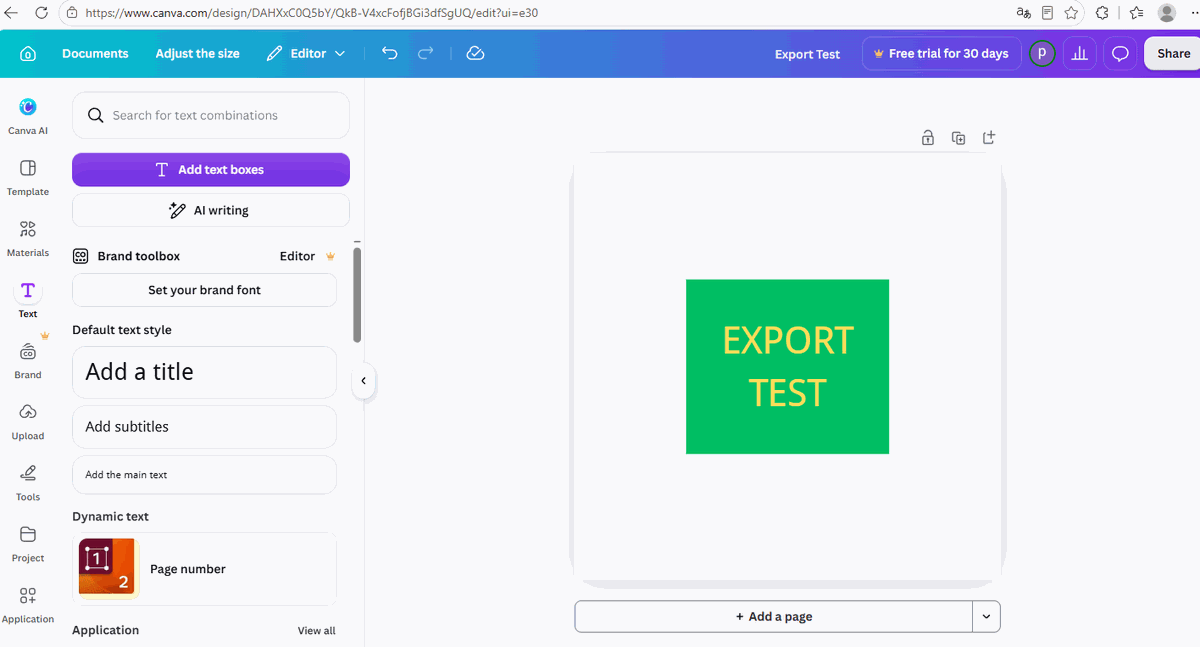
To keep the comparison honest, we used exactly one design for everything: an 800 × 800 pixel canvas with a green square and yellow "EXPORT TEST" text on it. Nothing fancy on purpose — flat colors and sharp edges are where format differences show up most clearly.
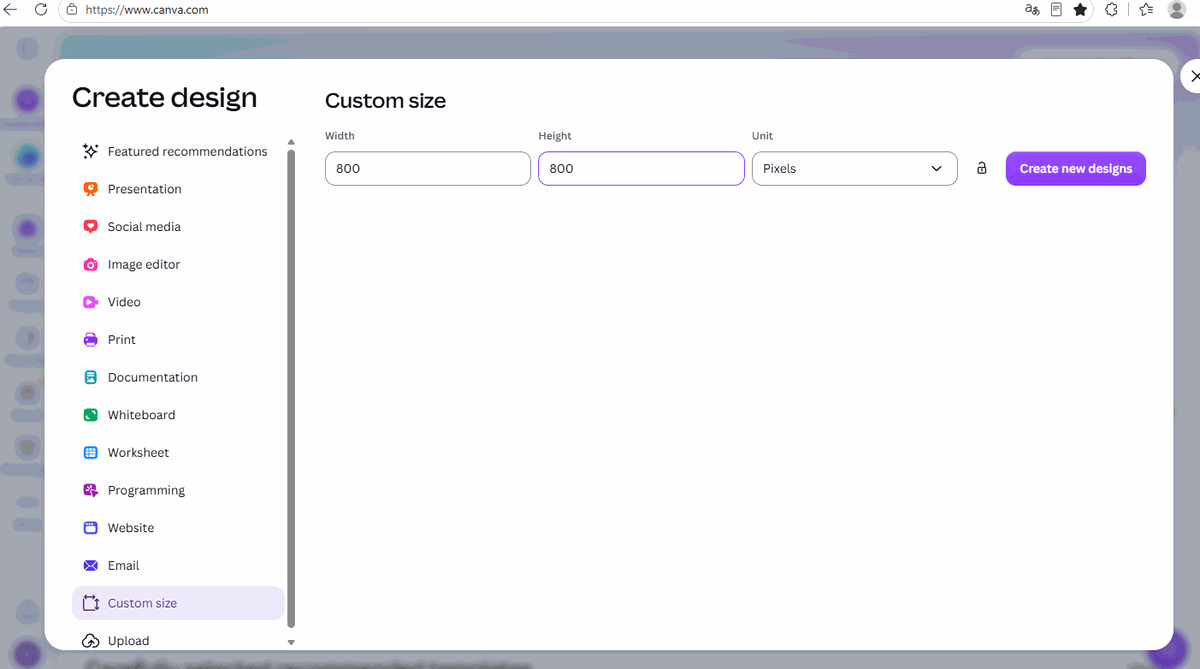
Building it took four clicks: Custom size from the home page, type 800 into both width and height, then Create new design.
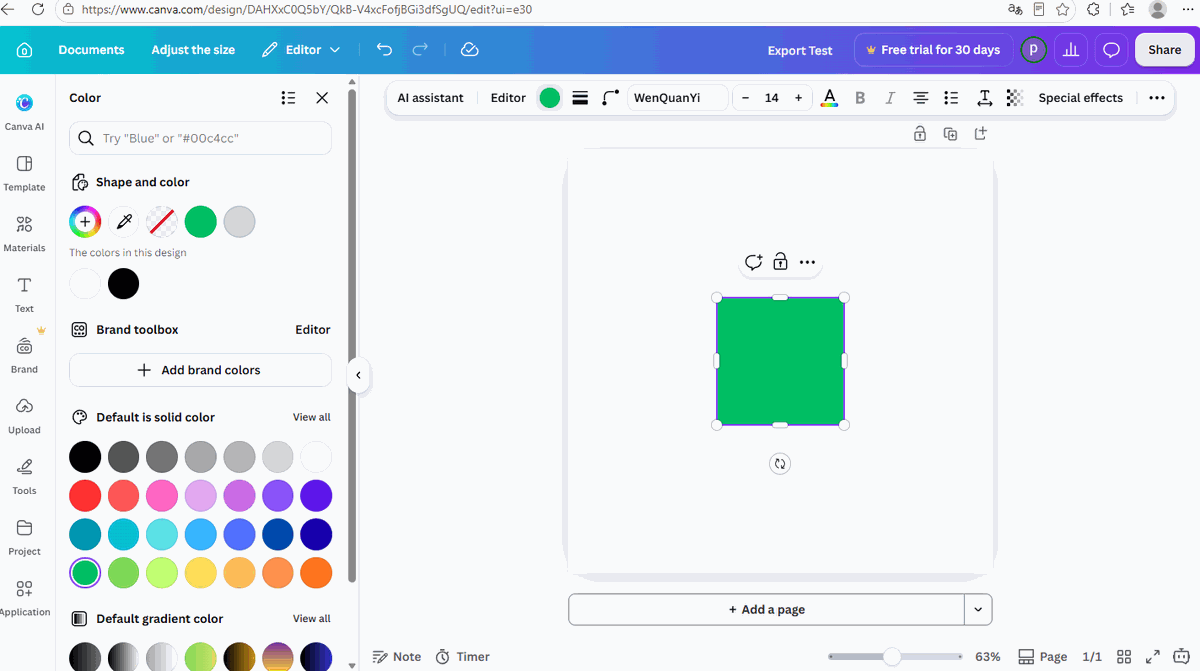
Inside the editor, Elements gives you shapes (we took the plain square), the little circle in the top toolbar opens the colour panel, and Text → Add a heading drops in your headline.
The full list: seven formats, six of them free
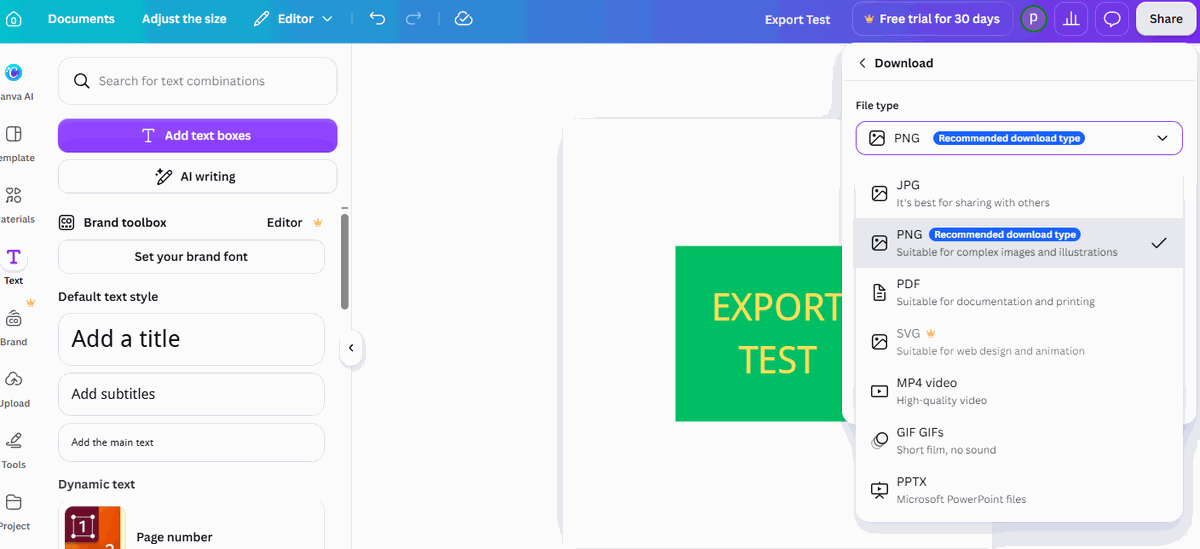
Click Share in the top-right corner, then Download, and open the File type dropdown. That dropdown is the whole menu — here it is, in full:
| Format | In plain English | Free? |
|---|---|---|
| JPG | The universal photo format your phone and every website understands | Free |
| PNG | Sharper than JPG for graphics and text (Canva's default pick) | Free |
| Document files — with two different presets (see below) | Free | |
| SVG | A vector file that scales to any size without blurring | Pro only |
| MP4 video | Turns animated designs into a video file | Free |
| GIF GIFs | Short looping animation, no sound | Free |
| PPTX | Opens your design in Microsoft PowerPoint | Free |
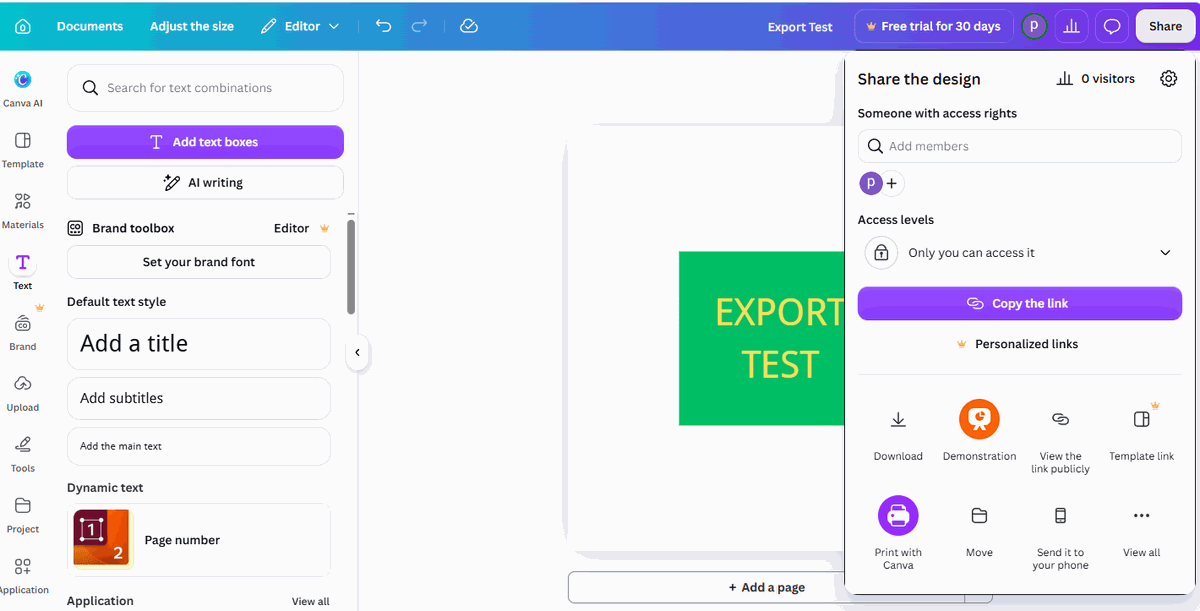
A detail worth noticing in the share menu itself: some entries there — like Template link and Print with Canva — also carry crowns. The crown is Canva's single consistent symbol for "this costs money," and it shows up before you click, not after.
Test 1: exporting PNG (the default)
PNG is pre-selected and labelled the recommended download type. The panel shows your size (ours read 800 × 800 pixels), a Quality setting, and that crowned Transparent background toggle we'll come back to.
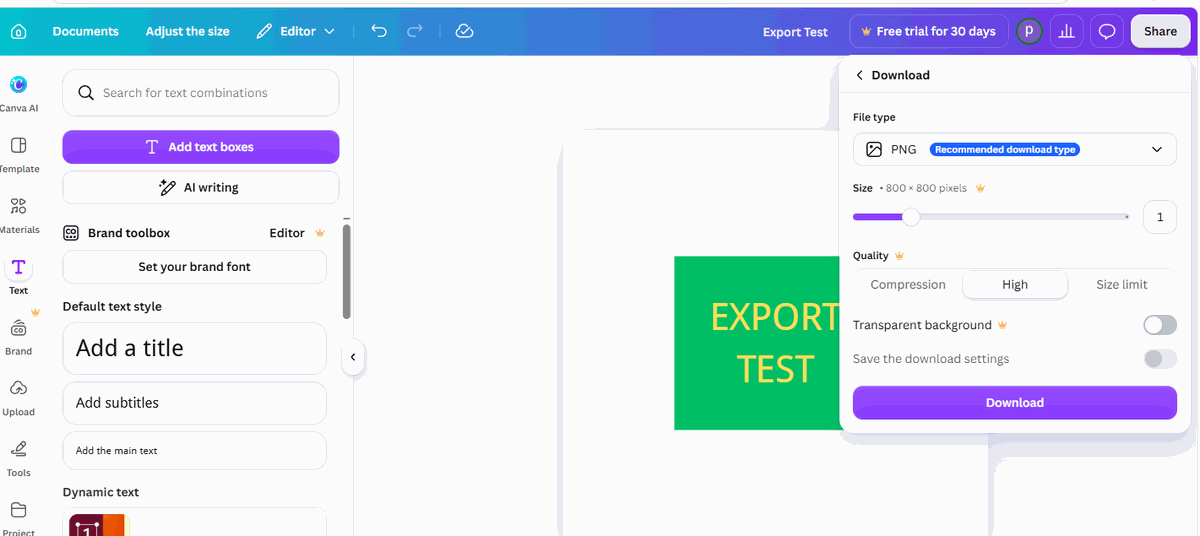
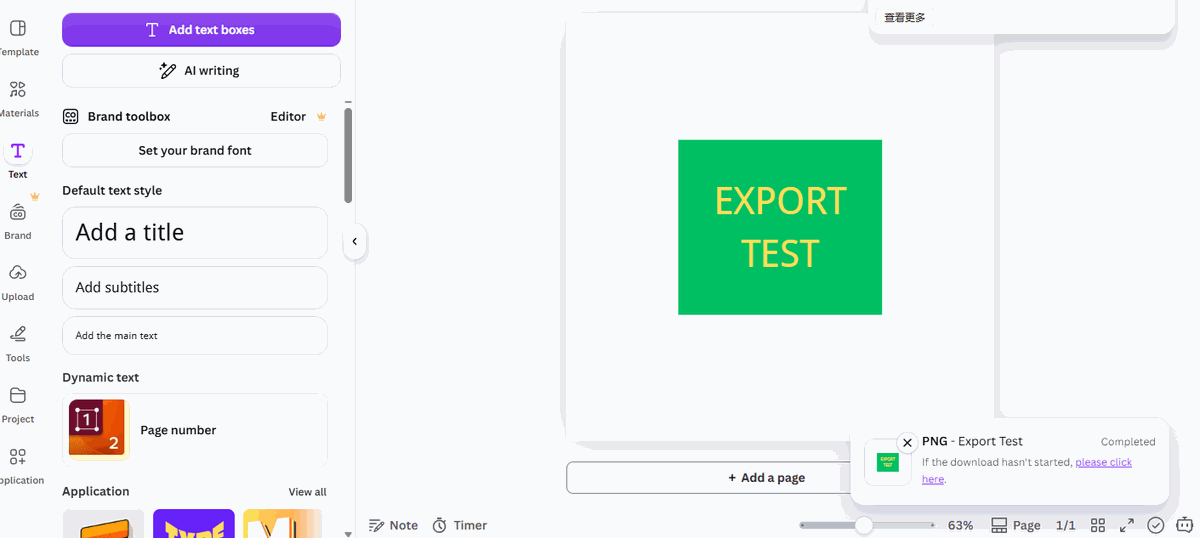
We hit Download with everything left at its default. A few seconds later the download finished normally, with no upgrade screen and no watermark.
Test 2: exporting JPG — and something is missing
Switch File type to JPG and the panel quietly changes. Compare it with the PNG panel above: the Transparent background row is gone entirely.
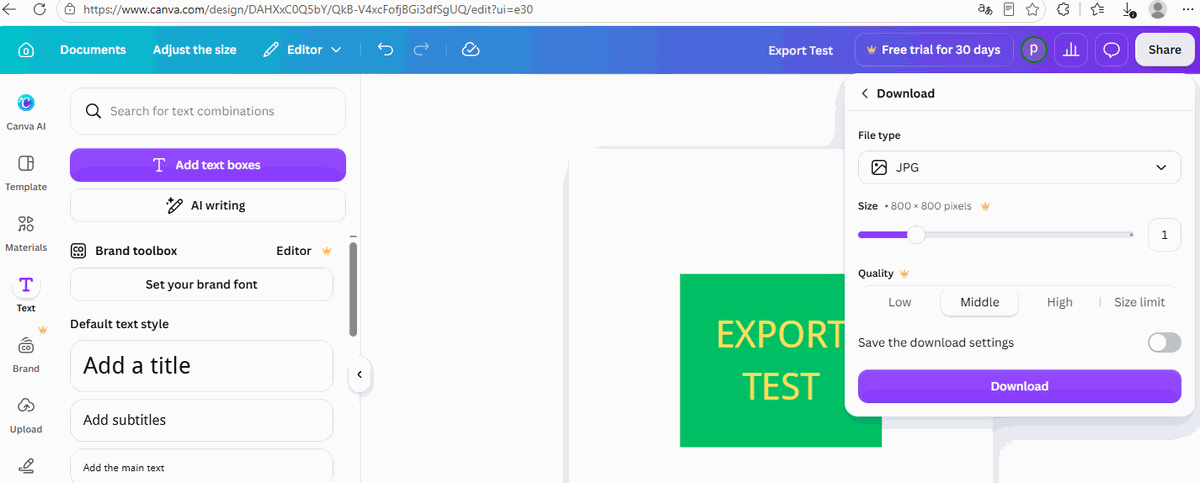
That absence is the answer to a question people ask constantly: "why can't I get a transparent JPG?" You can't, in Canva or anywhere else. JPG has no way to store transparency — if you need a see-through background, PNG is the only image option, and if you look again, that switch sits behind a crown.
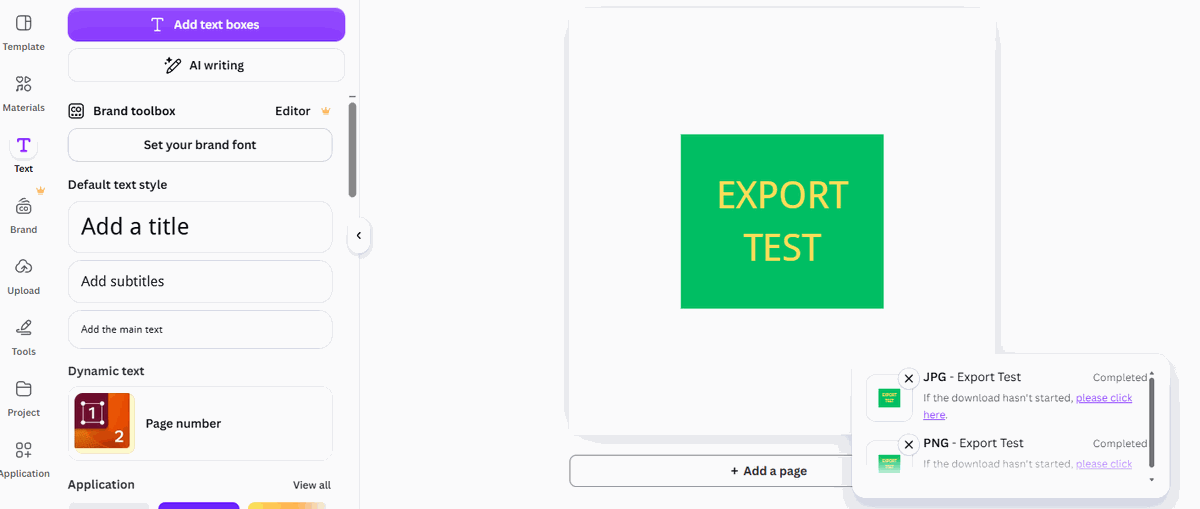
JPG exported cleanly too:
Test 3: exporting PDF — two presets hiding here
Choose PDF and a new row appears that the image formats don't have: Preset, offering Electronics (for reading on screen) or Print (for sending to a printer). There's also a Compress PDF switch, and behind Advanced settings you can add password protection.
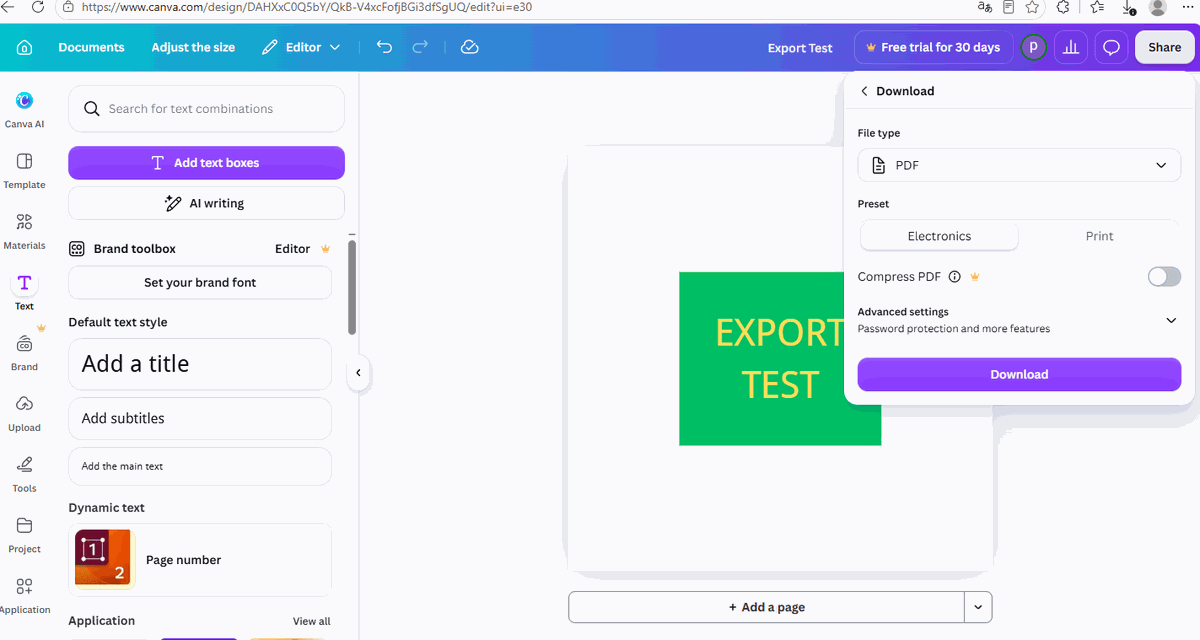
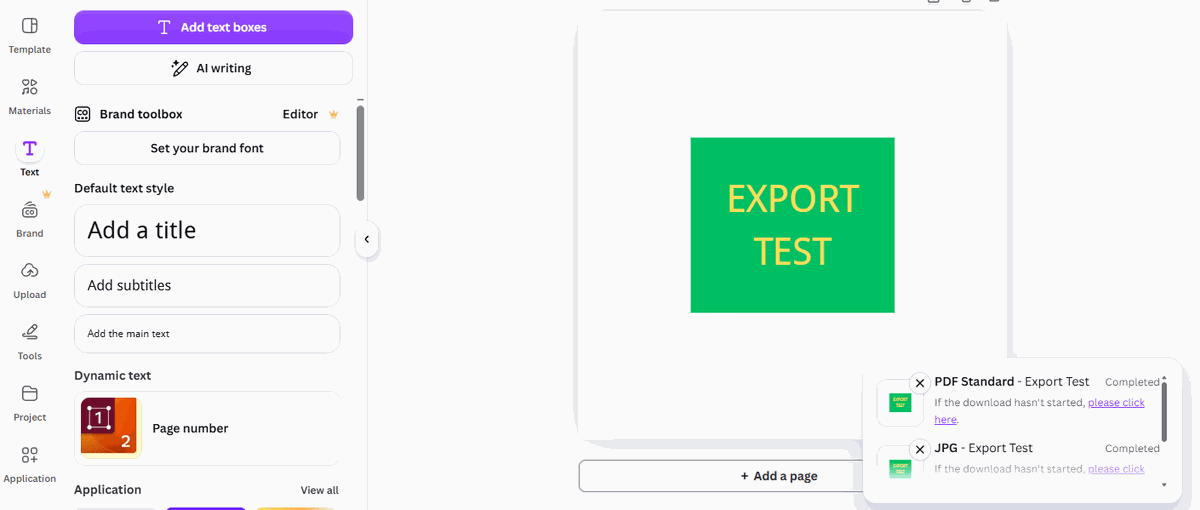
A small inconsistency worth knowing about: we exported with the Electronics preset, and the completion message called the file "PDF Standard". Same thing, two different names in two different places — don't let it confuse you.
The numbers: one design, three formats, weighed on disk
All three files are the same 800 × 800 design. Here are the real file sizes as they landed on our computer:
| Export | File size | Recommended for | Free |
|---|---|---|---|
| PNG | 12.3 KB | Logos, icons, screenshots, anything with text or flat colour | Yes |
| JPG | 23.3 KB | Photographs and photo-heavy designs | Yes |
| 15.3 KB | Documents, handouts, anything people will print | Yes |
Look at the first two rows again, because this surprises almost everyone: the JPG came out nearly twice as heavy as the PNG — 23.3 KB against 12.3 KB. Everybody "knows" JPG is the small one, and for photographs that's true. But JPG was built to compress photos; our design is flat colour blocks and sharp-edged lettering, which PNG packs away far more efficiently.
Practical rule, straight from our measurement: if your design is mostly photos → JPG. If it's mostly shapes, logos or text → PNG. Choosing by habit instead of by content cost us almost double the file size in this test.
The transparent background question — three pieces of proof
Transparent-background PNG is the feature people search for most, and old tutorials online confidently say free Canva users have it. We tested it three ways on our account, and none of them said yes.
Proof 1: the crown sits right next to the toggle
Before you touch anything, the Transparent background row already carries the golden crown. In Canva's own language, that means paid.
Proof 2: clicking it opens a payment screen
We clicked it anyway, which is where the interesting screenshot came from — an instant upgrade popup pushing a paid trial:
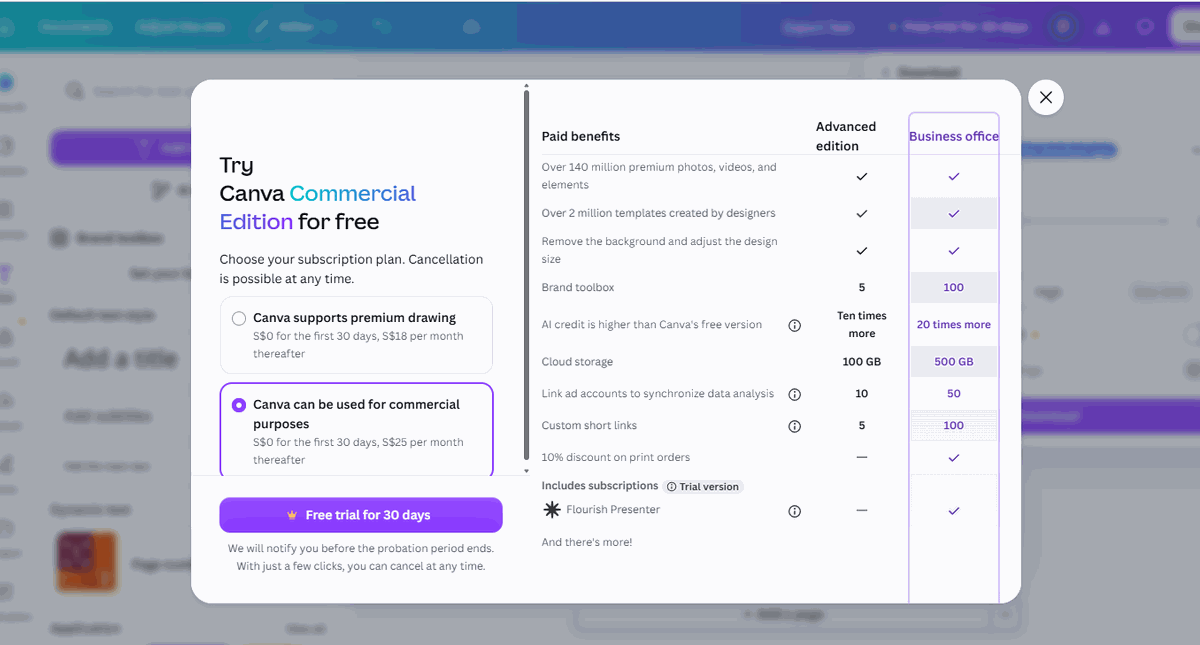
We closed it and continued, with the toggle left off:
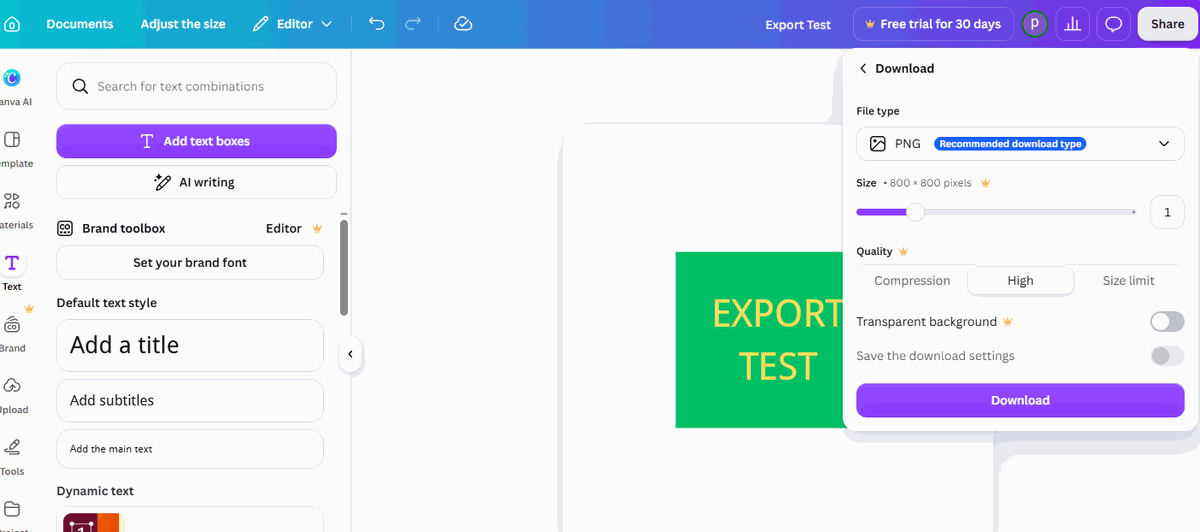
Proof 3: we looked inside the exported file itself
This is the part no other article shows you. We took the PNG we had just downloaded and dropped it onto a dark purple background to see what happens:
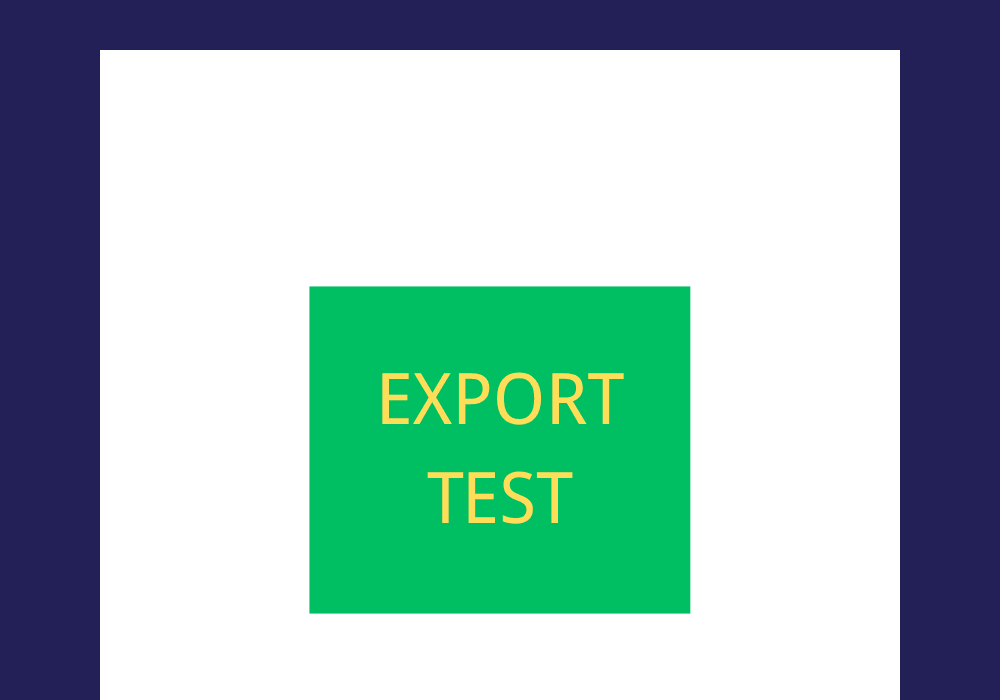
Checking the file itself confirmed it: the PNG has no transparency channel, and its corner pixel is pure white (255, 255, 255). Three independent checks, one conclusion — on the free plan, transparency is not available.
And Canva's own help page agrees
After our test, we checked Canva's official help center. Their page on transparent backgrounds states it plainly: transparent-background downloads are "only available to Canva Pro, Canva Teams, Canva Business, Canva Education, and Canva for Nonprofits plans." Free isn't on the list. So this isn't just our account or our day of testing — it's the documented, current state of the product. Plenty of older tutorials online still claim transparency is free; those articles are out of date, and their advice ends in exactly the white box you saw above.
So which format should you use?
| You want to… | Export as |
|---|---|
| Post it on Instagram, Facebook or X | PNG (graphics) or JPG (photos) |
| Print it at home or at a shop | PDF with the Print preset |
| Email a document someone reads on screen | PDF with the Electronics preset |
| Make a short looping animation | GIF |
| Continue editing in PowerPoint | PPTX |
| Scale a logo to any size without blurring | SVG — Pro only |
| Get a see-through background | PNG with transparency — Pro only |
Is free Canva enough for exporting?
For most people, yes — comfortably. We exported every everyday format a normal user actually needs (PNG, JPG, PDF, even GIF and video) without paying, without hitting a watermark, and without being interrupted by a sales screen. The file arrived at the right size, at a sensible weight, ready to post.
The free plan stops in exactly two places: transparent backgrounds and SVG vector files. If you post graphics online, hand out PDFs or print things occasionally, you will likely never notice either of those gaps. You'd only care if you regularly prepare logos for clients or need background-free images — and even then, there are free workarounds outside Canva. The same pattern showed up when we exported a QR code: PNG came out clean and free, while SVG was marked Pro — see our Canva QR code generator test.
FAQ
Is PNG always better than JPG?
No. For photographs JPG is the better choice and usually produces a smaller file. For flat graphics, logos and text-heavy designs PNG wins — in our test it produced a 12.3 KB file where JPG produced a 23.3 KB one from the same design.
Can free Canva users export transparent PNG?
Not on the account we tested. The toggle carries a crown, clicking it triggers a paid-trial popup, and the exported PNG file itself contains no transparency — its background comes out solid white.
What's the difference between the Electronics and Print PDF presets?
Electronics optimises the file for reading on a screen; Print prepares it for paper, which changes how colours and quality are handled. If the file is going to a printer, choose Print; for emailing or sharing online, choose Electronics.
Do free exports have watermarks?
Our PNG, JPG and PDF exports were completely clean. Watermarks only appear when you deliberately use a crowned (Pro) element in your design — and Canva shows you that watermark on the canvas before you export, so nothing is hidden.
Why does Canva recommend PNG by default?
Because most Canva designs are graphics rather than photographs — text, shapes, logos, social posts — and PNG keeps those sharper than JPG does. If your design is one big photo, switching to JPG is reasonable.
This guide is one of our 18 free-account Canva tests — crown counts, measured exports, print prices and paywalls, all in one place.