Canva Book Covers on a Free Account: the Ratio Is Right for Kindle, the Pixel Count Isn't — and KDP Won't Take Your PNG
Amazon KDP asks for 1600 × 2560 pixels, a height-to-width ratio of 1.6, under 50 MB, in TIFF or JPEG. Canva's free book-cover template gives you 1410 × 2250. We downloaded it, opened the file in a hex-level image inspector, and put every number KDP publishes against every number Canva actually produced. The ratio is nearly perfect — off by six pixels in height at that width. The pixel count is short by 190 wide and 310 tall, which is exactly the amount Canva locks behind the Pro crown on the export slider. And the format you get by default is the one KDP's main spec page doesn't list. This is the ninth Canva category we've pulled apart on a free account.
Short answer: Yes, a free account can make a book cover — and Canva's template is secretly built for Kindle, not for print. The template is labelled 1410 × 2250 px and our exported PNG measured exactly 1410 × 2250, so the label is honest. Its ratio is 1.5957 — KDP's ideal is 1.6, a gap of 0.27%, while a standard 6 × 9 inch print cover would be 1.5, a gap of 6.4%. That is not a coincidence: this template was drawn for Amazon's ebook spec. But you land 190 px short of KDP's 1600 px width and 310 px short of its 2560 px height — you need only 1.13× more pixels, and that 1.13× sits behind the crown on the size slider. Two more things worth knowing before you publish: the exported PNG weighs 2.56 MB while the same file as JPEG weighs 0.53 MB, and KDP's own help pages disagree about whether PNG is even accepted (one lists TIFF/JPEG only, another lists PNG). Crown density was 6 of the first 20 (30%), then it thinned out at depth — 3 crowns in results 21–40, 5 in 41–60 — the opposite pattern from invitations. Every number below has a screenshot behind it.
How we ran the test
Free Canva account, browser only, no trial, no card. We searched "book cover", counted Pro crowns at three depths, opened a free template and recorded Canva's stated dimensions, replaced the title and author name, opened the font list, then downloaded the design as PNG and as PDF. Afterwards we loaded both files into a script and read the real pixel dimensions, the real colour mode, the real file sizes, and — for the PDF — the actual page box and the resolution of the image embedded inside it. Every figure in this article came out of those files, not out of Canva's interface.
Step 1: Crown density — 30% up front, then it thins out
Six of the first 20 "book cover" results carried the Pro crown: 30%. That puts book covers in the middle of the nine categories we've counted — lighter than invoices (8–10/20) and YouTube thumbnails (7/20), heavier than brochures and posters (3/20) and invitations (2/20).
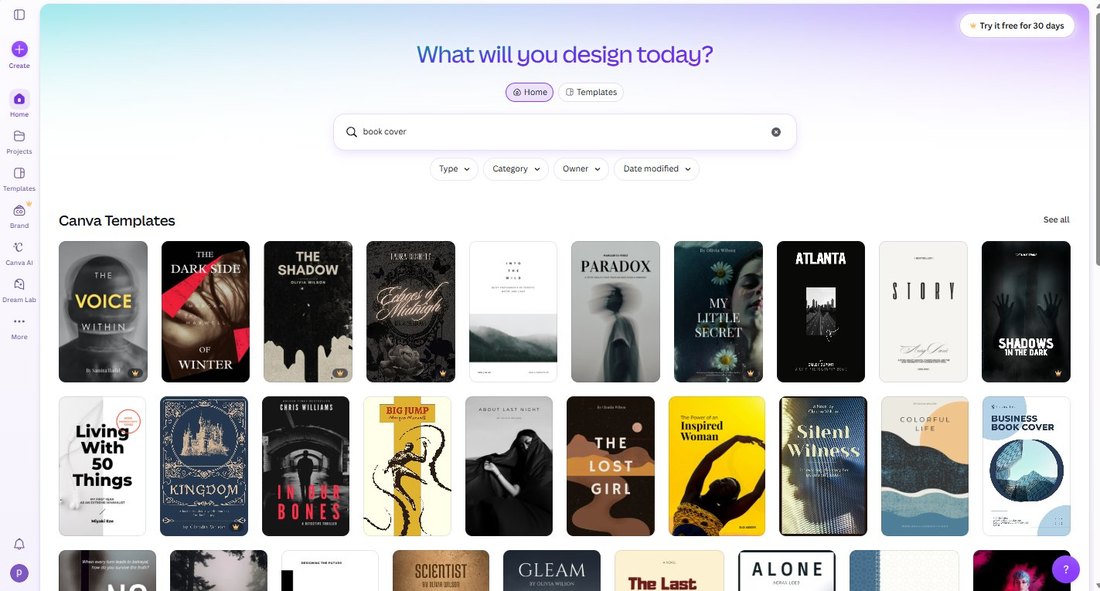
Then it did something we hadn't seen yet. Results 21–40 held only 3 crowns (15%) and results 41–60 held 5 (25%). So this shelf gets cheaper as you scroll. Compare that with invitations, where the first screen was the cleanest we ever measured at 2/20 and then jumped to 60% from result 21 — a bait shelf. Or YouTube thumbnails, where 35% held flat at every depth. Book covers are a third shape: a moderately crowned front page, then a genuinely deeper free shelf behind it.
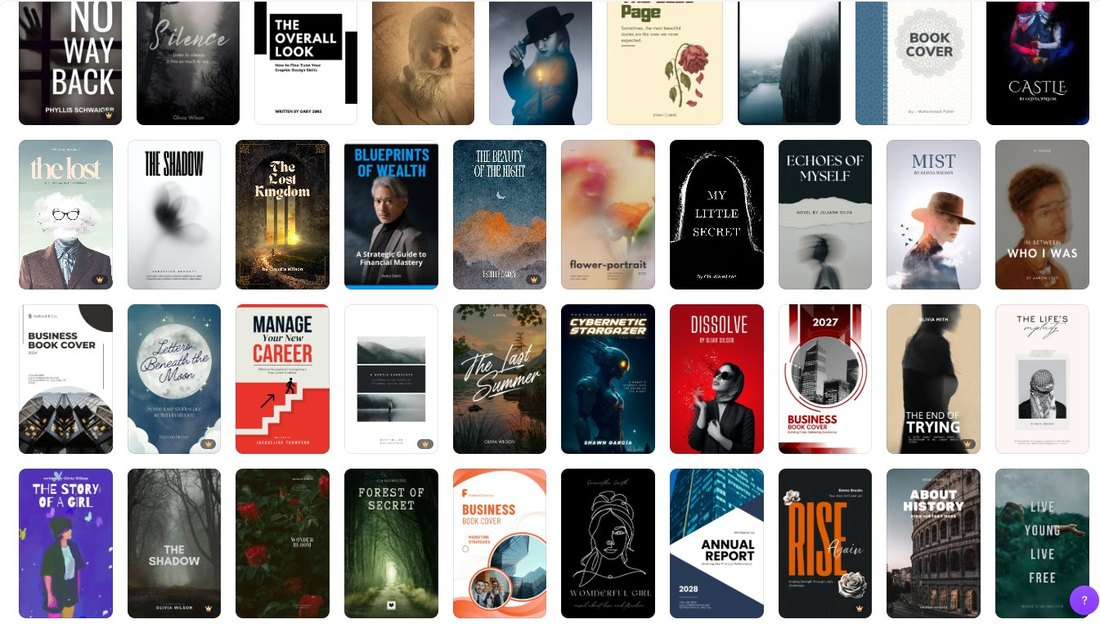
The practical read: if you can't find a free book cover you like on page one, keep scrolling. Unlike invitations, depth here is your friend.
Step 2: The template states its size — and it's a Kindle size
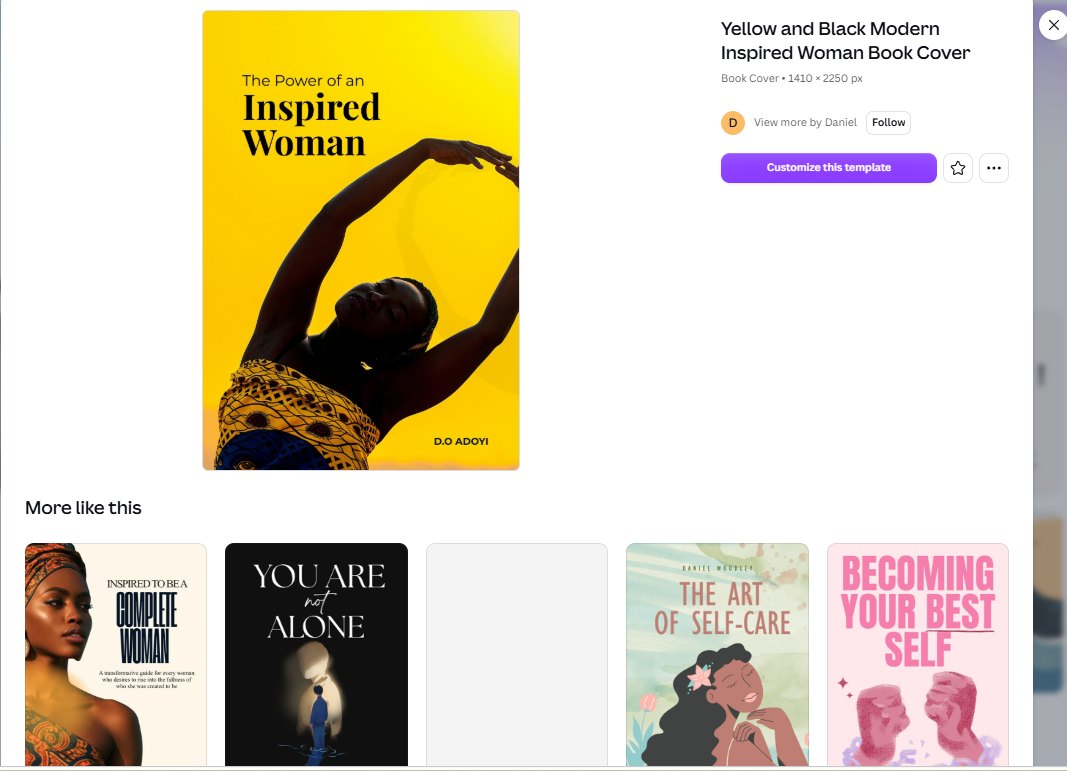
We opened "Yellow and Black Modern Inspired Woman Book Cover", a free template. The detail page prints its spec plainly: Book Cover · 1410 × 2250 px. That number is the whole story of this article, so hold onto it.
Editing was free, with zero paywall prompts. We replaced the title with "The Quiet Algorithm" and the author line with "M. HARTLEY". Text boxes behaved — with one small, very ordinary catch: in the template's title box, the word "Algorithm" broke across two lines, leaving a lonely "m" on a third line. Eight letters don't fit where the designer's placeholder six did. Nobody warns you about that, and it's the kind of thing you only notice at full size, so check your own title character by character before you export.
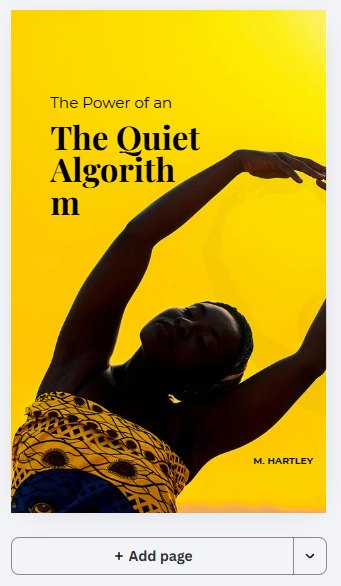
We also left the template's tiny top line ("The Power of an") in place, deliberately, to demonstrate the mistake every first-time book-cover author makes: the small text is easy to forget, and a cover that says one title in big letters and a different phrase in small letters is exactly what KDP's guidelines warn against when they ask you to check for "placeholder/template text".
Step 3: The font wall, eighth time — same names, same crowns
Scrolling the font list produced the by-now-familiar sight. Apelline, ARCHITYPE RUBETTE and architype bayer type all wore the crown, and "Upload a font" carried a crowned "Learn more" beside it. That is the eighth category in which we've hit this same wall, and by now the pattern is not a pattern, it's policy: Canva's font paywall is global, not per-category. The interesting-display end of the list is locked everywhere, from invitations to thumbnails to book covers.
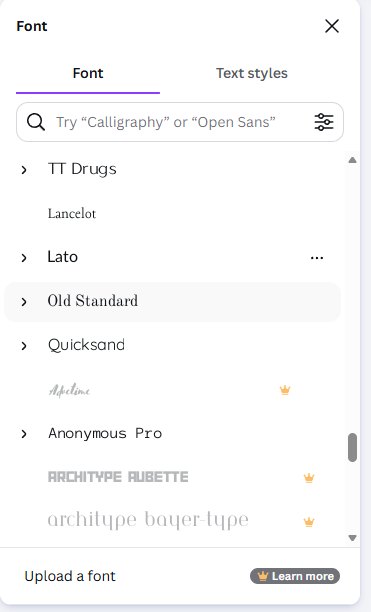
For a book cover this stings more than for a thumbnail. Font choice is most of a cover's identity, and the free list is fine but generic. If you're publishing commercially and the cover is the product, this is the single strongest argument for Pro that we've found in nine categories.
Step 4: The export panel — three crowns, and an honest 1×
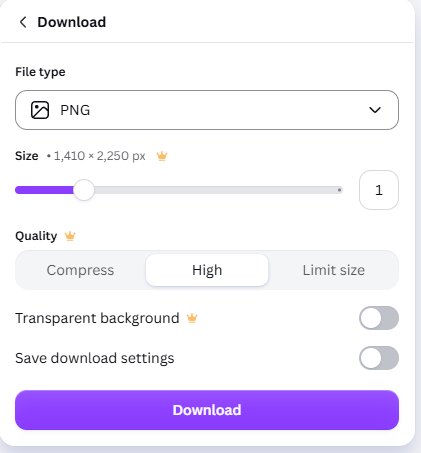
The PNG download panel behaves exactly as in every previous test: the Size slider (capped at 1× on free), Quality, and Transparent background each wear a crown. The panel also prints the export dimensions — 1,410 × 2,250 px — which is the same number as the template label.
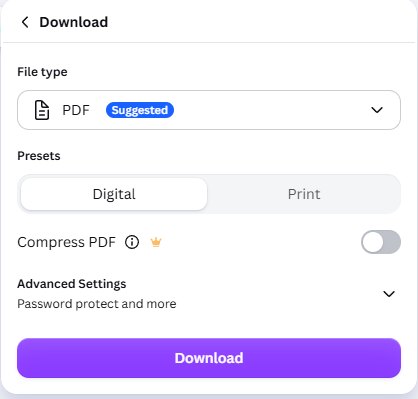
The PDF panel adds something new: a Presets switch between Digital and Print, plus a crowned "Compress PDF" and a collapsible "Advanced Settings — Password protect and more". For a moment it looks like Canva has a real print path for books. It doesn't, and step 6 shows why.
Before going further, one fact from Canva's own help centre that explains why the slider is crowned. The "Resize designs" page lists who can use the feature — Pro, Business, Enterprise, Education, Higher education, Nonprofits, Teams — and Free is not on that list. It also carries a line that ties this article back to our Canva AI test: "Each use of Magic Resize counts against your monthly AI usage limit." Resizing a cover to a publishable size is not just paid, it spends the same allowance that ran out on us after two AI tasks.
Step 5: What the files actually contain
We measured both downloads. The PNG:
- 1410 × 2250 pixels — the template label, to the pixel
- 2.56 MB, colour mode RGBA (transparent channel present)
- No DPI metadata at all — the file carries no resolution tag, so nothing downstream can know what physical size you intended
The PDF: one page, page box 14.69 × 23.44 inches (that's 1410 ÷ 96 and 2250 ÷ 96 — Canva converts pixels at 96 dpi), 9.06 MB, with a single 4000 × 4896 JPEG embedded inside and no fonts embedded. So the PDF is not a print-ready artwork: it's a digital page at 96 dpi with an oversized photo dropped into it.
Now the part that decides whether your book gets published.
Step 6: The KDP maths — right shape, wrong pixel count
Here is Amazon's published Kindle cover spec, from KDP's own help page: ideal dimensions 2560 px tall × 1600 px wide; minimum 1000 × 625; "ideal height/width ratio of at least 1.6:1"; 72 dpi; RGB; under 50 MB; TIFF or JPEG; and — this matters later — the cover must not include the spine, the barcode, or the back cover.
Put Canva's number against it:
| Check | KDP asks for | Canva free gave us | Verdict |
|---|---|---|---|
| Height ÷ width | 1.6 (or higher) | 1.5957 | Off by 0.27% — effectively yes |
| Recommended size | 1600 × 2560 | 1410 × 2250 | 190 px narrow, 310 px short |
| Minimum size | 1000 × 625 | 1410 × 2250 | Clears it easily |
| Height ≥ 2500 (HD devices) | 2500 | 2250 | 250 px short |
| File size | under 50 MB | 2.56 MB | Plenty of room |
| Colour | RGB | RGBA | RGB-based; see the JPEG note below |
| Format | TIFF or JPEG (one page says PNG too) | PNG | Convert before upload |
Two of those rows need a sentence each.
The ratio is a tell. 1410 × 2250 is 1.5957. A 6 × 9 inch print sleeve is 1.5. Amazon's ebook spec is 1.6. Canva didn't round to 1.5 and call it a book cover — it drew a cover for the ebook market, which is where most self-published books actually live. If you're making a Kindle cover, Canva's geometry is on your side. If you're making a paperback, it isn't, and step 7 is the reason.
The pixel gap is 13.5%. 1600 ÷ 1410 = 1.1348. You need barely more than a tenth more resolution to hit KDP's recommended size — and the control that would give it to you is the crowned slider. On a free account you cannot upscale the export, and you cannot resize the design (Canva's help page says so explicitly). What you can do is start a new design at 1600 × 2560 and rebuild the layout in it, because Canva lets you type custom dimensions when you create a file. That's a rebuild, not a resize: the template's elements are positioned for 1410 px and will need re-placing. We did not test that path in this run, so treat it as an untested workaround rather than a measured result.
And the practical outcome: uploading 1410 × 2250 to KDP is allowed — it clears the 1000 × 625 minimum — but it sits below the recommended size, and KDP's own documentation says a warning appears at upload when your image is under 2560 × 1600. A warning is not a rejection. It is Amazon telling you your cover will look soft on high-resolution screens.
Step 7: Why this template can't be a paperback cover
KDP's guidelines for ebook covers are explicit that the cover must not include "the spine, bar code, back cover or (optional) inside flap". Canva's book-cover template obeys that instruction literally: it is one page of front cover and nothing else. The editor reads "Pages 1/1". There is a "+ Add page" button, so you could graft a back cover on, but nothing in Canva will help you with the spine — whose width is a function of page count and paper stock, with its own KDP calculation — and nothing will add the 0.125 inch bleed a print PDF needs.
That's why the "Print" preset in the PDF panel is a red herring for books. We exported the default Digital preset: one page, 14.69 × 23.44 inches at 96 dpi. Even if Print adds bleed handling, a one-page front cover is not a print wrap. For a paperback you need a full-wrap PDF — back cover, spine, front cover, plus bleed — assembled to your trim size. Canva can host that if you build it as a custom-size document and compute the spine yourself. It will not do the book maths for you.
What this means if you're publishing
Three verdicts, in order of how much they'll cost you to get wrong:
1. For a Kindle ebook cover on a free account: yes, this works — with one conversion step. Build it, export PNG, then convert to JPEG before you upload. We did exactly that conversion on our own export: 2.56 MB as PNG became 0.53 MB as JPEG at quality 95, and 0.37 MB at quality 90 — a fifth of the size, visually identical at cover-display sizes, and in the format every KDP page agrees on. That also resolves the RGBA issue: the transparent channel disappears in the JPEG, leaving plain RGB, which is what KDP expects.
2. Don't trust the format list without checking both pages. KDP's main cover-specification page lists TIFF and JPEG only. A separate KDP cover-guidelines page lists "JPEG, PNG, GIF (non-animated), TIFF". Two official pages, two answers. When the publisher's own documentation contradicts itself, the safe move is the intersection: JPEG. It's on both lists, it's the format KDP calls preferred, and it's a fifth of the file size.
3. If the cover has to carry your book, pay for Pro — or rebuild at full size. Of the nine categories we've tested, this is the one where the free tier costs you something real rather than just an inconvenience: 13.5% missing resolution on the single image that sells the book, plus the good fonts behind the wall. The honest alternatives are a rebuild at 1600 × 2560 in a new custom-size design, or one month of Pro. Both are cheaper than a soft cover.
If your next project is the marketing around the book rather than the book, the free shelf is much friendlier: our YouTube thumbnail test exported a fully compliant 1280 × 720 at 1.17 MB on the same free account, and the poster test has the print pricing if you want a physical promo run.
Frequently asked questions
Can you make a book cover on Canva for free?
Yes. In our October 2026 test a free template was fully editable with no paywall prompts, and the export came out at exactly 1410 × 2250 px. The limits appear at the edges: the size slider is locked at 1×, quality and transparency are crowned, and the design can't be resized to another dimension without Pro. For a Kindle cover the free output is publishable after you convert the PNG to JPEG.
Is 1410 × 2250 big enough for Amazon KDP?
It clears KDP's minimum of 1000 × 625 but sits below its recommended 1600 × 2560 — 190 px narrow and 310 px short. KDP's documentation says a warning appears at upload when a cover is under the recommended size. The book will still publish; the cover may look soft on high-resolution screens. You'd need only 1.13× more pixels to clear the recommendation.
What size should a Canva book cover be for KDP?
1600 × 2560 px, which is KDP's published ideal and exactly 1.6 times taller than wide. Canva's free template is 1410 × 2250, a ratio of 1.5957 — within 0.27% of the right shape, and 6 px off a perfect 1.6 at that width. The shape is right; the resolution is the shortfall. Since resizing is a Pro feature, a free account reaches 1600 × 2560 by creating a new design at those custom dimensions and rebuilding the layout.
Does KDP accept a PNG cover?
KDP's two help pages don't agree. The cover-specification page lists TIFF (.tif/.tiff) and JPEG (.jpeg/.jpg). The cover-guidelines page lists accepted formats as JPEG, PNG, GIF (non-animated) and TIFF. Given the contradiction, use JPEG: it appears on both lists, KDP calls it the preferred format, and our own conversion took the file from 2.56 MB to 0.53 MB with no visible difference.
Why is my Canva book cover's file so large?
Because PNG is lossless. Our 1410 × 2250 export weighed 2.56 MB as PNG. The same pixels saved as JPEG at quality 95 weighed 0.53 MB, and at quality 90, 0.37 MB. At the sizes Amazon actually displays a cover, the difference is invisible. If you're uploading to KDP's 50 MB ceiling either format fits — but JPEG is smaller, on every accepted-format list, and strips the alpha channel that PNG added.
Can Canva make a full paperback cover with a spine?
Not from this template. Canva's book-cover designs are a single front page — the editor reads "Pages 1/1" — which matches KDP's ebook rule that the cover must not contain a spine, barcode or back cover. A paperback needs a full-wrap PDF with back cover, spine and front plus 0.125 inch bleed, and the spine width depends on page count and paper stock. You can build that in a custom-size Canva document, but you compute the spine yourself; Canva won't.
Wrapping up
Nine Canva categories on a free account, and this is the first one where the standard advice — "the free tier is fine, the crowns are conveniences" — stops being true. Book covers are different because the output leaves Canva and faces an outside specification with real numbers attached: 1600 × 2560, 1.6 ratio, TIFF or JPEG, no spine, no barcode. Canva nails the shape, misses the pixels by 13.5%, hands you the format its own publisher can't agree on, and locks the fix behind the crown. The cover is the one asset in publishing where being 13% short is visible on every store page, forever.
What the free tier does give you is a genuinely deep shelf — 30% crowns up front, thinning to 15% and 25% as you scroll, the first time we've measured a category that gets cheaper the further you go. Find a template you like there, export it, convert it to JPEG, and you have a publishable Kindle cover tonight. Just don't try to sell the same file as a paperback.
This guide is one of our 18 free-account Canva tests — crown counts, measured exports, print prices and paywalls, all in one place.