Design Your First Graphic in Canva: A Complete Beginner Walkthrough (Free Account)
Reading about Canva tells you little. So we sat down with a completely free account and built a real Instagram post from scratch — searching a template, changing the background, editing text, adding graphics — and screenshotted every single step, including the two moments Canva asks for money. Here is the whole process, exactly as it happened.
Short answer: making your first graphic in Canva is genuinely easy. Every editing step took seconds; the slowest part for a beginner was choosing — browsing fonts and graphics, not operating the tools. The whole design was finished in one short sitting, exported in two formats, and Canva never blocked us or charged us. The only traps are marked with a little golden crown — and we'll show you exactly what happens if you step on one.
If you're still deciding whether Canva's free plan is enough for you at all, read our Canva Free vs Pro test first — this walkthrough assumes you already have a free account and just want to make something.
What we set out to build
The task: a square Instagram post (1080 × 1080 pixels), built only with free elements, starting from a ready-made template. Here's the finished design:
Step 1: Search for the canvas you need
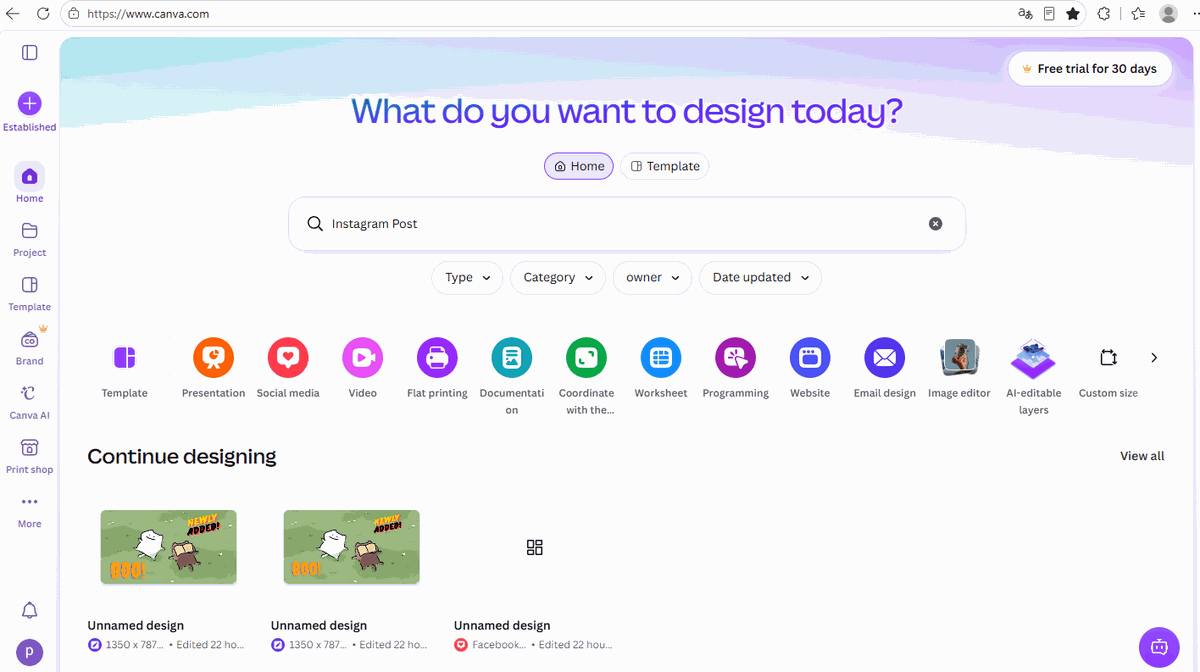
From the Canva home page, you don't create a "blank file" — you tell Canva what you're making. We typed Instagram Post into the big search box:
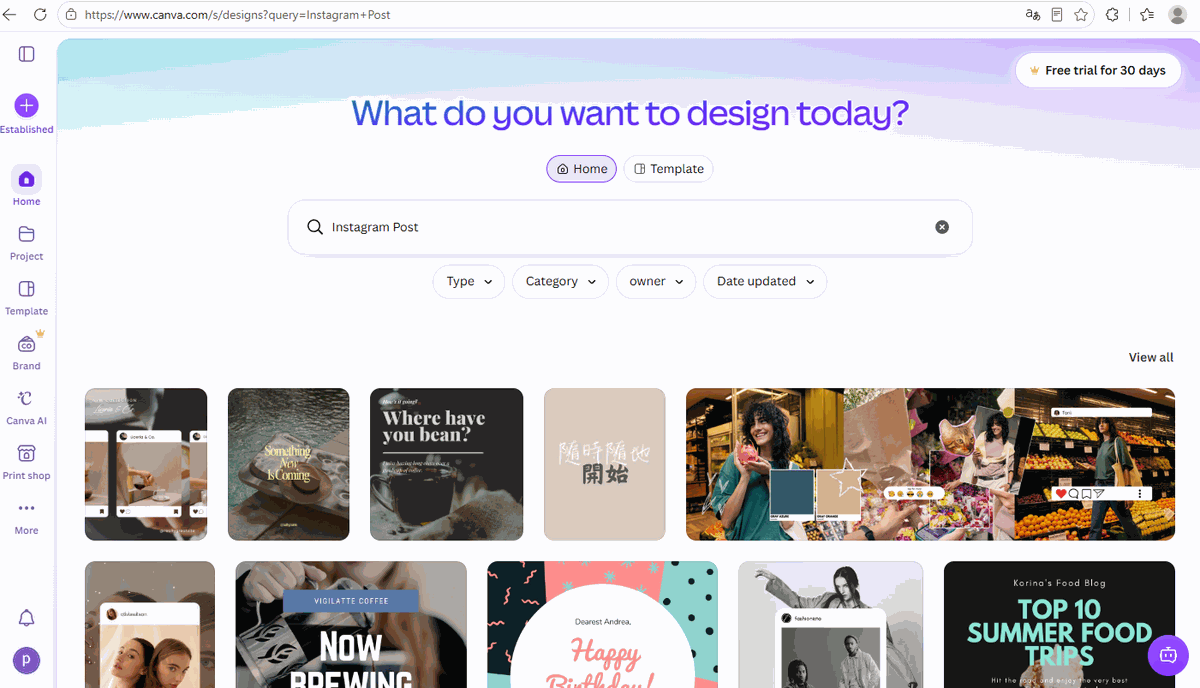
Canva immediately shows template suggestions. Notice the small golden crowns on some thumbnails — those templates are Pro-only. Plenty of others are free:
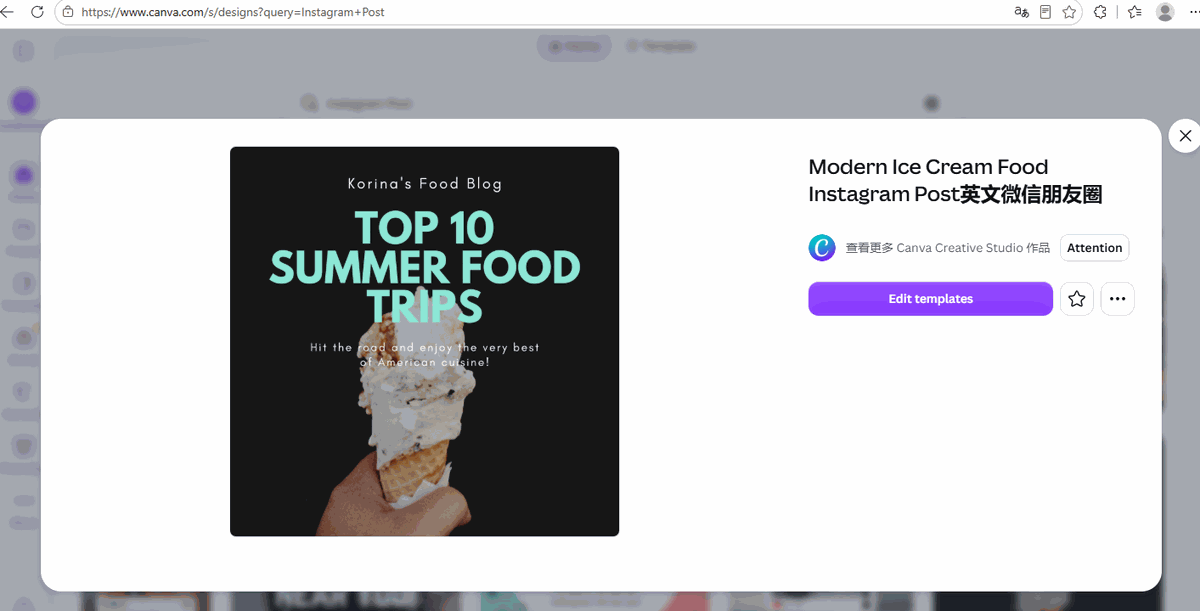
We picked a food-blog template. Clicking it opens a preview first, with an Edit templates button:
Step 2: Meet the editor
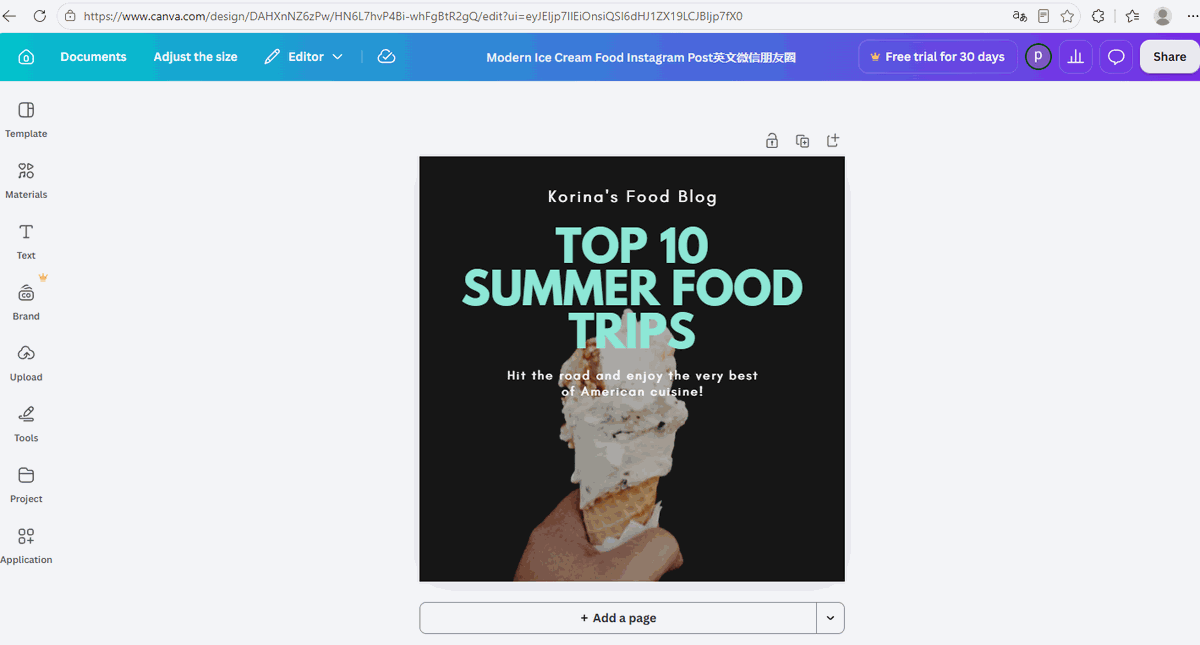
Clicking the template opens the full editor — and this step is fast. From clicking the template to a loaded, ready-to-edit canvas took us about 3 seconds. Left sidebar: your tools (Templates, Materials, Text, Uploads). Center: your canvas:
Step 3: Change the background — one surprise here
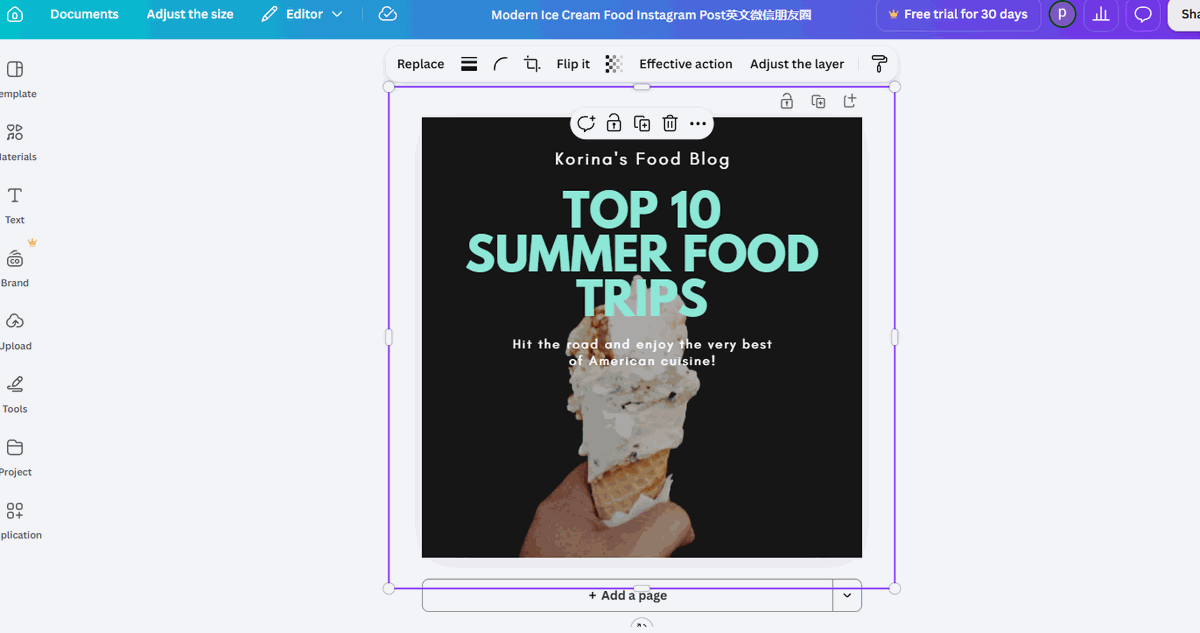
We wanted to repaint the background. First surprise: this template's background is not a color, it's a photo. Clicking it gives you photo options (Replace, Flip, and so on) — but no color swatch:
So that's what we did: pressed Delete to remove the photo, then clicked the background swatch in the top-left corner and picked a bright purple from the color panel:
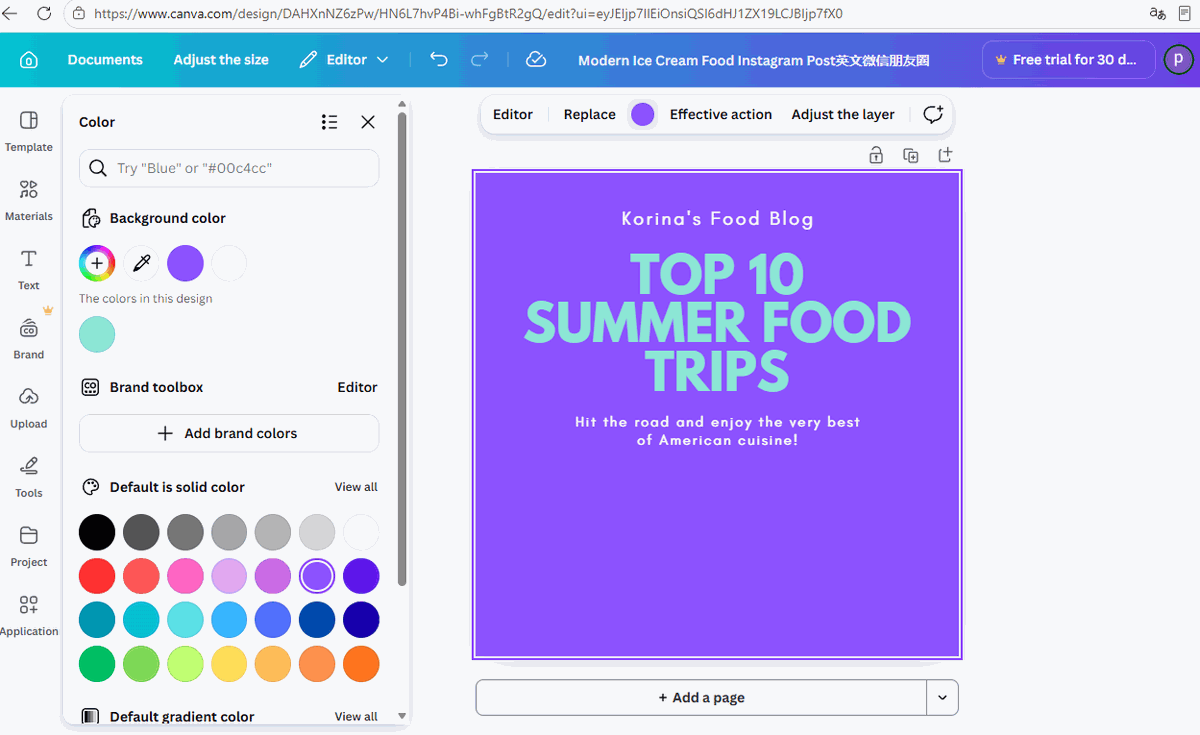
This is a small thing, but it's the kind of detail you only learn by doing: in photo-based templates, "change background color" really means "delete the photo, then pick a color."
Step 4: Edit the text
Double-click any text to rewrite it. We changed the headline's first word to "HELLO" to prove the point — you can type whatever you like. With the text selected, the top bar shows the current font (this template uses League Spartan), and clicking it opens the full font list:
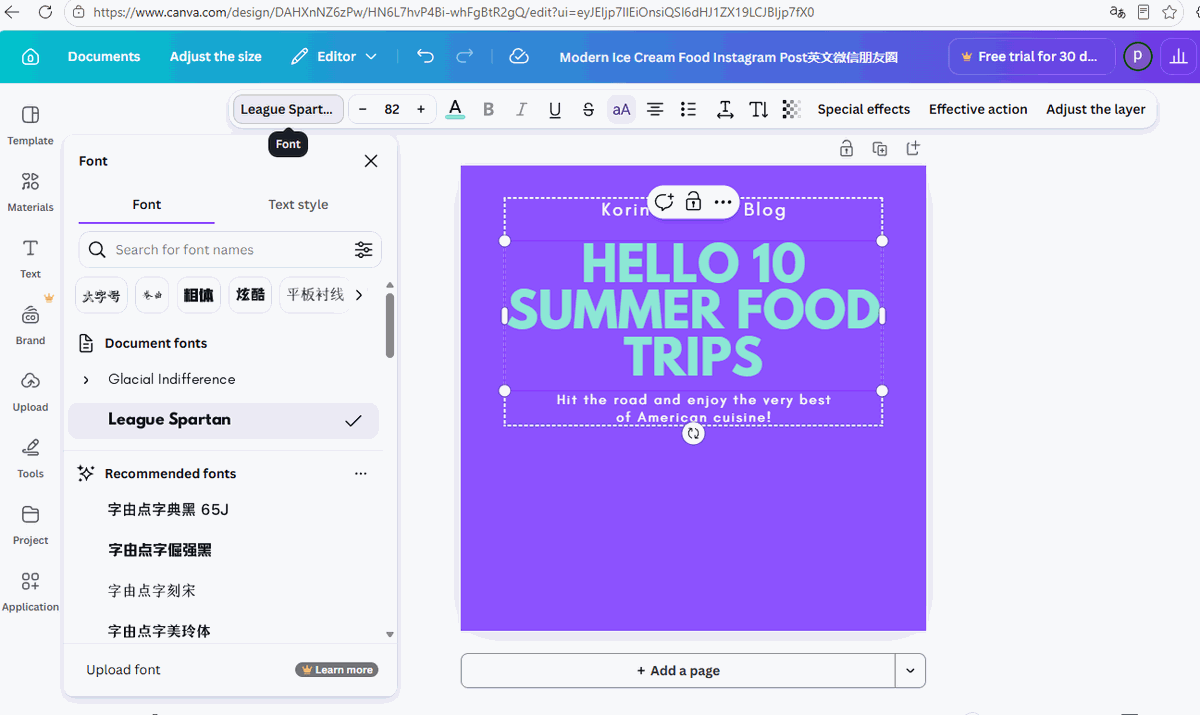
One honest note: with hundreds of fonts on offer, choosing took far longer than changing. Editing the text itself took seconds; browsing the font list was the slowest part of the whole project.
Step 5: Add graphics — and the crown shortcut
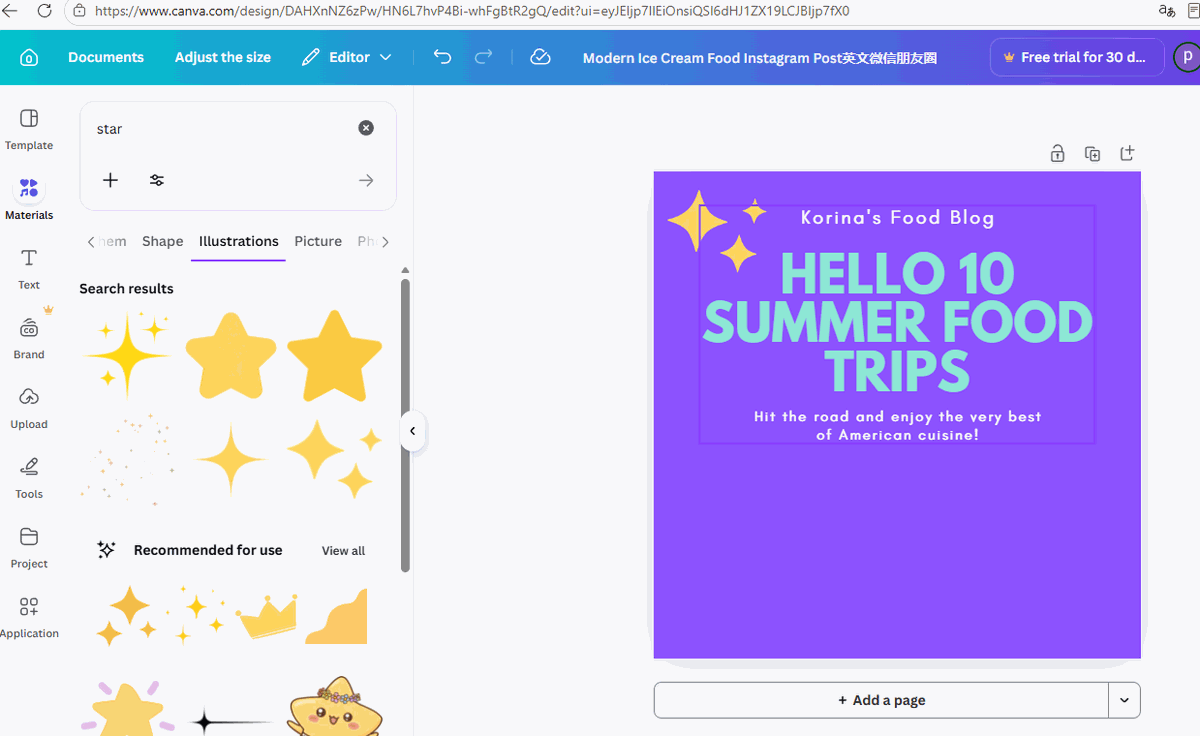
Next, decoration. The Materials panel (left sidebar) is Canva's graphics library. We searched star and got results grouped by type — shapes, illustrations, pictures, photo frames:
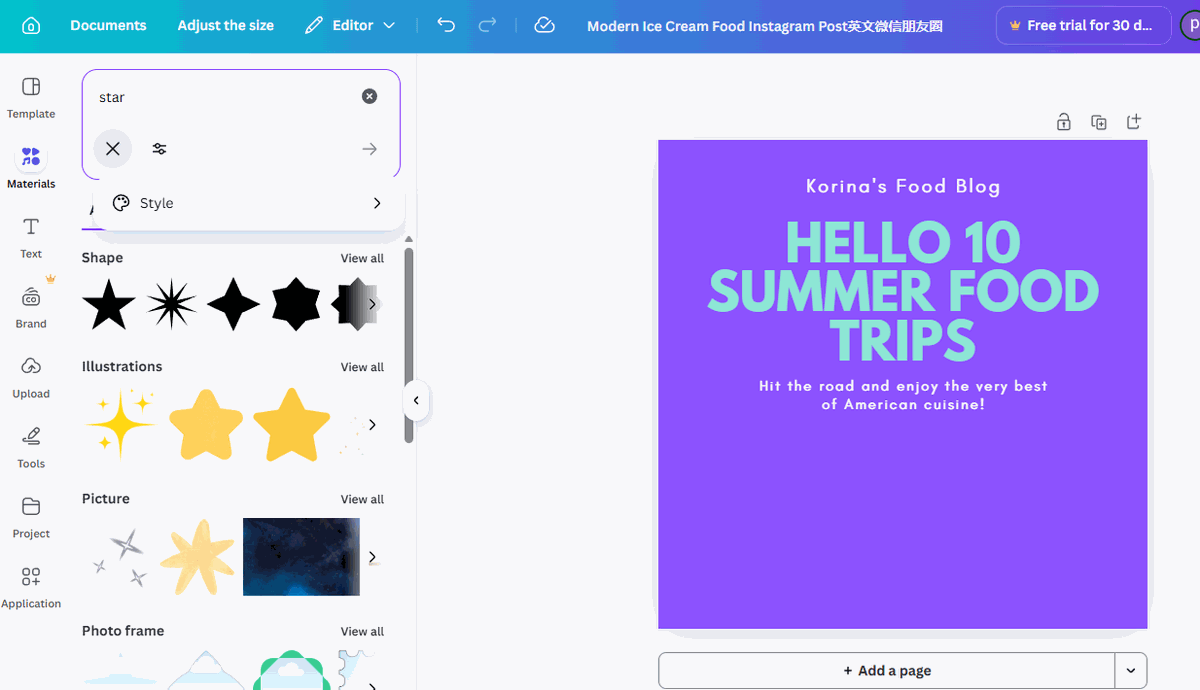
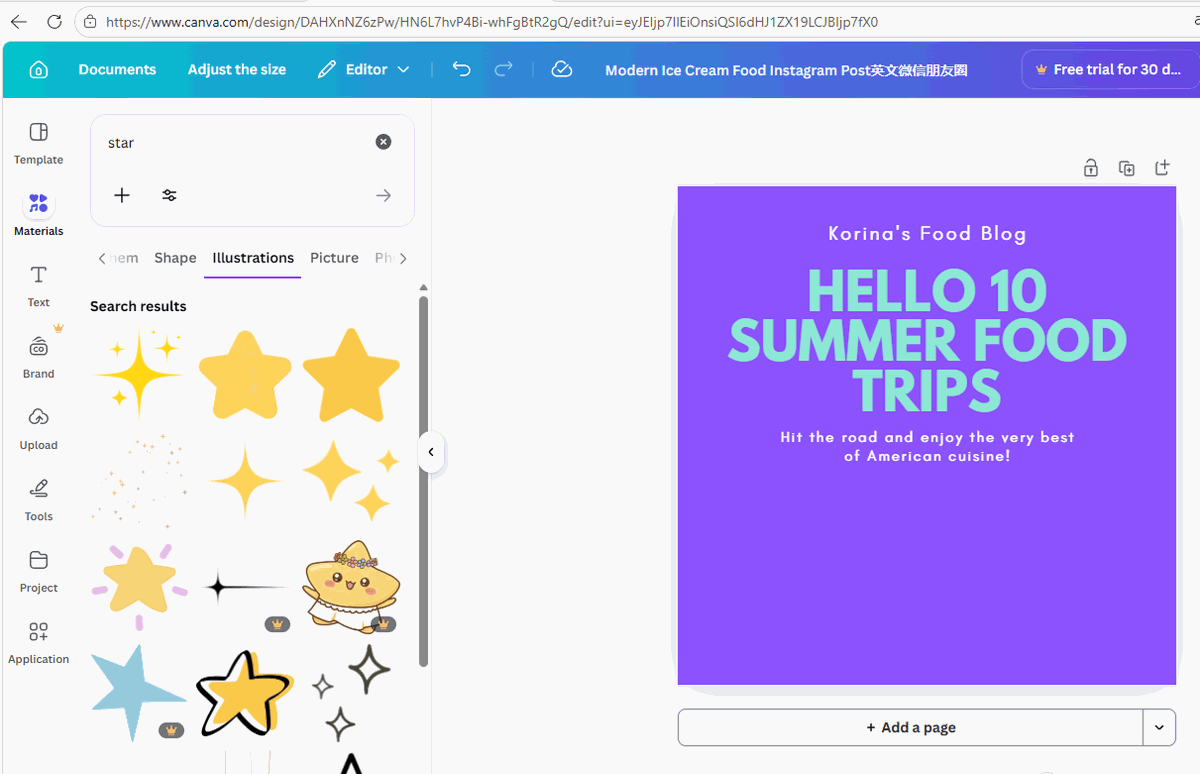
We expected a "Free" filter checkbox here — on our version of Canva, there wasn't one (just a Style filter). That's fine, because there's a simpler rule: the crown is the filter. Crowned items are paid, plain items are free, and both are visible in one view:
Step 6: What happens if you click a Pro element anyway?
Most articles just tell you to avoid crowned items. We clicked one on purpose — a cute cartoon star with a crown — to see what free users actually get:
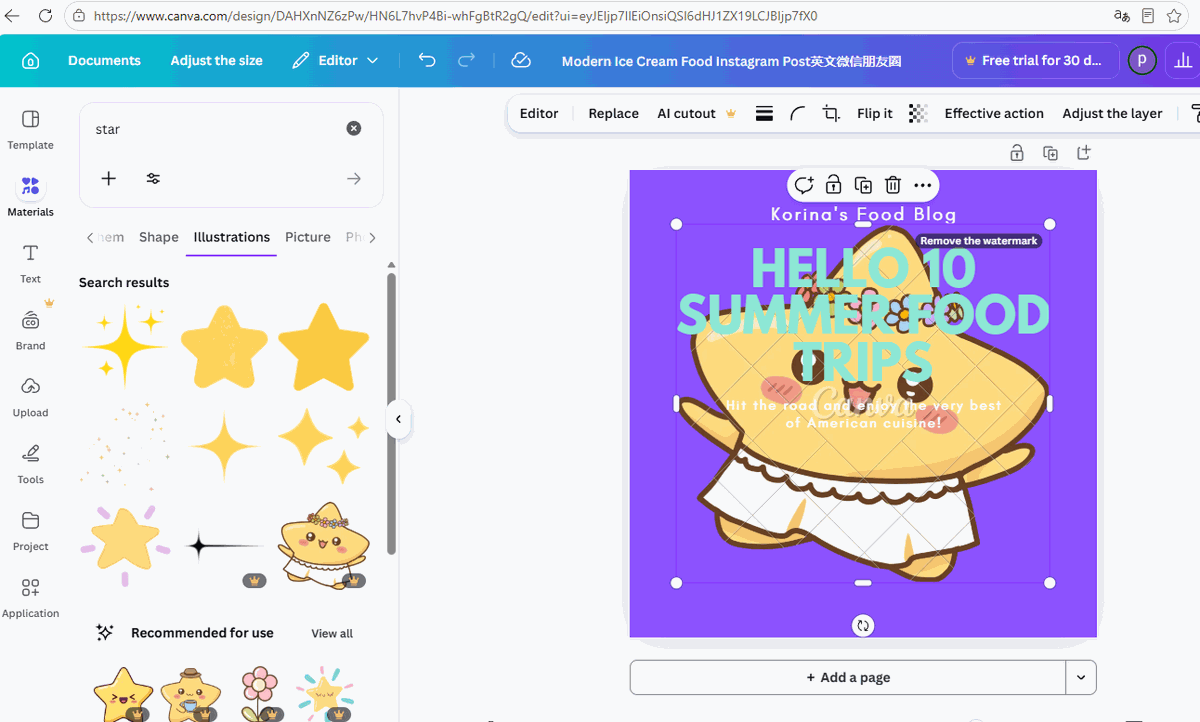
So Canva doesn't block you — it watermarks the Pro element and lets you export it looking like that. The practical takeaway: deleted it (Delete key), picked a free sparkle instead, and our design stayed 100% clean.
Step 7: Export your design
Finished? Click Share (top-right corner), then Download. The download panel shows your options:
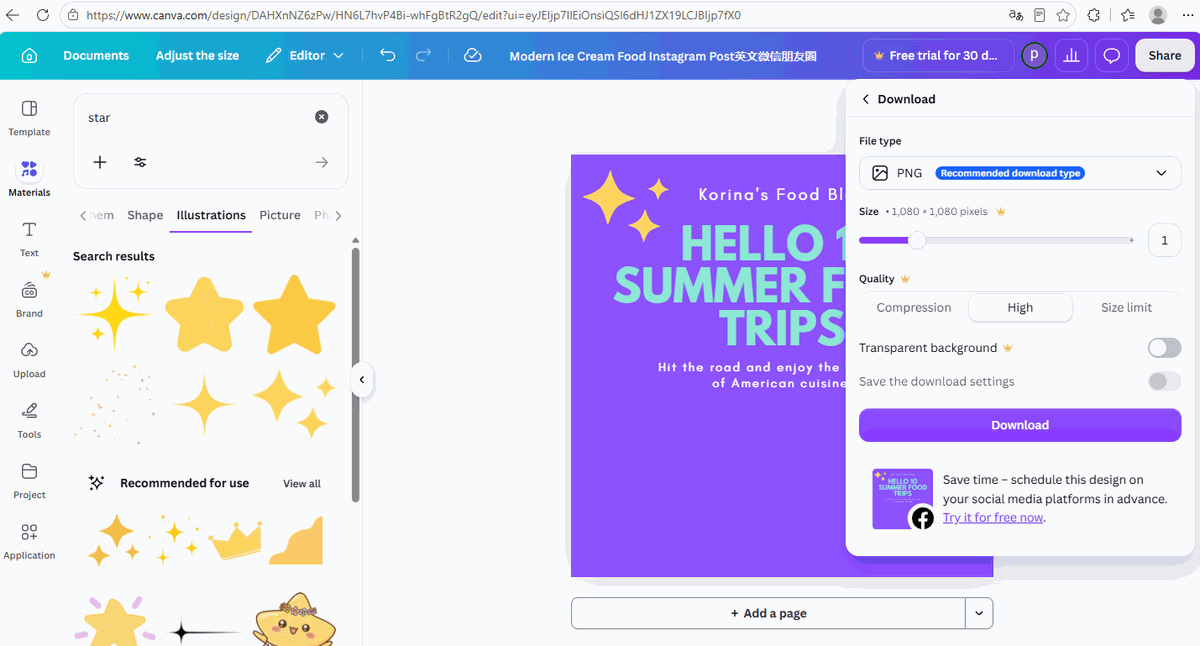
Two things worth knowing before your first export:
- PNG is the default and the recommended type — for flat-color graphics like ours, that's the right choice.
- Transparent background is a Pro feature (crown icon again). Free users export with the background baked in — for social media posts, that's all you need anyway. We pressed that switch anyway to see what free users get: read the result in our Canva export formats test.
And a bonus finding we didn't expect: while poking around the Share menu we opened Canva's Data analysis panel — the visitor-stats page. Also Pro:
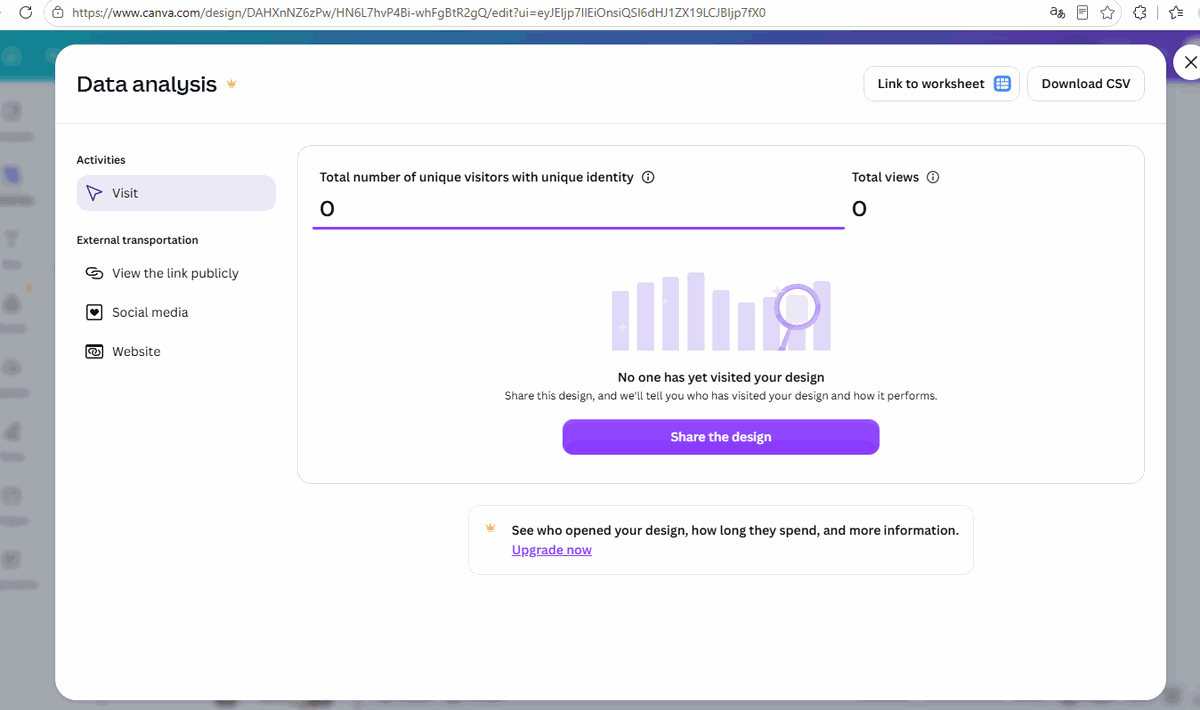
The numbers: what did our exports actually weigh?
We exported the same design twice — once as PNG, once as JPG — and checked the real file sizes on disk:
| Format | Size (same design) | Watermark | Best for |
|---|---|---|---|
| PNG (free) | 52.7 KB | None | Flat graphics, screenshots, web use |
| JPG (free) | 65.3 KB | None | Photos and photo-heavy designs |
Yes, you read that right: the JPG came out bigger than the PNG — the opposite of what most people assume. JPG compresses photographs efficiently, but our design is flat blocks of color and text, which PNG stores far more cheaply. Practical rule: photo-based design → JPG; flat graphics and text → PNG. And both files opened completely clean — no watermark anywhere, because the design used only free elements.
FAQ
How long does the first design actually take?
The individual steps are fast — opening the template into the editor took us about 3 seconds, and each edit (background, text, graphics) took seconds. What eats time is browsing: choosing between hundreds of fonts and graphics. Budget one relaxed sitting for your first design, and much less for your second.
Will my exported design have a watermark?
Not if you used only free (crownless) elements. Our PNG and JPG exports were both completely clean. Watermarks only appear when you use Pro elements — and Canva shows you the checkerboard watermark on the canvas before you ever export, so there are no surprises.
Is JPG smaller than PNG?
Not always — and our test proves it. For a flat-color graphic with text, PNG was smaller (52.7 KB vs 65.3 KB). JPG wins for photographs. Pick the format by content, not by habit.
Can free Canva users make transparent-background PNGs?
No — the Transparent background toggle in the download panel is Pro-only. For social media posts this doesn't matter (you want a background anyway). If you truly need transparency, a free external background-removal tool plus an upload to Canva is the workaround we suggested in our Canva Free vs Pro test.
This guide is one of our 18 free-account Canva tests — crown counts, measured exports, print prices and paywalls, all in one place.