Canva Flyer on a Free Account: We Built One End to End — and Found the Real Walls
Search "how to make a flyer in Canva" and the top results are all Canva's own pages — plus a pile of tutorials that describe a price filter and an upgrade popup that no longer exist. So we ran the whole journey ourselves on a free account: picked a template, edited the text, tested what a Pro element really does, exported the design, checked Canva Print's pricing, and compared every step against what the old tutorials claim. Every claim below has a screenshot behind it.
Short answer: Yes, you can make and download a clean, watermark-free flyer on Canva's free plan — our finished design exported at full resolution with zero watermarks. But the free plan has three walls, and two of them are in places most tutorials get wrong: the template price filter has disappeared, Pro elements attach to your design silently and only stop you at the download button ("Your design contains premium content"), and printing starts at S$24.50 for just 25 copies — the free lunch ends the moment paper is involved.
How we ran the test
- Free account only — no trial started, no payment details entered at any point
- A real, ordinary task — a neighborhood bake sale flyer, the kind of thing an actual person would make
- Defaults everywhere — we followed Canva's suggestions and noted every upsell we passed
- Look but don't buy — we walked right up to Canva Print's checkout and stopped there; no order was placed
Step 1: Finding a free flyer template is harder than it used to be
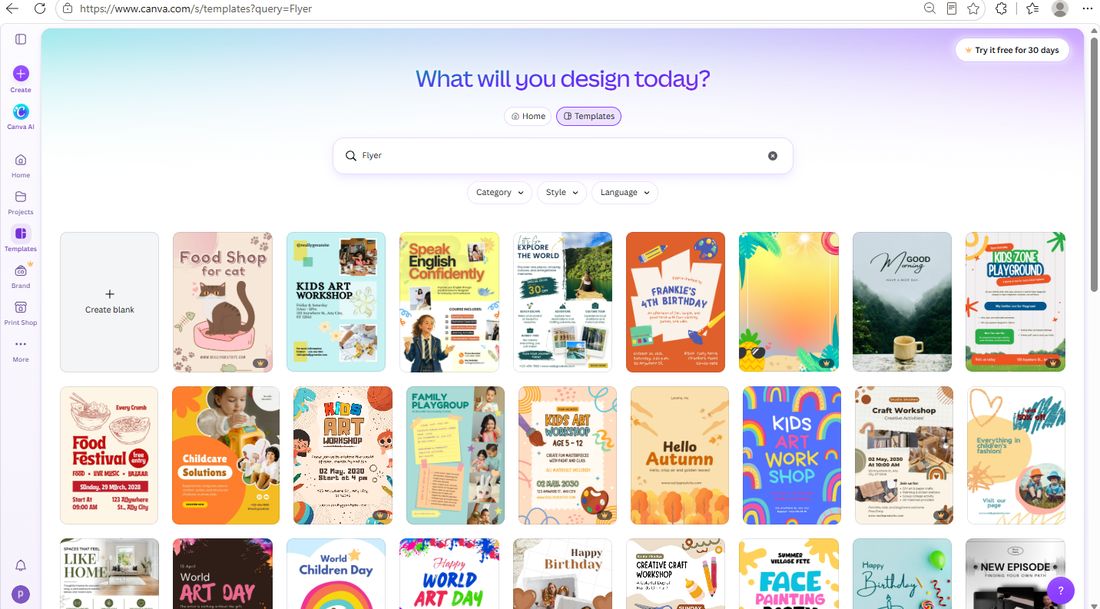
We searched "Flyer" and landed on the template library. First screen: roughly 28 templates, about 5 wearing the little crown badge that marks Pro content:
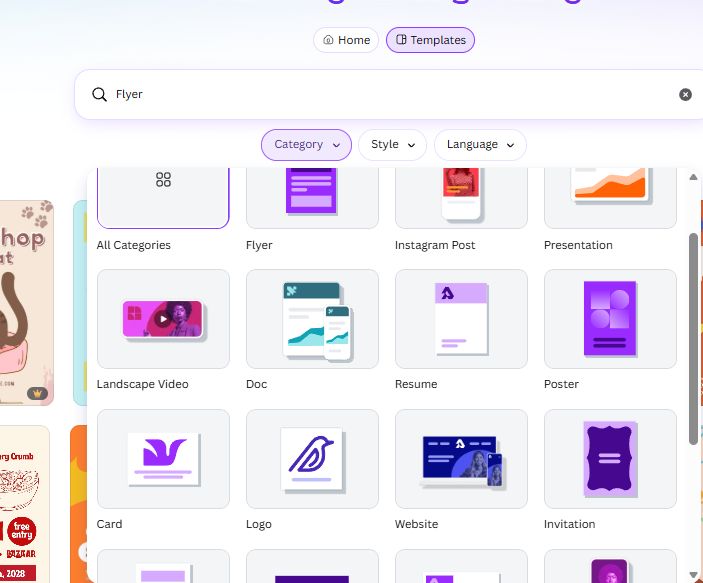
Many older tutorials stop here and tell you to open the Price filter and tick "Free". We looked for it. It's gone — the current template search offers only Category, Style and Language:
And here's the thing about the crown badges: keep scrolling and they multiply. A few screens down, nearly every card carries a crown — even the gray placeholder cards that haven't finished loading:
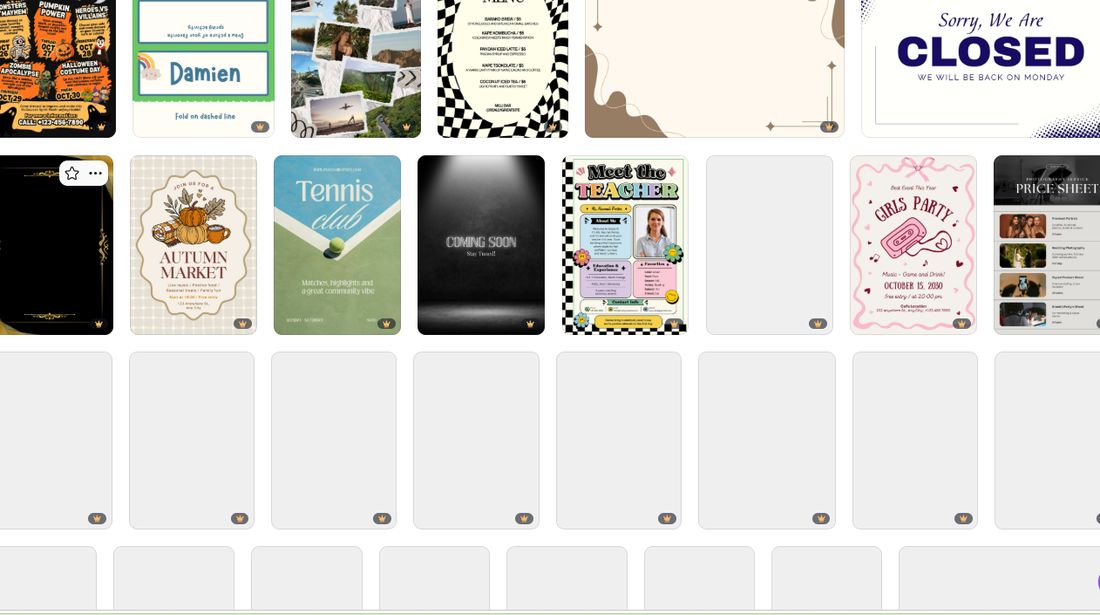
Two practical takeaways. First, the free templates concentrate near the top — the deeper you scroll, the more Pro content you wade through. Second, the badge is a default marker, not a guarantee either way: the only reliable check is opening the template. No tutorial we found mentions either detail.
Step 2: Editing the text — genuinely free, zero friction
We picked an uncrowned template ("Kids Art Workshop") and replaced the headline with "Neighborhood Bake Sale" and the details with a date and address. The whole edit took a couple of minutes and produced no popup, no upsell, no limit of any kind:
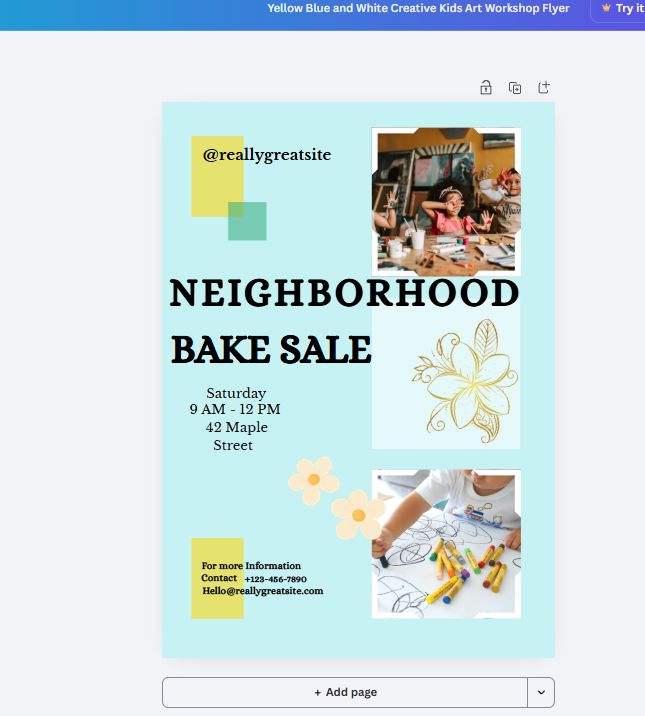
This part is exactly as free as Canva's own pages promise. Note the yellow "Try it free for 30 days" button permanently parked in the top bar, though — the sales pitch is built into the editor itself. It never blocks anything; it just never goes away.
Step 3: The Pro element that says nothing
Now the interesting part. We opened Elements, searched "cupcake", and first added a free image — no problem:
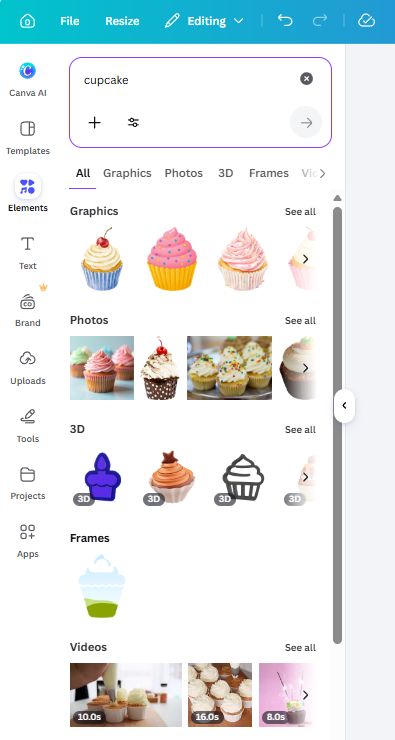
Then we deliberately clicked a crown-marked Pro cupcake. Older tutorials say this triggers an upgrade popup. It doesn't. Canva placed the Pro image on our canvas in complete silence:
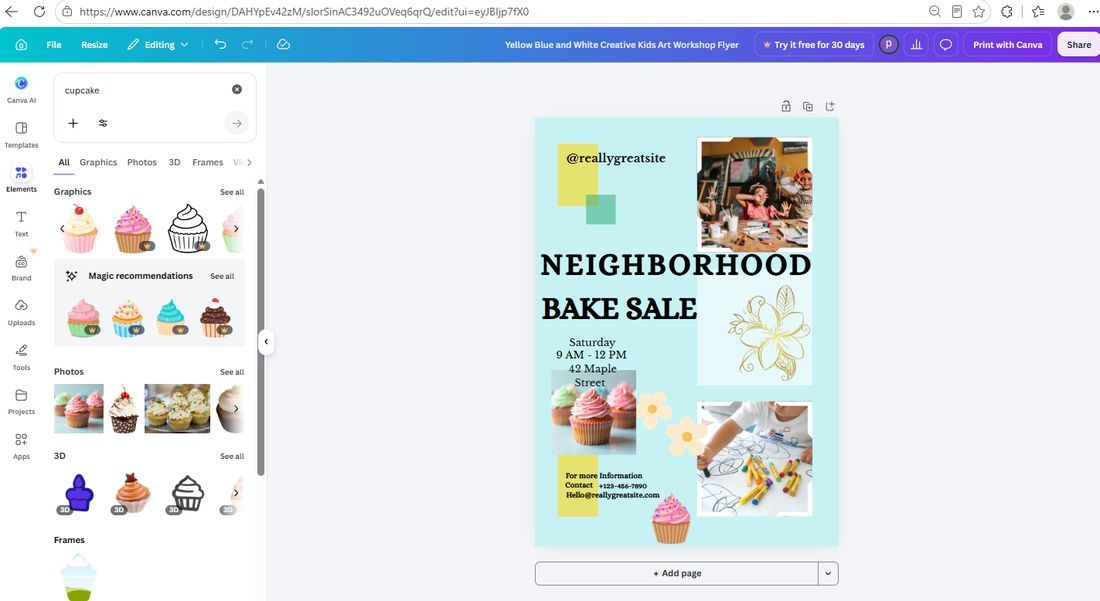
No warning, no watermark preview, nothing. For a moment it looks like Pro content is simply free. It isn't — Canva was saving the conversation for later.
Step 4: The wall is at the download button
With the Pro cupcake still in the design, we clicked Share → Download. The panel itself already hints at the paywall: the size slider's upper range and the "Transparent background" toggle both carry little crowns:
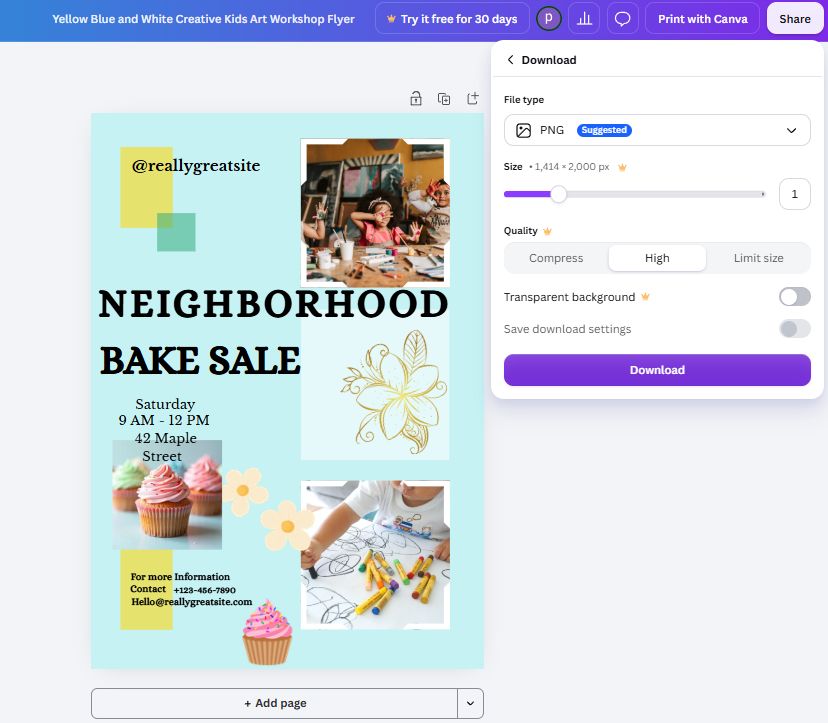
We clicked Download anyway. There's the wall:
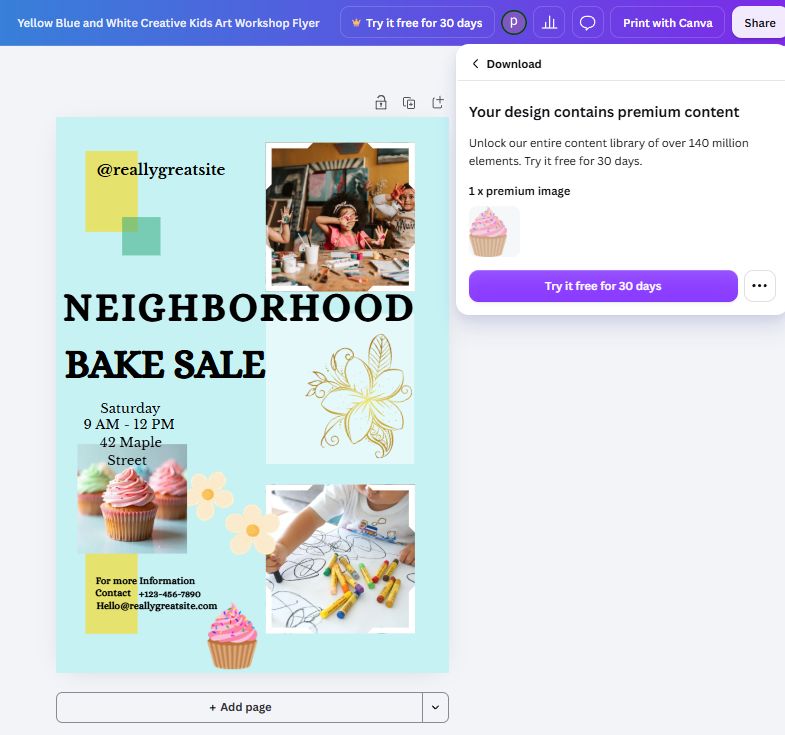
"Your design contains premium content — Unlock our entire content library of over 140 million elements. Try it free for 30 days. 1 × premium image."
This is the detail nearly every tutorial gets wrong. The popup moment has moved from "when you add the element" to "when you try to leave with it". It's arguably a smarter design — you build with premium pieces freely, and the paywall only appears when the work is done and you're most invested. But for a free user it means one careless click can cost you a finished design unless you know the fix: delete or replace the Pro element, and the export goes through.
We did exactly that — removed the cupcake, downloaded again. This time: a clean 1414 × 2000 px PNG, no watermark anywhere:
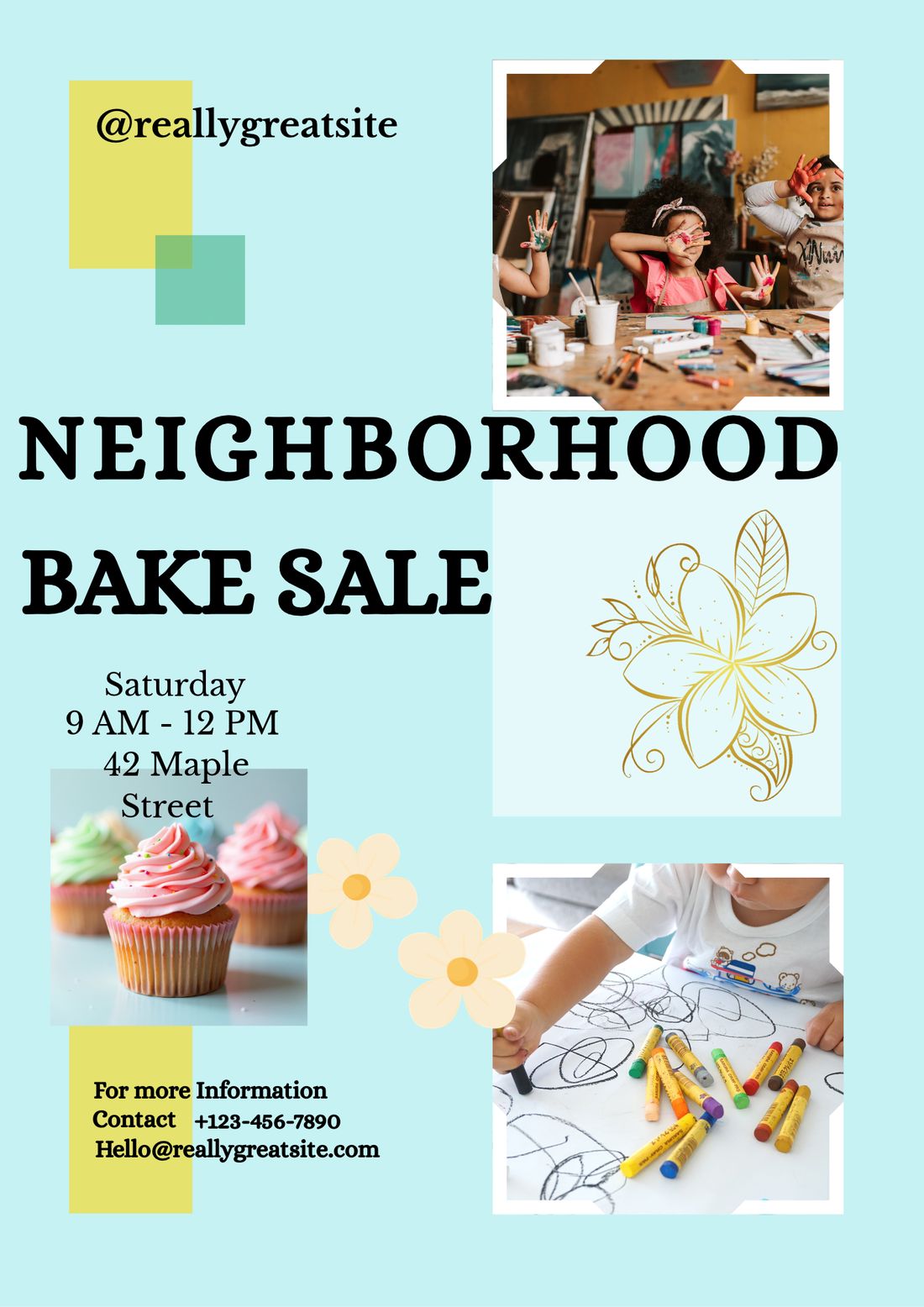
So the honest summary of Canva's free exports: your own work exports clean; Canva's premium inventory doesn't export at all — there's no watermarked middle ground anymore, at least not in our test.
Step 5: Canva Print — where "free" ends
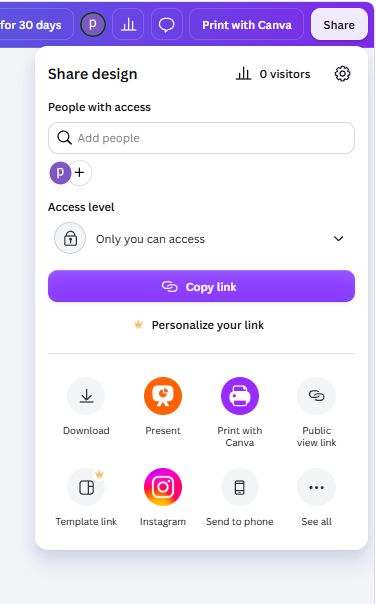
Canva's own landing page advertises that making a flyer is free while printing starts at $9.00, so we walked into the print flow to see real numbers. The Share panel has a dedicated Print with Canva button:
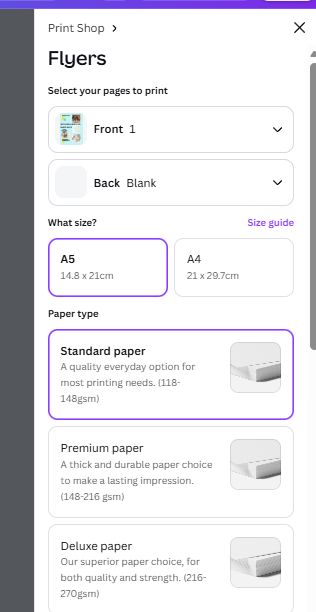
It opens a print shop with our flyer pre-loaded. Paper choices: Standard, Premium or Deluxe; finishes: Matte, Gloss or Uncoated. But the size list is the first surprise — only A5 and A4. No US Letter, no half-letter, nothing else:
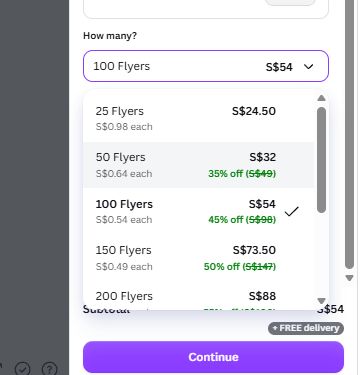
Then the pricing. The quantity dropdown shows the whole discount ladder, and the minimum order is 25 flyers — there is no smaller batch:
| Quantity | Total | Per flyer | Discount shown |
|---|---|---|---|
| 25 (minimum) | S$24.50 | S$0.98 | — |
| 50 | S$32.00 | S$0.64 | 35% off |
| 100 | S$54.00 | S$0.54 | 45% off |
| 150 | S$73.50 | S$0.49 | 50% off |
| 200 | S$88.00 | S$0.44 | ~55% off |
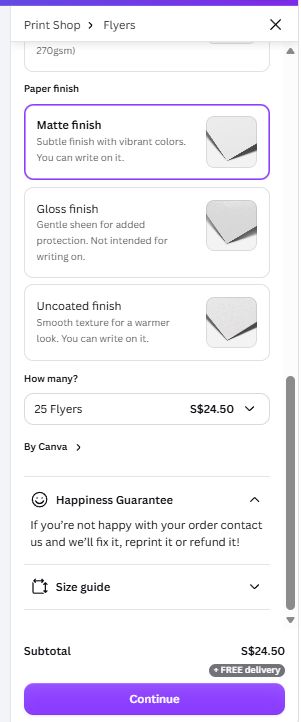
Reading the ladder: 100 copies is the sweet spot — doubling from 50 to 100 costs S$22 more but cuts the per-unit price from S$0.64 to S$0.54; beyond that the per-unit savings flatten out while the total climbs. Delivery was flagged free at every quantity, and Canva throws in a "Happiness Guarantee" (reprint or refund if you're unhappy). One honest caveat: prices appeared in our account's local currency (Singapore dollars); your region will show its own numbers — treat the structure (minimum 25, tiered discounts, free delivery) as the durable finding, not the exact figures. We stopped at the quote and ordered nothing.
Step 6: The size list doesn't match the print list
One last inconsistency worth knowing before you design. Going to Create a design and typing "Flyer" offers exactly two presets: Flyer (Portrait A4) and Flyer (Landscape A4) — no US Letter, no A5:
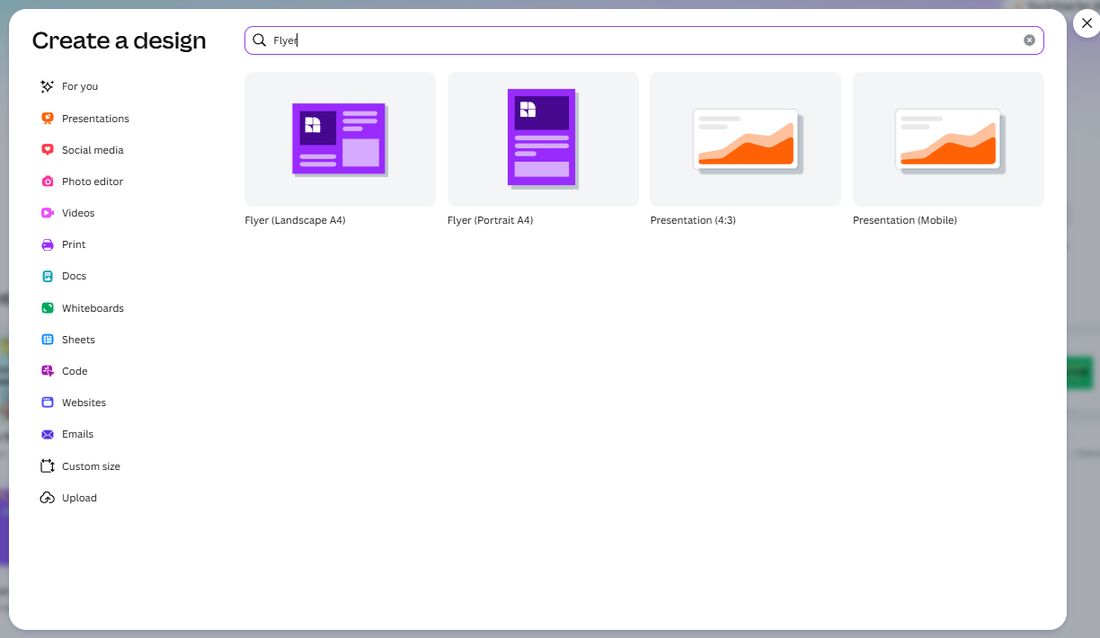
So the design menu offers A4 only, the print menu offers A5 and A4, and the free Custom size option lets you build anything. Three lists, none of them matching. Practical rule: if you might print with Canva, design in A5 or A4 from the start — resizing later is possible but is one more place to lose your layout.
Old tutorials vs what we actually found
| What older tutorials say | What we found in October 2026 |
|---|---|
| "Filter templates by Price → Free" | The price filter no longer exists — only Category / Style / Language |
| "Clicking a Pro element triggers an upgrade popup" | No popup at add time — the element places silently; the wall moved to the download button |
| "Free downloads come with a watermark" | No watermark in our test — Canva blocks premium-content exports outright instead; pure-free designs export clean |
| "Flyer printing from $9.00" | True in spirit but regional: our account was quoted from S$24.50 for 25 copies, with a 25-copy minimum and free delivery |
| "Plenty of flyer sizes to choose from" | Two design presets (A4 portrait/landscape), two print sizes (A5/A4) — and the lists don't match |
So is Canva good for flyers on the free plan?
| If you… | Verdict | Why |
|---|---|---|
| Need a digital flyer (WhatsApp, email, social) | Free plan is genuinely enough | Pick an uncrowned template, stay out of Pro elements, export clean PNG |
| Want to print at home or a local shop | Free plan works | Export PNG/PDF free, print wherever; just design in the right size from the start |
| Want Canva to print and ship it | Budget for it | 25 copies from S$24.50 with free delivery; 100 copies is the per-unit sweet spot |
| Fall in love with a crowned template or element | You'll hit the wall at download | Either start a 30-day trial, or swap the Pro pieces for free ones before exporting |
| Hate upsells | Keep expectations set | "Try it free for 30 days" lives permanently in the editor's top bar |
Frequently asked questions
Is the Canva flyer maker really free?
For designing and exporting, yes — in our end-to-end test a flyer built only from free templates and free elements downloaded as a clean PNG with no watermark. Canva Print is a paid extra: the cheapest option we were shown started at S$24.50 for 25 printed flyers with free delivery.
Does Canva put a watermark on free flyer downloads?
Not in our test. A flyer made entirely from free content exported at full resolution (1414 × 2000 px PNG) with no watermark anywhere. The watermark problem didn't appear because Canva blocks the export outright instead — see the next question.
What happens if you use a Pro element on Canva's free plan?
Nothing — at first. Canva let us place a crown-marked Pro cupcake image on the canvas silently, with no popup. The wall appeared only when we clicked Download: "Your design contains premium content" with a 30-day free trial offer. Older tutorials that describe an upgrade popup at the moment you add a Pro element are out of date. Deleting or replacing the Pro element let us export immediately.
How much does it cost to print flyers with Canva?
In our test the minimum order was 25 flyers for S$24.50 (about S$0.98 each) with free delivery. Volume discounts: 50 for S$32, 100 for S$54 (the per-unit sweet spot at roughly S$0.54), 150 for S$73.50, 200 for S$88. Prices were shown in our account's local currency — yours may differ.
What sizes can a Canva flyer be?
Canva's Create-a-design menu offered only two flyer presets in our region — Flyer (Portrait A4) and Flyer (Landscape A4) — though the free Custom size option lets you build any dimensions. Canva Print was even more restrictive: only A5 and A4 paper. Design size and print size are two different lists, and they don't match.
Where is the price filter for free Canva templates?
It's gone. Many older tutorials tell you to filter templates by Price → Free, but the current template search only offers Category, Style and Language filters. The crown badge on each template thumbnail is now the practical way to spot Pro content — and note that badges appear on placeholder cards too, so the only reliable check is opening the template.
Wrapping up
We took one flyer from template search to print quote on a free account, screenshots at every step. The honest summary: Canva's free plan makes genuinely good, watermark-free flyers — but three walls have quietly moved since most tutorials were written. The template price filter is gone; Pro elements attach silently and stop you only at download; and printing starts at S$24.50 for a 25-copy minimum. None of these are dealbreakers — they're just things you deserve to know before you build, not after. For more hands-on Canva tests, read our Canva Free vs Pro comparison, our first-design walkthrough, and our export formats explained; if you're putting a business on paper, our Canva logo test pairs well with this one, and what Canva Pro actually costs covers when upgrading makes sense. Putting a QR code on the finished flyer? Our Canva QR code generator test scans the code with a phone to show where it actually sends people. Looking for work instead of customers? Our Canva resume test checks whether an applicant tracking system can read the PDF you export. And if your design needs to fold rather than hang, our Canva brochure test builds a tri-fold on a free account — including the fold-order trap and the full print price ladder from 1 copy to 1,000.
Tested October 2026 on a free Canva account, web version, no payment details entered and no order placed. Print prices are shown as quoted to our account in Singapore dollars; your region and currency will differ. We've applied the same free-account method to free AI image generators and free AI voice tools.
This guide is one of our 18 free-account Canva tests — crown counts, measured exports, print prices and paywalls, all in one place.