Canva QR Code Generator: What You Can and Can't Change (Free Account Test)
Search "canva qr code generator" and you get Canva's own help pages promising a free, customizable QR code — plus third-party guides that flatly say you can't change the color and can't add a logo. The two sides contradict each other, and not one of them shows a screenshot of anyone actually scanning the code they made. So we built one on a free account, tried every customization control, exported it, and pointed a phone at it to see where it really goes. Every claim below has a screenshot behind it.
Short answer: You can generate and download a QR code on Canva's free plan, and it comes out clean, with no watermark — but three things surprised us. First, there is no Canva-made QR code app in the editor: every result is a third-party app, and one with 645,000 users was simply down when we tried it. Second, the color control is half of what tutorials claim — you set the code color when you generate it, but on the canvas you can only recolor the background, not the dots. Third, and most importantly: we scanned our own code with a phone and it opened our URL directly, with no third-party shortlink in between.
How we ran the test
- Free account only — no trial started, no payment details, nothing bought
- A real URL we own — we pointed the code at this website, so we could verify exactly where a phone lands
- We scanned our own code — the step no other guide does; it settles whether Canva's codes route through a third party
- Two versions exported — a normal white-background code and a deliberately bad red-background one, to see how far you can push a code before it breaks
- Every failure kept — the apps that wouldn't load are part of the finding, not an inconvenience we edited out
Step 1: There is no official Canva QR code app
Open a design, click Apps in the left toolbar, search "QR Code". Here is the whole first screen:
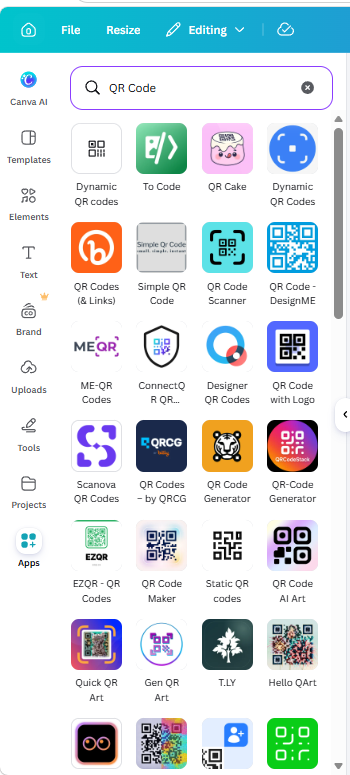
Scroll to the bottom of the list and it stays the same story: Dynamic QR codes, To Code, QR Cake, Simple QR Code, QR Scanner, ME-QR, Handwriting Maker. Not one carries a "By Canva" badge. Canva's marketing pages talk about QR codes as if they were a built-in feature; inside the editor, the work is done by outside developers.
The most popular option — Simple QR Code, 645K users, developer "tim-hub" — also asks for a fairly broad permission before you use it:
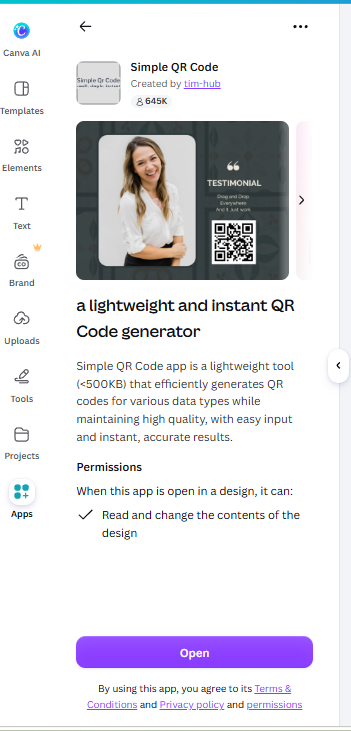
"Read and change the contents of the design." That's not Canva asking — that's a third-party developer getting access to your canvas. Worth knowing before you click Add.
And then the app that 645,000 people rely on did this:
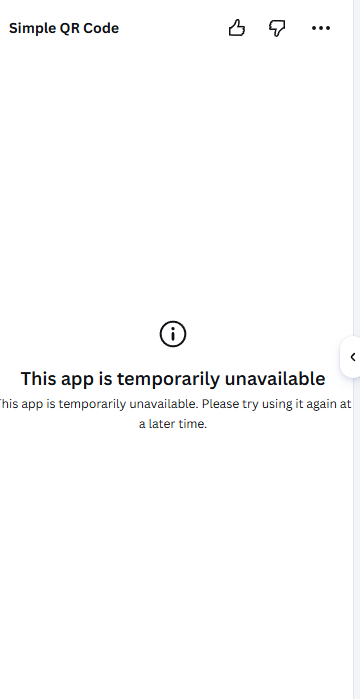
"This app is temporarily unavailable. Please try using it again at a later time." No support page, no timeline. Two more apps in the same list also failed to load for us. If your QR code workflow depends on one of these, that's a real risk — not a theoretical one.
One more trap in the same list: QR Code Scanner sounds like a generator but it's the opposite — it reads codes, and it's metered:
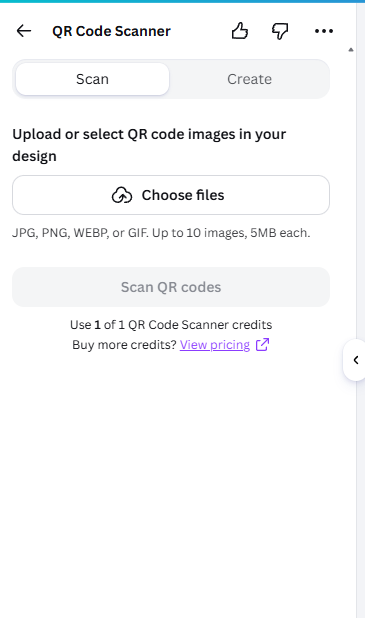
"Use 1 of 1 QR Code Scanner credits — Buy more credits? View pricing." A free tier of a single scan. The naming in this category is genuinely confusing, so check that the app creates codes before you install it.
Step 2: Generating the code
The app that worked was Scanova QR Codes. It opens on a Create QR code tab with a category dropdown (default Website URL QR code), a URL field, a QR code color swatch, a Dynamic QR code toggle, a collapsed Advanced features section, and a Generate button:
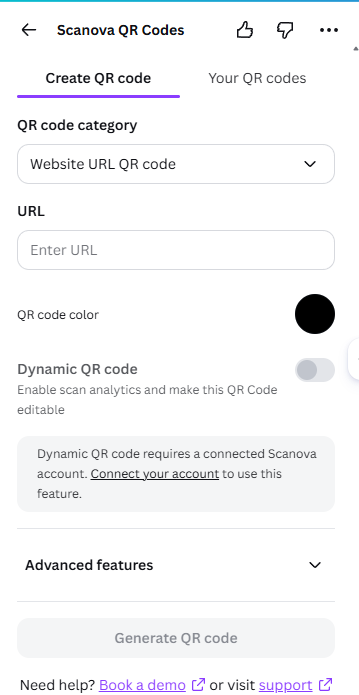
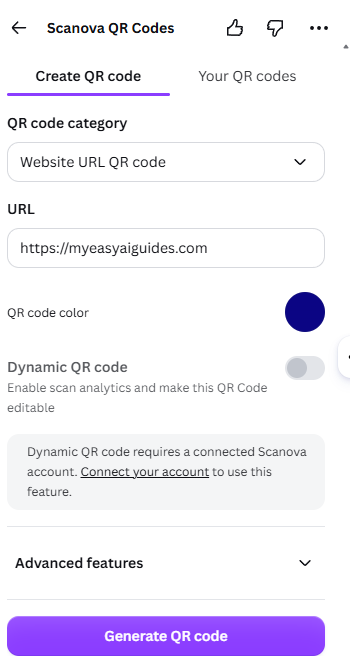
We entered the URL of this site and changed the code color from the default black to a dark navy, then hit Generate:
The result — a navy code on a white background, with three ways out: Add to design, Save to uploads, or Create new QR code:
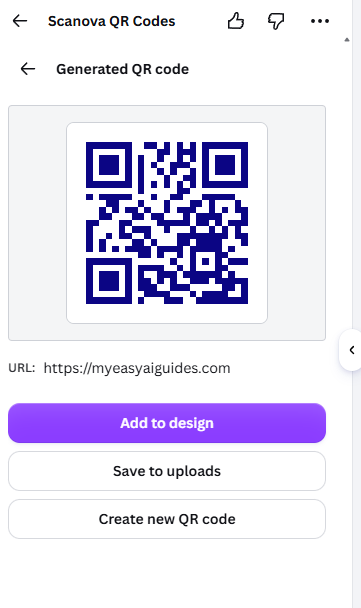
No payment prompt, no trial offer, no credit system. Generating the code itself is genuinely free. That already settles one half of the argument you'll read elsewhere: yes, you can set the code's color at generation time.
The interesting control is the one we left alone — the Dynamic QR code toggle:
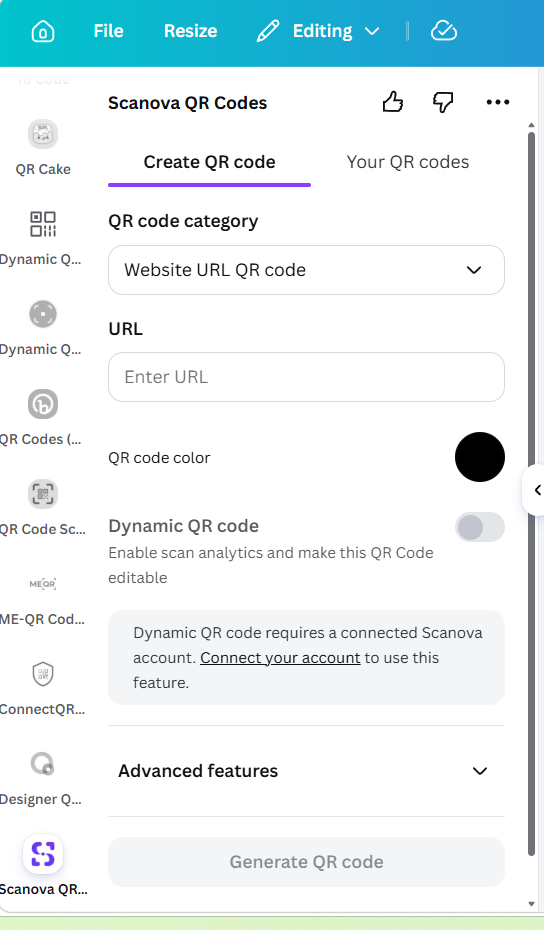
The app states plainly: "Dynamic QR code requires a connected Scanova account." We kept it off, which means we tested a static code. We did not test dynamic codes, because turning that on means registering with a third party — so anything we say about them below is clearly marked as untested.
Step 3: The color question — both sides are half right
This is where the tutorials fight each other. Canva's own pages say you can change the color; a well-known third-party guide says you can't. We tested it two ways.
First, on the canvas. Click the code and it behaves like any ordinary image element — the toolbar offers Edit, Replace, a color disc, layers, crop, Flip, transparency, Animate and Position:
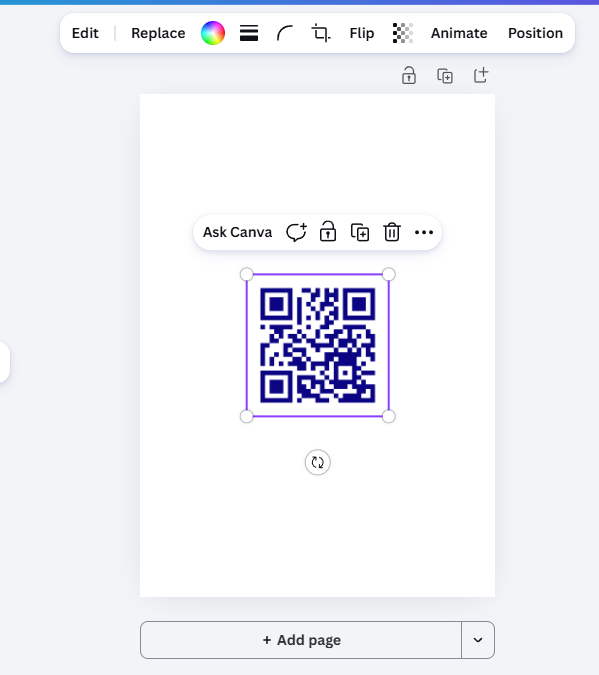
Click the color disc and you get a real color panel — Graphic colors with a custom swatch and eyedropper, plus Brand Kit and Canva's default solid colors. This is not a filter; it's a proper color control:
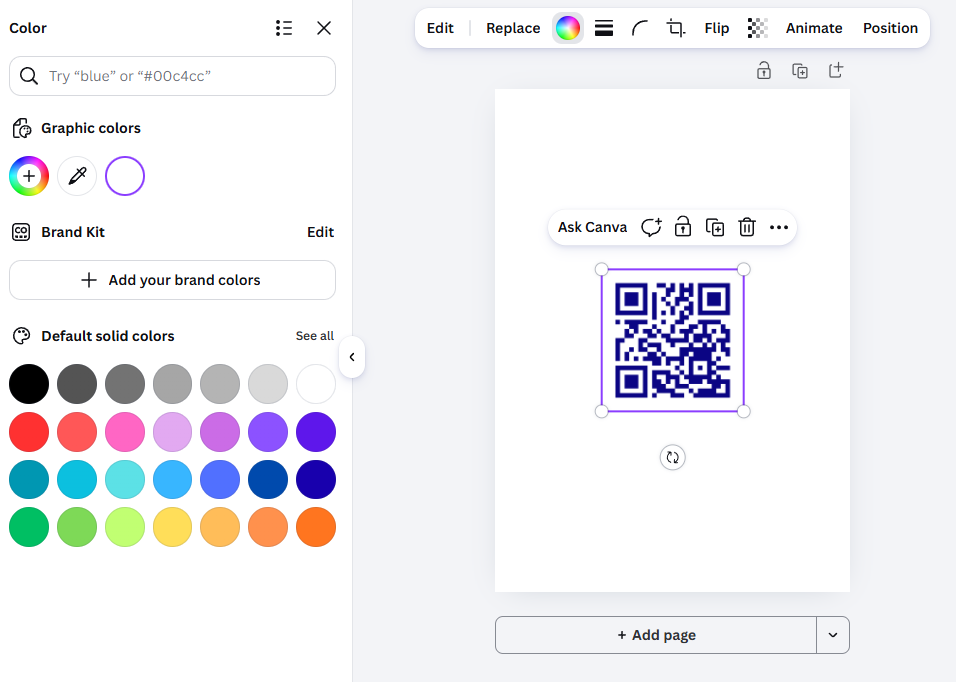
So we picked pure red and watched what happened. Here is the finding nobody else has published:
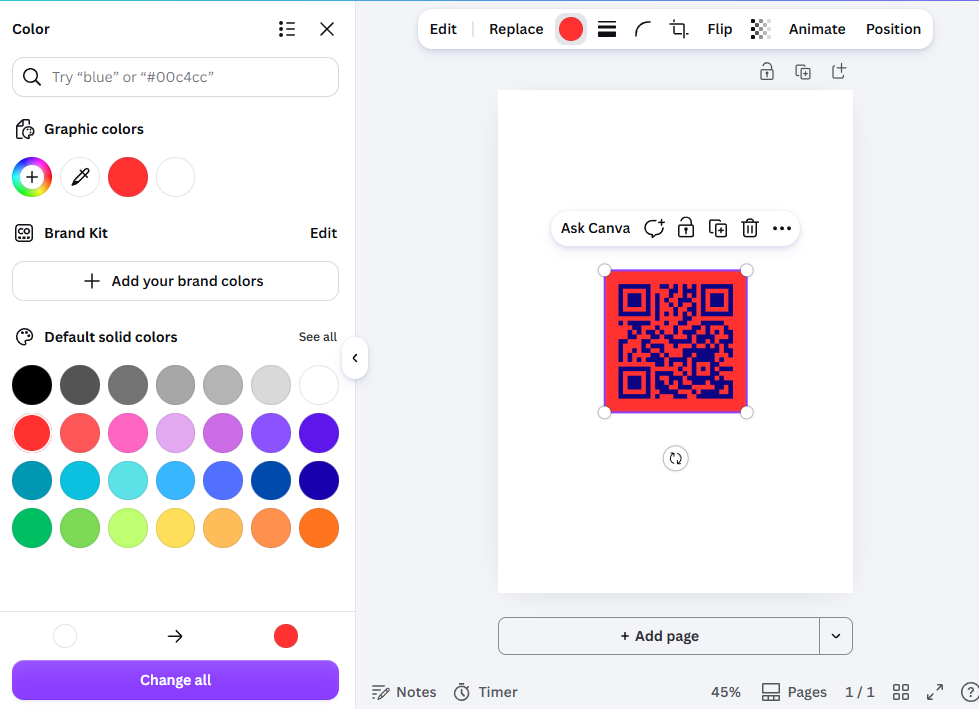
The background turned red. The code dots stayed navy. The panel only offers two color slots — one for the foreground shape, one for the background — and the dots are baked into the image, so there's no slot that reaches them.
That's why both sides of the argument sound convincing from where they're standing:
- "You can change the color" — true at generation time (we set the navy dots in the app panel) and true for the background on the canvas
- "You can't change the color" — true for the dots, once the code is sitting on your canvas
Practical rule: decide your code color before you press Generate. After that, the canvas only lets you recolor the background, and we're about to show that even that has limits worth knowing.
We put the background back to white the same way — same panel, same two slots:
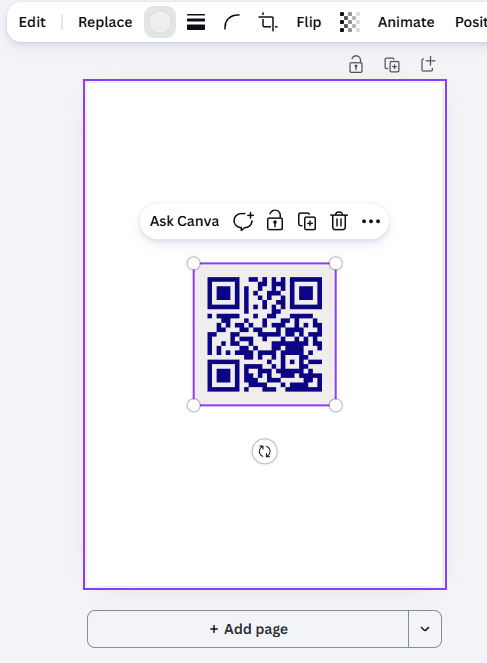
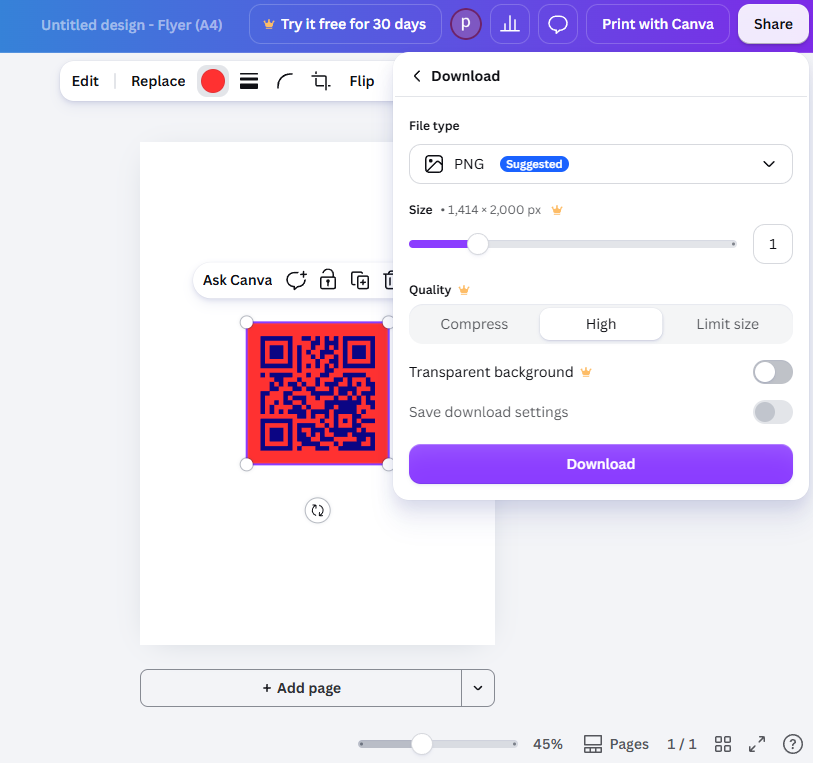
Step 4: Exporting — clean, no watermark, some Pro markers
Share → Download. The download panel shows the usual suspects wearing crowns: the upper end of the size slider and the transparent background option:
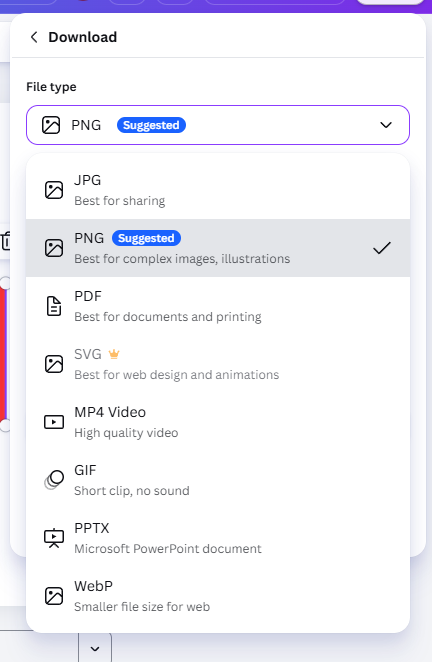
The file-type menu has the same pattern — SVG carries a crown in our account, while PNG does not:
We chose PNG and downloaded. No paywall, no "your design contains premium content" message, no trial offer — and the file opened with no watermark anywhere. In our test, a Canva QR code was free to make and free to take away.
Step 5: We scanned our own code — where does it actually send people?
This is the test we couldn't find anywhere else. A QR code is only useful if it survives contact with a real phone camera, so we exported two versions and scanned both:
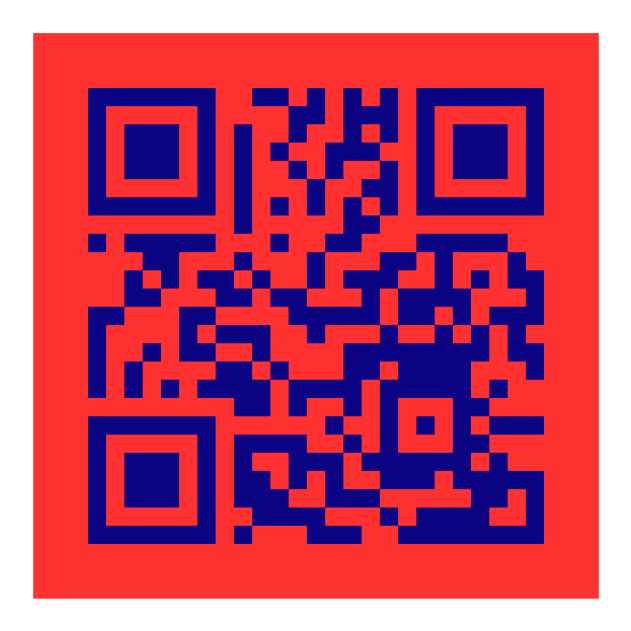
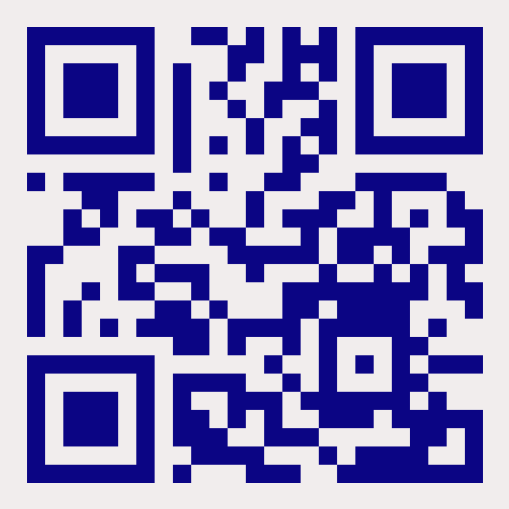
The red-background version was our deliberate stress test — red background, navy dots, poor contrast, exactly the kind of "customization" that ruins codes. Both scanned successfully. The low-contrast one took no more effort than the clean one.
Then the part that settles the shortlink argument — the phone's address bar immediately after scanning:
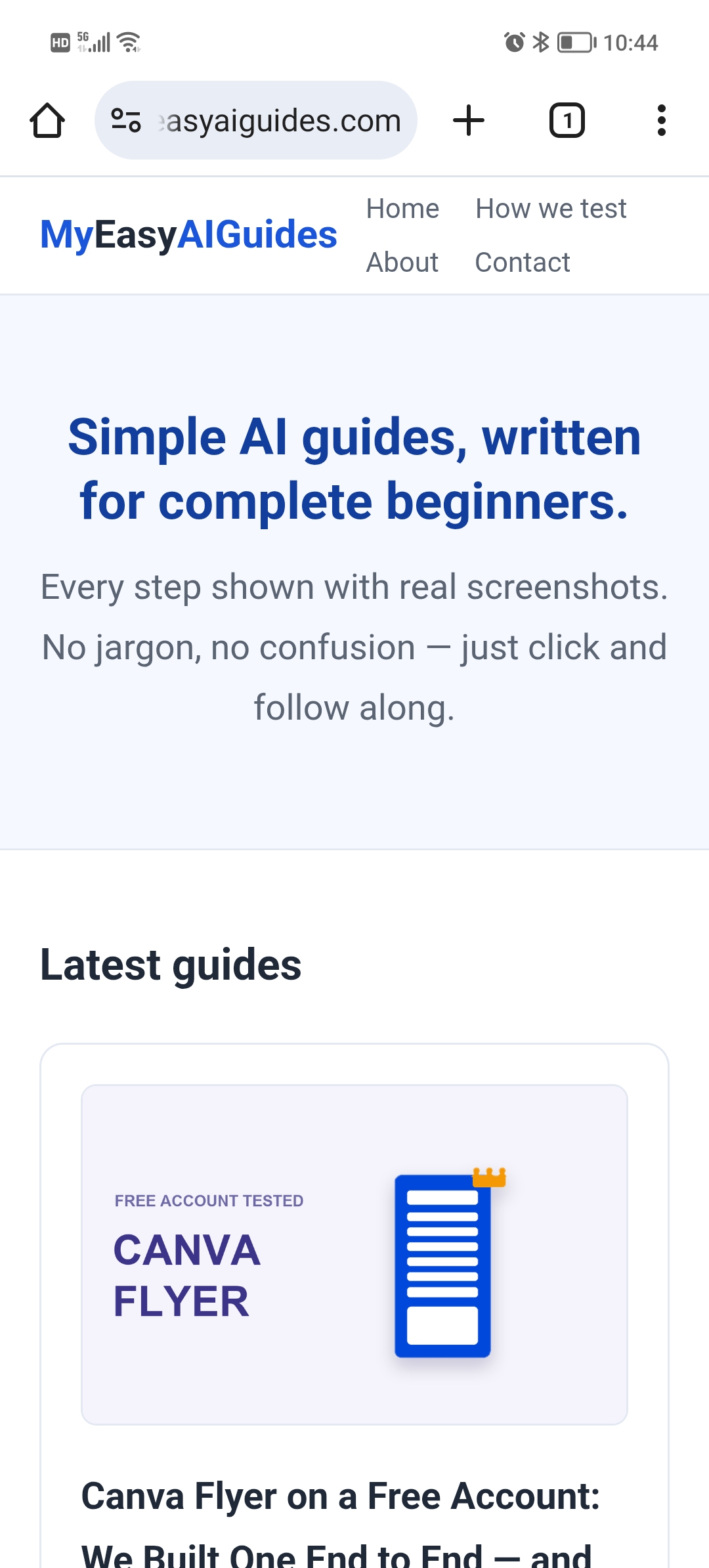
The address bar shows our own domain. Not a Scanova link, not a Canva redirect, not a shortlink of any kind — the static code opened our URL directly, in one hop.
Two honest conclusions from this. One: a third-party guide's claim that Canva "sometimes points codes at its own shortlink" did not happen in our static-code test. Two: we can't speak for dynamic codes, because those require a connected Scanova account that we didn't create — and a dynamic code is exactly the kind that would route through someone else's server in order to be editable later. If you need a code you can re-point after printing, that's the trade-off to investigate before you commit.
Step 6: Can you change where the code points later?
We went back to the app, typed a different URL, and generated again. The result: a brand-new, separate code. The one already on our canvas was untouched:
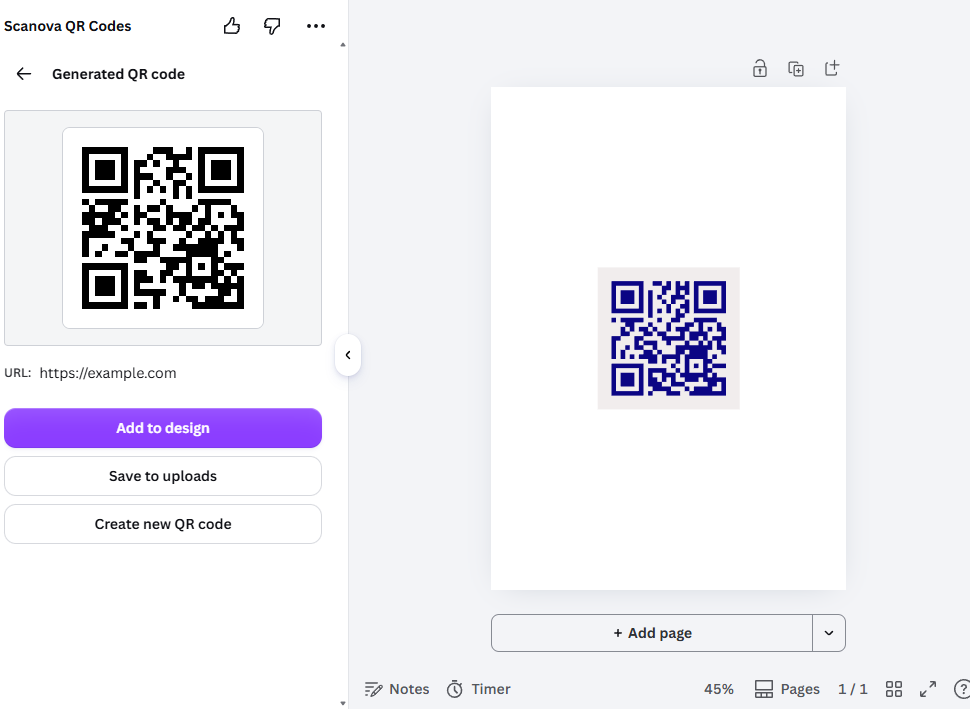
So the honest answer is: no, you cannot edit a static code's destination — you can only make a new one and swap it in (the canvas gives you a Replace button for exactly this). The URL is baked into the pattern at the moment of generation. Which is also why static codes don't depend on anyone's server staying alive: once it's a picture, it's yours.
The failure mode nobody warns you about
Midway through testing, the Scanova panel itself stopped loading — Canva's app-hosting domain returned a connection error:
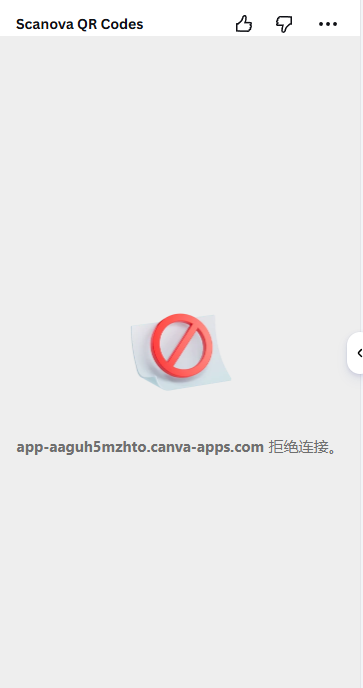
Nothing was wrong with our design, and nothing was wrong with the codes we'd already downloaded — those are just images and they keep working forever. What broke was the ability to make or change one. That's the real shape of the dependency here: not "your QR code might stop working", but "your QR code generator might not be there when you need it." If a code matters — on printed packaging, a poster, a menu — save the exported PNG somewhere you control.
What other guides say vs what we found
| What you'll read elsewhere | What we found in October 2026 |
|---|---|
| "Canva has a built-in QR code generator" | No Canva-made app in the editor — every search result is third-party, and the 645K-user option was unavailable when we tried it |
| "You can customize the color" (Canva's own pages) | Partly true — set the code color at generation; on the canvas you can only recolor the background |
| "You can't change the color at all" | Also partly true — the dots can't be recolored once the code is on the canvas; only two color slots exist |
| "Canva sometimes points codes at its own shortlink, which can break later" | Didn't happen with the static code — our phone landed on our own domain in one hop. Dynamic codes (which need a Scanova account) are untested by us |
| "Free downloads come with a watermark" | No watermark in our test — the PNG exported clean with no paywall |
| "You can update the link later" | Not on a static code — regenerating produces a separate new code; you replace the old one by hand |
So should you use Canva for QR codes?
| If you… | Verdict | Why |
|---|---|---|
| Need a quick code for a link that won't change | Good choice | Free, clean PNG, no watermark, and it points straight at your URL |
| Want the code to match your brand colors | Pick the color before generating | Generation sets the dot color; the canvas only reaches the background afterwards |
| Print the code on something you can't easily replace | Use a static code and keep the file | It's a plain image with no server dependency — but save the PNG yourself, since the generator app isn't always up |
| Need to change the destination after printing | Canva's free path won't do it | Static codes are permanent; the Dynamic toggle needs a third-party Scanova account we didn't test |
| Want scan analytics | Not here | Tracking lives behind the dynamic-code option and its connected account |
| Care about who can see your design | Read the permission text | Third-party apps ask to "read and change the contents of the design" |
Frequently asked questions
Is the Canva QR code generator free?
Making and downloading one is, in our test. We generated a code on a free account with no trial, no payment details and no credit system, and the PNG downloaded with no watermark and no paywall. Note that the generator is a third-party app (ours was Scanova QR Codes), not a Canva-made feature, so the exact options can change if that app changes.
Can you change the color of a QR code in Canva?
Partly. You choose the code color inside the generator before you press Generate — we set ours to navy. Once the code is on the canvas, the color panel only offers two slots and recoloring changes the background, not the dots. So both common claims ("you can" and "you can't") are half right depending on which stage you mean.
Does a Canva QR code point to your URL or to a shortlink?
In our test, straight to our URL. We scanned the exported PNG with a phone and the address bar showed our own domain, with no intermediate redirect. That was a static code. Canva's apps also offer a Dynamic QR code option that requires connecting a Scanova account — we did not test that, so we can't say how those route.
Does Canva put a watermark on QR code downloads?
No. Our PNG export had no watermark and no premium-content warning. Some export options are marked Pro in our account — the top of the size slider, the transparent-background option, and SVG — but plain PNG was free and clean.
Can you edit a Canva QR code after you've made it?
You can't change where a static code points. Generating a second code for a different URL produces a separate new image and leaves the original untouched; you then replace it on the canvas yourself. The URL is fixed in the pattern the moment it's created.
Does changing the background color break a Canva QR code?
Not in our test. We deliberately exported a low-contrast version — navy dots on a red background — and it scanned as easily as the white-background version. Don't read that as permission to go wild with contrast, but one bad color choice didn't kill our code.
Why did my Canva QR code app stop working?
Because it's a third-party app running on someone else's server. During our test, one app with 645,000 users showed "temporarily unavailable" and the app we were using returned a connection error before recovering. Your already-downloaded codes are unaffected — they're just images — but you may not be able to generate or change one until the app comes back.
Wrapping up
We took one QR code from app search to phone scan on a free account, screenshots at every step, including the failures. The honest summary: Canva's free path makes a clean, watermark-free, directly-linked QR code — but the generator is a third-party app that isn't always available, the color control reaches less than tutorials claim, and a static code's destination is permanent. None of this makes it a bad tool; it just means you should pick your color before generating, save the exported file, and never put a link in a printed code that you might need to change later. For more hands-on Canva tests, read our Canva Free vs Pro comparison, our first-design walkthrough, and our export formats explained; if you're building brand assets, our Canva logo test pairs well with this one, our Canva resume test covers the ATS and page-size questions for job applications, and what Canva Pro actually costs covers when upgrading makes sense.
Tested October 2026 on a free Canva account, web version, no payment details entered and nothing purchased. App availability and interface details can change without notice, and options marked Pro here may differ in your region or account. We've applied the same free-account method to free AI image generators and free AI voice tools.
This guide is one of our 18 free-account Canva tests — crown counts, measured exports, print prices and paywalls, all in one place.