Canva's 3.125x Export Cap: Why Prints Still Come Out Blurry
Every guide tells you to drag the size slider up before downloading. None of them tell you what the number at the top of that slider actually means. It is not 3x. On a paid account it is 3.125x, and that odd figure is the whole answer: 96 × 3.125 = 300, the professional print standard, down to the decimal. The slider does not enlarge your design. It converts it to print resolution, and it does not give you one extra inch to work with.
Short answer: Canva exports PNG and JPG at 96 DPI, and the size slider tops out at 3.125x, because 96 × 3.125 = 300. So the maximum setting lands you exactly on the 300 DPI print standard and not one pixel further. On our paid account a 1,264 × 1,264 px design exported at 3,950 × 3,950 px. Consequence: you can print 300 DPI only at the size you typed when you created the design. Enlarge it by 10% and you are at 272 DPI. Print an A4 design at A3 and you are at 212 DPI. No setting, and no plan, lifts that.
Fix it before you design, not when you download: pick the final paper size in the Custom size box on the first screen. The multiplier is a conversion, not a magnifier.
Why the maximum is 3.125 and not 3
Most articles round the slider off to "3x" and move on. Two problems with that. First, rounding it changes the arithmetic by 12 DPI, which is enough to fail a print shop's check. Second, the reason the number is 3.125 is the useful part, and it disappears if you call it 3.
Here is where it comes from. Canva does not store a physical size for your design. It stores pixels, and it converts them at 96 pixels per inch whenever a physical measurement is needed. We confirmed this on an unrelated test by reading the page box of a Canva PDF export: a 1,410 × 2,250 px design produced a document measuring 14.69 × 23.44 inches. Divide those out and you get exactly 96. That reading is in our KDP cover test, where the same file also came out with no DPI tag at all.
So a design sits at 96 DPI. Commercial printing wants 300 DPI. The ratio between the two is:
300 ÷ 96 = 3.125
That is the entire explanation. The slider stops at 3.125 because that is the point where 96 DPI becomes 300 DPI, and Canva has no reason to let you go past the number that satisfies commercial printing. It is not a limit on generosity. It is a conversion factor wearing a limit's clothes.
What the slider actually does when you drag it
We dragged it, on a paid account, on the same 1,264 × 1,264 pixel square used in our paywall retest. The panel printed the output dimensions as the slider moved. At the far right it read 3,950 × 3,950 px and the multiplier beside it read 3.125x.
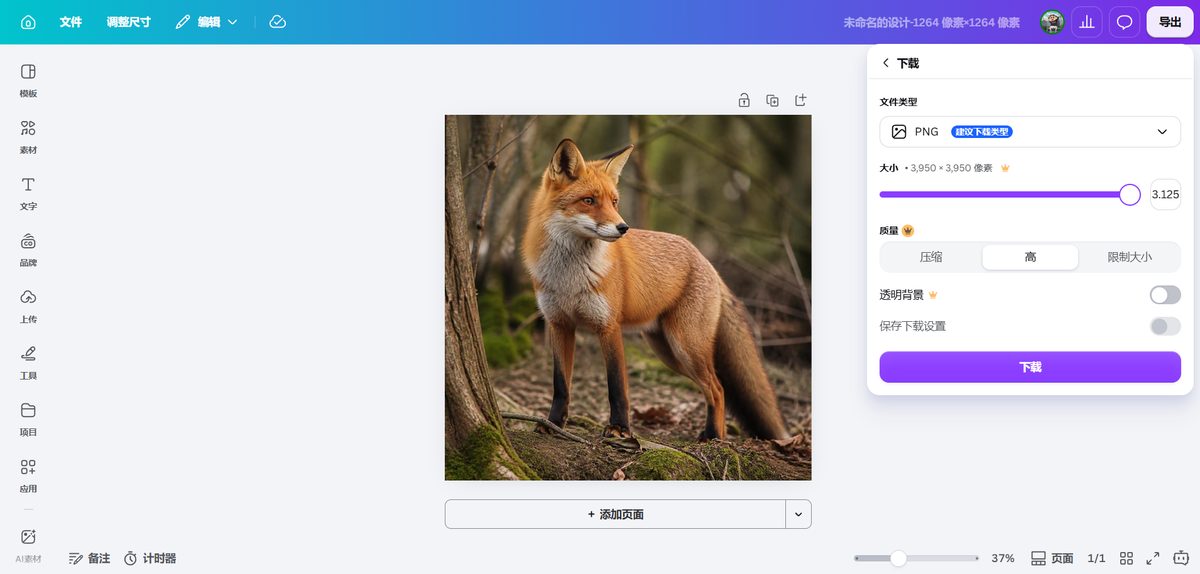
Cross-check the design against an A4 sheet and the two numbers line up almost too neatly. Canva's A4 preset is 794 × 1,122 px. Multiply by 3.125 and you get 2,481 × 3,506 px. A4 at 300 DPI is 2,481 × 3,507 px. The difference is one pixel, in the rounding.
That is not a coincidence, and it is also not a gift. It means the A4 preset plus the maximum slider is exactly enough, and never more than enough.
The table nobody publishes: what you can print at 300 DPI
Every row below follows the same three steps: take the paper size in inches, multiply by 96 to get the pixels Canva will use, then multiply by 3.125 to get the exported pixels. The final column divides exported pixels back by inches to check the DPI actually lands on 300.
| What you print | Create at | Export at 3.125x | Real DPI |
|---|---|---|---|
| Business card 3.5 × 2 in | 336 × 192 | 1,050 × 600 | 300 |
| Postcard 6 × 4 in | 576 × 384 | 1,800 × 1,200 | 300 |
| A5 5.83 × 8.27 in | 560 × 794 | 1,750 × 2,481 | 300 |
| A4 8.27 × 11.69 in | 794 × 1,122 | 2,481 × 3,506 | 300 |
| US Letter 8.5 × 11 in | 816 × 1,056 | 2,550 × 3,300 | 300 |
| A3 11.69 × 16.54 in | 1,122 × 1,588 | 3,506 × 4,962 | 300 |
| Poster 18 × 24 in | 1,728 × 2,304 | 5,400 × 7,200 | 300 |
| A2 16.54 × 23.39 in | 1,588 × 2,245 | 4,962 × 7,016 | 300 |
Every row lands on 300. That is what a conversion factor does. And every row depends on one thing you control on the first screen and never see again: the numbers in the Custom size box.
Which is why the useful advice is not "turn the slider up". It is: type your final paper size before you place a single element. Do that and the slider takes care of itself. Skip it and no amount of slider rescues you.
The three ways a print still comes out blurry
Every blurry Canva print we could trace back to a cause fits one of these. All three are arithmetic, not opinion.
1. The slider stayed at 1x
A design downloaded at 1x keeps its 96 DPI. An A4 design at 1x is 794 px across, which spread over 8.27 inches is 96 DPI. That is fine on a screen, and visibly soft on paper. The slider is not pre-set to the maximum, and on a free account it does not move at all: in our KDP cover test the size control on a free account was locked at 1x. This is the single most common cause, and it is one click.
2. The design was built for a smaller sheet
This is the one that costs people money, because the file looks fine and the export was set correctly. Take an A4 design exported at the maximum: 2,481 px across. Print it on A3, whose width is 11.69 inches, and the effective resolution is
2,481 ÷ 11.69 = 212 DPI
Not a broken export. Not a bad printer. The design was drawn at 8.27 inches wide and printed at 11.69. A5 to A4 is the same trap: an A5 design exported at the maximum reaches 1,750 px, and A4's width is 8.27 inches, which gives 212 DPI again. The 1.414 step between adjacent A sizes is exactly the amount that takes you from "fine" to "why is this soft".
3. The source image was small
Canva cannot export detail that was never uploaded. A 500 px photo dropped into an A4 layout stays a 500 px photo after the 3.125x multiplier, because the multiplier acts on the design, not on the resolution of the asset inside it. If you are printing photos rather than flat colour and text, check the asset before blaming the export panel.
How much headroom you actually get: about 10%
People assume a maximum setting comes with slack. It does not. The 3.125x export puts you exactly on 300 DPI at your design size, which means the next enlargement takes you below it:
| A4 design (2,481 px) printed at | Effective DPI | Verdict |
|---|---|---|
| 8.27 in (A4) | 300 | Print standard |
| 9 in | 276 | Usually accepted |
| 10 in | 248 | Borderline, ask the printer |
| 11.69 in (A3) | 212 | Visible softness up close |
So the honest version of "3.125x is plenty" is: 3.125x is exactly enough, for the sheet you asked for. Anything more is a different job and needs a different design file. If you know the final size will be A3, spend ten seconds building the A3 design instead of scaling up an A4 one. That ten seconds is the difference between 300 DPI and 212.
One thing almost nobody mentions: the file carries no DPI tag
Resolution has two halves, and Canva only handles one of them. The pixels are real, but the DPI tag that tells software what physical size those pixels represent is absent: when we inspected a Canva PNG in our KDP test, it carried no DPI metadata at all. The PDF did the opposite and stated its page box outright at 96 DPI.
What that means in practice: a print shop that opens your 2,481 px PNG may see it described as roughly 34 inches wide at 72 DPI, because with no tag present the software falls back to a default. Some shops immediately recompute from your stated trim size. Others quote you for a 34-inch poster and then print it wrong. Either way, tell them the intended physical size in the same message as the file — and if you can, set the DPI field yourself in an image editor before sending. It is metadata, not pixels, but it is the number the other side will read.
We did not test how any specific print vendor handles an untagged file. Treat this as a mechanism to watch for, not a survey of shops.
When to skip the multiplier and use PDF Print instead
For anything going to a commercial printer, PDF Print is usually the better path, and it sidesteps the whole conversation. Canva's own help centre states that PDF Print is the only format that saves professional print quality at 300 DPI, and it keeps text and vector shapes resolution-independent, so type stays sharp regardless of sheet size. Two things follow:
- Text-heavy design: PDF Print. The type never becomes pixels, so it cannot get soft.
- A print shop requires PNG or JPG: export PDF Print first, then convert that to PNG at 300 DPI in another tool. You get the same pixels without fighting the slider.
- Web, social, or digital-only: the multiplier is the wrong tool entirely. 1x is correct and the file is smaller.
The multiplier exists for the case in between: you need a raster file at print resolution and the output is going straight to a printer without a conversion step.
The hard ceiling: 8,000 × 3,125 pixels
There is a limit above the slider that almost no guide mentions, and it decides whether very large formats are possible at all. Canva's help centre gives the custom-size range as a minimum of 40 px and a maximum of 8,000 × 3,125 px. That second number is the short edge, and it is the one that bites.
Convert it: 3,125 px at 96 DPI is about 32.5 inches on the short edge. Since the 3.125x export lands on 300 DPI at exactly that physical size, a single Canva page can reach roughly 32.5 inches short edge at print resolution, and no further.
A1 is 23.39 × 33.11 inches. Built upright, its long edge needs 3,178 px, which is above the 3,125 px ceiling. Built sideways — 3,178 px wide, 2,245 px tall — it fits. So for anything at A1 or larger, orientation decides whether the file can exist, and past that you are splitting artwork across pages or scaling deliberately and accepting the DPI you get.
One caveat, stated because we have not tested it: that limit is documented for the Custom size box. Whether a paper preset bypasses it we did not verify.
What we tested, and what we did not
Kept short and specific, because the numbers above are only as good as their conditions:
- Paid Canva account, 31 October to 1 November 2026. The multiplier reading of 3.125x comes from that account, on desktop web.
- One design size for the export measurement: 1,264 × 1,264 px, which produced 3,950 × 3,950 px. We did not repeat the measurement across every preset, so the table above is arithmetic from Canva's 96 DPI conversion, not eight separate downloads.
- The 96 DPI conversion is measured, not assumed: a 1,410 × 2,250 px design produced a PDF page box of 14.69 × 23.44 inches, which is that design divided by 96.
- The Chinese build, not the international one. That is the only paid plan we could buy from here, which is a whole story of its own. Feature parity is likely, not proven.
- No CMYK test. The control does not exist in the build we bought, so we make no claim about colour space.
- No physical print output. We did not send files to a print shop and inspect the sheet. The DPI figures are computed from measured pixel counts and stated paper sizes, which is what a print shop does too, but we say so rather than implying a press was involved.
FAQ
What is the maximum export size in Canva?
For PNG and JPG, 3.125x the design dimensions. Our 1,264 × 1,264 px design exported at 3,950 × 3,950 px. Canva's help centre lists the range as 0.5x to 3.125x. No plan offers more.
Why does the slider stop at 3.125x?
Because 96 × 3.125 = 300. Designs are stored at 96 DPI and commercial print wants 300 DPI, so 3.125 is the exact conversion between the two. It looks like a strange number because it is a division result, not a design decision.
Is 300 DPI enough?
For anything held at arm's length, yes, and most print shops require it. Large-format work seen from a distance is often accepted at 150 DPI. Below about 200 DPI, softness becomes visible on close inspection.
Can I print A3 from an A4 design?
Yes, at 212 DPI. Not at 300. To hold 300 DPI at A3, create the design at A3 from the start: 1,122 × 1,588 px in Canva's Custom size box.
Does Canva export CMYK?
We could not verify it. Our build has no CMYK control, so we have no result either way. Export PDF Print and confirm colour requirements with your printer before sending.
Does paying for Pro raise the 3.125x ceiling?
No. Pro is what gives you access to the slider in the first place; past that, 3.125x is the same on every tier we could reach.
Read next
- Canva book covers: the export panel, measured — where the 96 DPI conversion and the missing DPI tag were first found
- Is Canva Pro worth it? — we paid and retested 9 of 18 walls
- All 18 Canva walls, with the screenshots
- How much is Canva Pro? — both price screens, one with the yearly toggle
- Canva flyers: print sizes and what they cost