Canva Resize Image on a Free Account: The Resize Button Is Pro — But the Side Door Is Wide Open
Ask "can I resize in Canva free" and you'll get two kinds of answers: tutorials that mumble "just use the Resize button" (it's not free), and forum threads that insist everything's locked. Both are wrong in the same way: nobody actually clicks the button and shows you what happens. So we did — on a free account, with an existing design, from the Resize panel to the final exported PNG. Canva's own paywall ended up settling the question for us, and the free workaround turned out to be better than we expected. Every claim below has a screenshot behind it.
Short answer: One-click Resize is Pro-only — we confirmed it three ways, ending with Canva's own paywall, which lists "Remove backgrounds and resize designs" as a paid benefit in black and white. But the free workaround we tested is fully functional: create a custom-size canvas (any dimensions, free), copy-paste your design across, drag to fit — the pasted content arrives as editable elements, not a flattened image. Cropping uploaded images is also free. And the export is honest: our 1080×1080 canvas downloaded as an exactly 1080×1080 pixel PNG. The only thing Pro buys you is skipping the manual drag.
How we ran the test
- Free account only — no Pro trial, no payment details; the paywall was opened for evidence and closed immediately
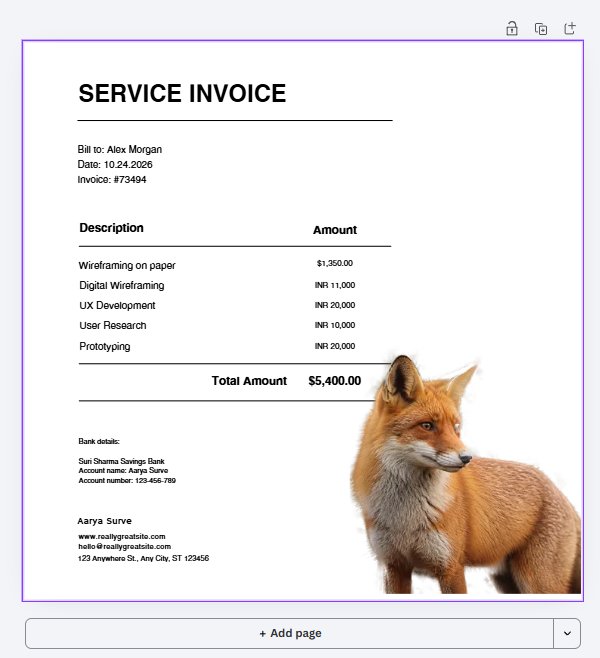
- A real existing design — we used the invoice from our Canva invoice template test, not a throwaway blank
- Both paths tested — the Pro Resize panel, and the free custom-size + copy-paste route
- The export got verified, not assumed — we checked the downloaded PNG's actual pixel dimensions
The Resize button: what free users actually see
Open any design in Canva and the top toolbar carries a Resize button (alongside Translate and Transform into Doc). Click it and you get a tidy panel: a search box, suggested sizes (Instagram Story 1080×1920, Instagram Post 4:5 1080×1350, Facebook Post 940×788), and categories from Social media to Print to Whiteboard.
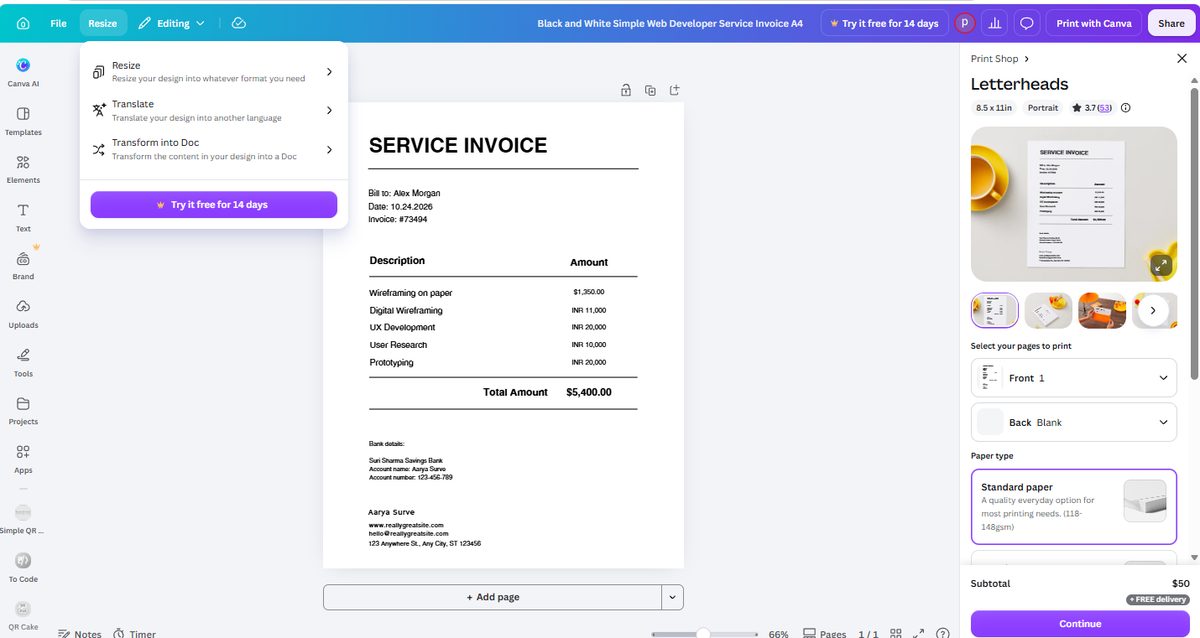
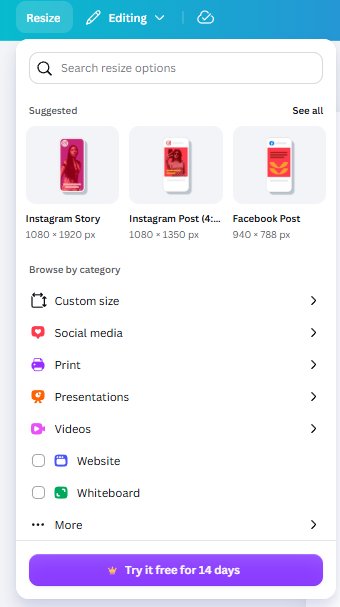
Then the wall, in three beats. First, we ticked a suggested size — Instagram Post 4:5 — and the canvas didn't move; the selection was just a checkbox. Second, the only button that could apply the change was "Try it free for 14 days" — the apply button is the trial button. Third, we clicked it, and up came the paywall.
Canva's own paywall settles the question
We didn't need to argue about whether resize is Pro: Canva's paywall says it for us. The trial dialog compares Pro (US$0 for 14 days, then US$18/month) and Business (US$0 for 14 days, then US$25/month), and its benefits table lists — in plain text — "Remove backgrounds and resize designs" as a Pro/Business feature. Case closed by the defendant's own confession.
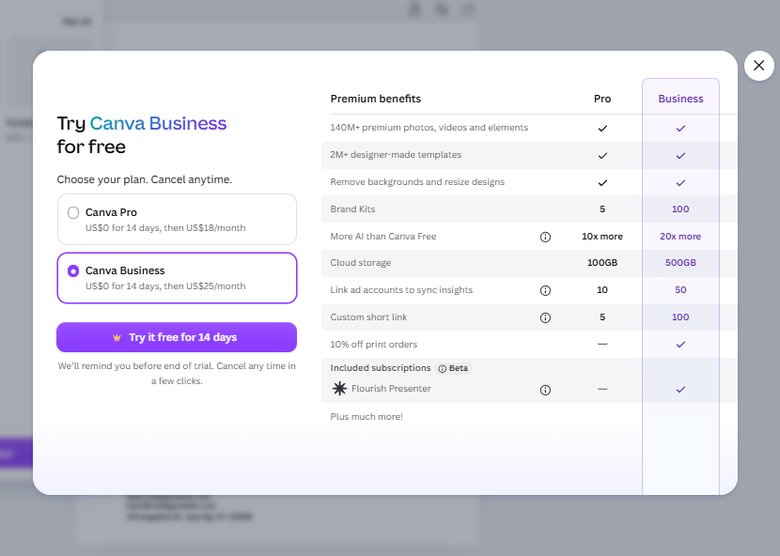
(Bonus intel from that dialog: Pro runs US$18/month after the trial and Business US$25/month, with Brand Kits 5 vs 100 and cloud storage 100GB vs 500GB — useful if you're deciding between them in our Canva Free vs Pro breakdown.)
The free workaround: custom size + copy-paste + one drag
Here's the part the paywall doesn't mention: the side door is unlocked. Three steps, all free:
Step 1 — Create a canvas at the exact size you need. From the home page: Create a design → Custom size, type your dimensions (we used 1080×1080), create. Any size works free.
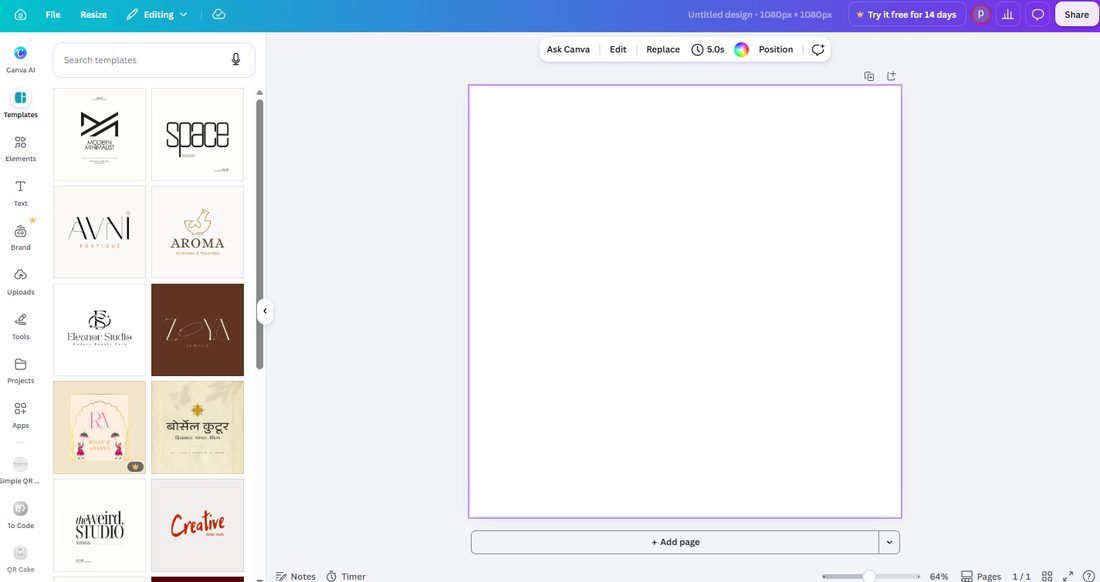
Step 2 — Copy your design across. Open the original design, Ctrl+A (Cmd+A on Mac) to select everything, Ctrl+C, switch to the new canvas, Ctrl+V. In our test the entire invoice came across intact — and here's the detail that matters: the pasted content arrived as editable elements. The text boxes were still text boxes; nothing got flattened into an image.
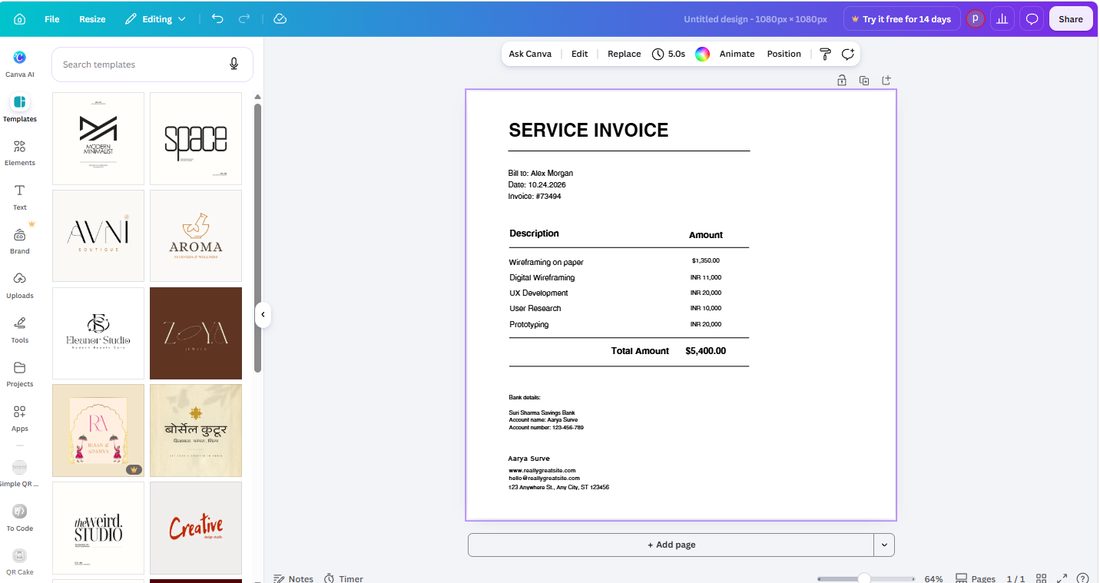
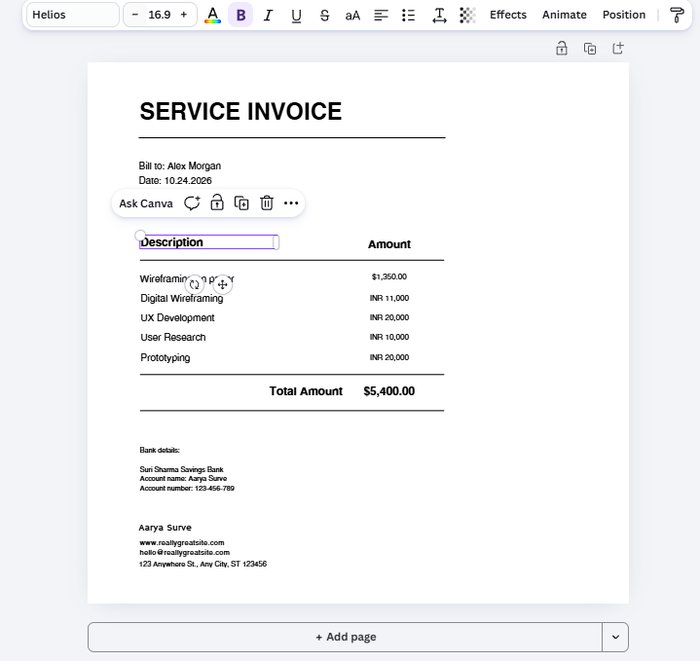
Step 3 — Drag to fit. The pasted group keeps its original proportions — no auto-reflow, which is exactly what Pro's Magic Resize does for you. Grab a corner handle, scale it into the new canvas. That drag is the entire difference between free and Pro: a few seconds of manual adjustment per design.
What about just resizing an uploaded image?
If your task is simply making a photo fit — scale it, crop it — that's all free, and it always was. We uploaded an image, dragged its corner handles to scale, and double-clicked to open the crop tool. The crop panel offered freeform cropping, the original ratio, a 1:1 square, rotation, and a Smart Crop button — no payment prompt anywhere.
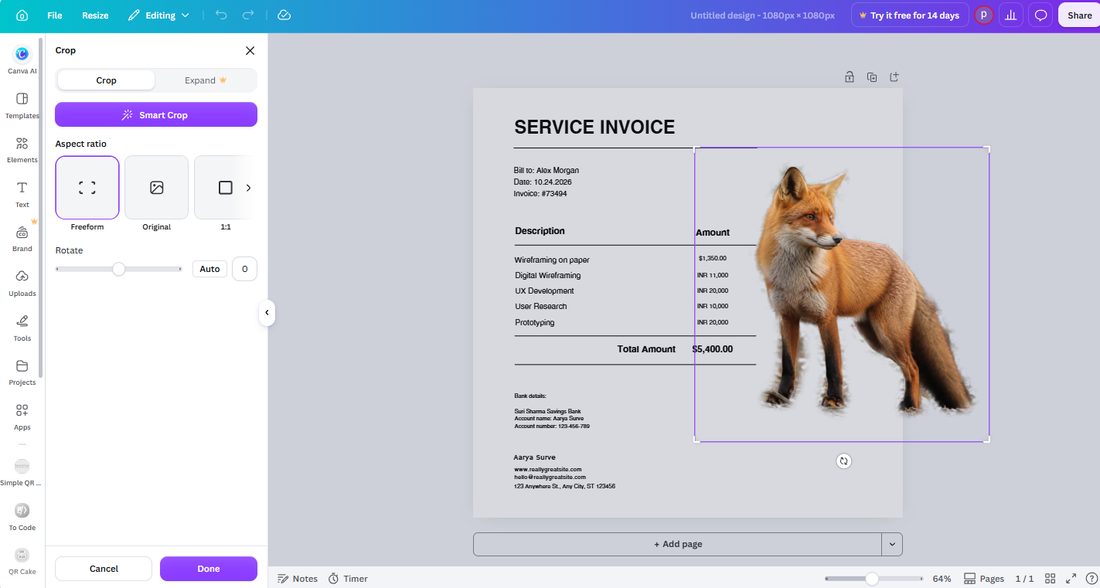
So the precise boundary is: scaling and cropping images = free; one-click re-flowing a whole design into another format (Magic Resize) = Pro. Most people searching "canva resize image" actually want the first thing.
Does the export match the canvas size? We checked
A resize flow is only as good as its output. Our canvas was 1080×1080 pixels; we downloaded the PNG and inspected the file itself: exactly 1080×1080 pixels, 472 KB, with alpha channel (RGBA). No padding, no surprise dimensions — Canva exports at the canvas size you set.
Free vs Pro: where the resize walls actually are
| Task | Free plan | Pro only |
|---|---|---|
| Creating a custom-size canvas | ✅ Any dimensions, free | — |
| Scaling elements by dragging | ✅ Fully free | — |
| Cropping uploaded images | ✅ Freeform, ratios, rotation, Smart Crop | — |
| Copy-pasting a design into a new size | ✅ Content stays editable | — |
| One-click Magic Resize with auto re-flow | — | 👑 Pro (US$18/mo) / Business (US$25/mo) |
| Background remover | — | 👑 Listed on the same paywall line as resize |
Which route should you take?
| If you… | Do this | Why |
|---|---|---|
| Need one design in a second size, occasionally | Custom size + copy-paste + drag | Same result as Pro, costs a few seconds |
| Resize many designs into many formats daily | That's what Pro's Magic Resize is for | The manual drag doesn't scale to volume work |
| Just need a photo smaller or cropped | Scale and crop in the editor — free | No workaround needed; this was never locked |
| Need an exact pixel size for a platform | Set it in Custom size, export as PNG | Our 1080×1080 export matched exactly |
Frequently asked questions
Is resize free in Canva?
No — the one-click Resize (Magic Resize) feature is Pro-only, and Canva says so itself. In our October 2026 test on a free account, we opened the Resize panel, selected a suggested size, and the canvas did not change; the only way to apply the resize was a "Try it free for 14 days" button, which opened a paywall whose benefits table explicitly lists "Remove backgrounds and resize designs" under Pro and Business. What is free: creating a custom-size canvas, cropping images, and manually adjusting your design.
How do I resize a Canva design without Pro?
Use the manual workaround we tested: create a new design with the exact size you need via Create a design > Custom size (free, any dimensions), then open your original design, press Ctrl+A (Cmd+A) to select everything, copy, and paste into the new canvas. In our test the entire design came across as editable elements — text stayed text, not a flattened image — and we just dragged the corner handle to fit the new size. The cost versus Pro's one-click resize is a few seconds of manual adjustment.
Can you resize an uploaded image in Canva for free?
Yes. On a free account we uploaded a photo, scaled it by dragging its corner handles, and used the crop tool (double-click the image) freely — the crop panel offered freeform, original ratio, 1:1, rotation, and a Smart Crop button, all without a payment prompt. Scaling and cropping images is free; what is Pro is the one-click Magic Resize that re-flows a whole design into another format.
Does Canva export at the exact canvas size?
In our test, yes. We created a 1080×1080 pixel canvas, placed our content, and downloaded a PNG: the exported file measured exactly 1080×1080 pixels (472 KB, with alpha channel). If you need a specific pixel size, set it in Custom size and the export will match.
What does Canva Pro cost if I want one-click resize?
In the paywall our free account triggered (October 2026, US pricing), Canva Pro was offered at US$0 for a 14-day trial, then US$18/month, and Canva Business at US$0 for 14 days, then US$25/month. Both include resize and background removal. If you only resize occasionally, the free manual workaround costs you nothing but a few seconds.
Since you'll likely put that resized canvas to work on social media, our Canva Instagram post test found the same locked-door pattern in the Share menu: the Instagram and Schedule buttons are right there, and both open a Business paywall. Two locks, one key — and the free side doors for both.
Wrapping up
Canva locked the front door and left the side door open — and now you have both mapped. The one-click Resize is genuinely Pro, confirmed not by rumor but by Canva's own paywall listing "resize designs" as a paid benefit. The free route — custom-size canvas, copy-paste, one drag — produces the same result with editable content intact, and Canva's export honors your exact pixel size. Pay for Pro when re-formatting designs is your daily job; until then, the side door works.
More free-plan boundaries, tested with screenshots: the tri-fold brochure test (the fold-order catch and the CMYK wall), the invoice template test (the "table" that isn't a table), the background remover test — the feature that shares a paywall line with resize — and what Canva Pro actually costs. One rule, every article: screenshots or it didn't happen.
This guide is one of our 18 free-account Canva tests — crown counts, measured exports, print prices and paywalls, all in one place.