Canva Instagram Post on a Free Account: Scheduling Is Locked, "Square" Is a Myth, and the Export Proves It
Every tutorial about making Instagram posts in Canva stops at the same place: pick a template, edit it, download. Nobody answers the questions that actually matter when you're about to hit publish — can you post to Instagram straight from Canva on a free account? Can you schedule? And here's one almost nobody gets right: is an "Instagram Post" even square? We ran the whole flow on a free account — search, edit, the Share menu (buttons and all), and a file-level check of the export. Canva answered the first two questions with a paywall, and the third with a surprise. Every claim below has a screenshot behind it.
Short answer: Making and editing the post is free — of the first 20 templates, only 4 carried the Pro crown, and we changed text and swapped photos with zero resistance. But the two buttons you'd actually publish with — Instagram direct share and Schedule — sit right there in the Share menu and open a Canva Business paywall (US$18/month for Pro, US$25/month for Business after a 14-day trial) the moment you click them. The door is visible, but locked. And the kicker: our "Instagram Post" template exported at 1080×1350 — a 4:5 portrait, not a square. More on why that matters below.
How we ran the test
- Free account only — no trial, no payment details; the paywall was opened for evidence and closed immediately
- Real search, real template — we searched "instagram post" like any user, picked a crown-free template, and edited it with our own photo
- The Share menu explored, not skipped — we clicked the Instagram and Schedule buttons so you can see exactly what happens
- File-level verification — the exported PNG was inspected for its actual pixel dimensions, not just what the template claimed
Step 1: The search — only 4 crowns in the first 20
Searching "instagram post" on Canva brings up the preview layer first, with Show more underneath leading to the full template gallery. We counted the first 20 results: 4 carried the Pro crown — 20%.
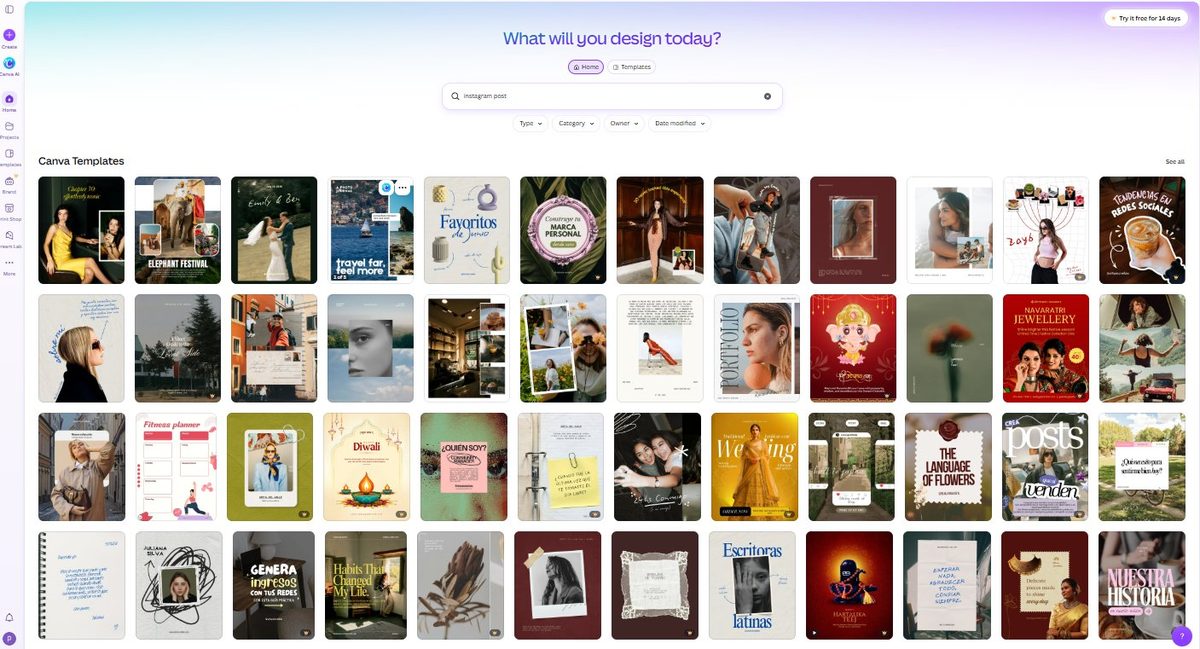
For context, this continues a pattern we've now measured across four categories: tri-fold brochures came in at 3 of 20 (15%), Instagram posts at 4 of 20 (20%), and invoice templates at 8–10 of 20 (40–50%). The rule of thumb: the more "business" the category, the heavier the paywalling. And as with every category we've tested, the gallery is an infinite scroll — the deeper you go, the denser the crowns. Free templates live at the top; shop accordingly.
Step 2: Editing is genuinely free — including the photo swap
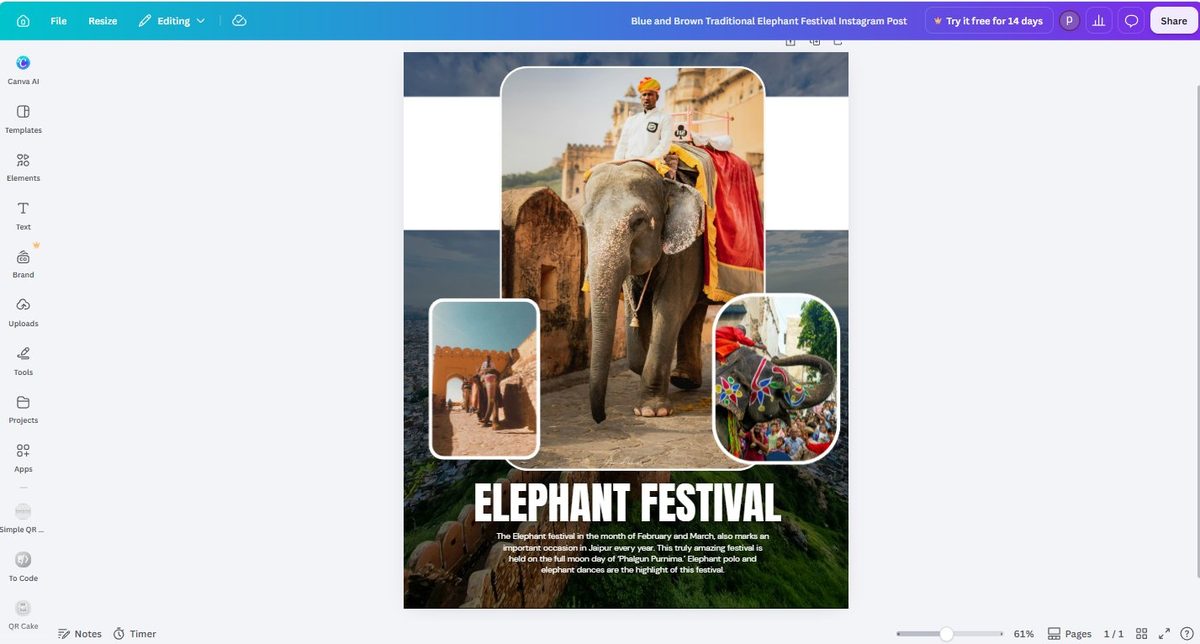
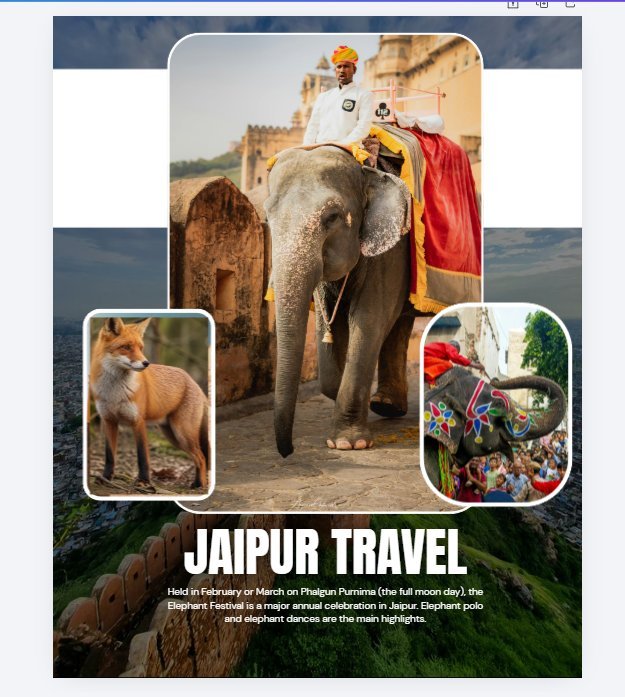
We picked the "Blue and Brown Traditional Elephant Festival Instagram Post" template (no crown) and put it through a normal editing session: changed the headline to JAIPUR TRAVEL, adjusted body text, and replaced one of the template photos with our own uploaded image.
Three things worth noting:
- Text editing: zero friction. Double-click, type, done — same as every template we've tested.
- The photo swap is smarter than expected. Our uploaded image dropped into the template's rounded photo frame and was auto-cropped to fit the frame's shape — no manual masking needed.
- The canvas was portrait, not square. Look at the screenshot — this "Instagram Post" template is roughly 4:5. Hold that thought; the export confirms it.
One persistent niggle: the "Try it free for 14 days" banner sits permanently in the top bar while you edit. It never blocks anything, but it's always there — Canva's freemium messaging at its most persistent.
Step 3: The Share menu — both publish buttons, one paywall
Here's where most tutorials stop and ours gets useful. Clicking Share reveals a menu where Canva puts its publishing ambitions on full display:
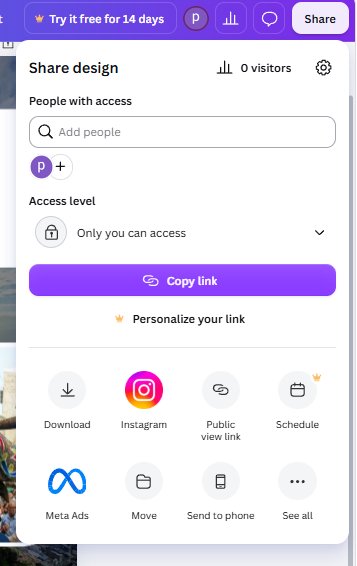
Right there on the first screen: Download, Instagram, Public view link, Schedule, Meta Ads… The Instagram button even lacks a crown badge — it looks free. The Schedule icon, to its credit, carries a tiny crown in its corner. We clicked them.
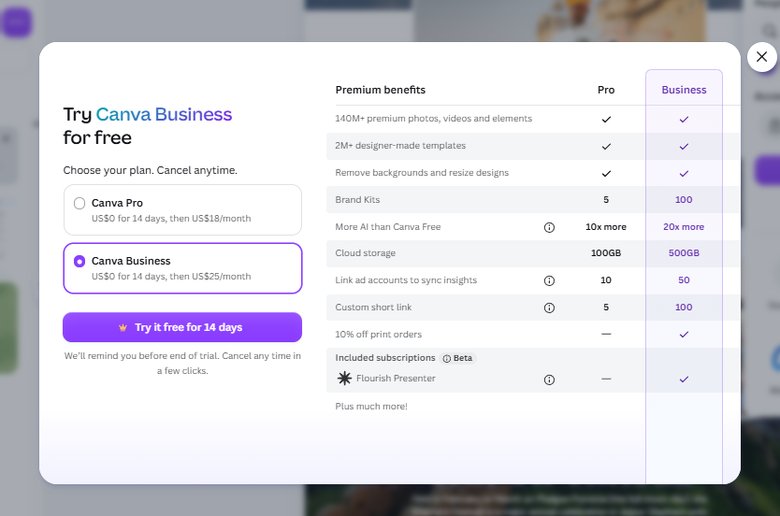
The result: the same paywall we hit when testing the Resize feature. "Try Canva Business for free" — Canva Pro at US$0 for 14 days, then US$18/month; Canva Business at US$0 for 14 days, then US$25/month. The benefits table lists everything from Brand Kits (5 vs 100) to AI usage limits (10x vs 20x more) — and, in black and white, "Remove backgrounds and resize designs" as a Pro/Business benefit.
So the honest description of free-account publishing is: the door is visible, but locked. Canva wants you to see that direct posting exists — the entrance is right there in the menu — and wants the click to be the moment you consider paying. This mirrors exactly what we found in our Canva resize test: select a size on the Resize panel, and the only apply button is a trial button.
What free users actually do: hit Download (the first button — and the only free one that matters), then post manually in the Instagram app, and schedule natively in Instagram's own scheduler or any third-party tool. It's one extra app-switch, not a missing capability.
Step 4: The export — and the square-post myth, measured
We exported our edited post as PNG and inspected the file itself:
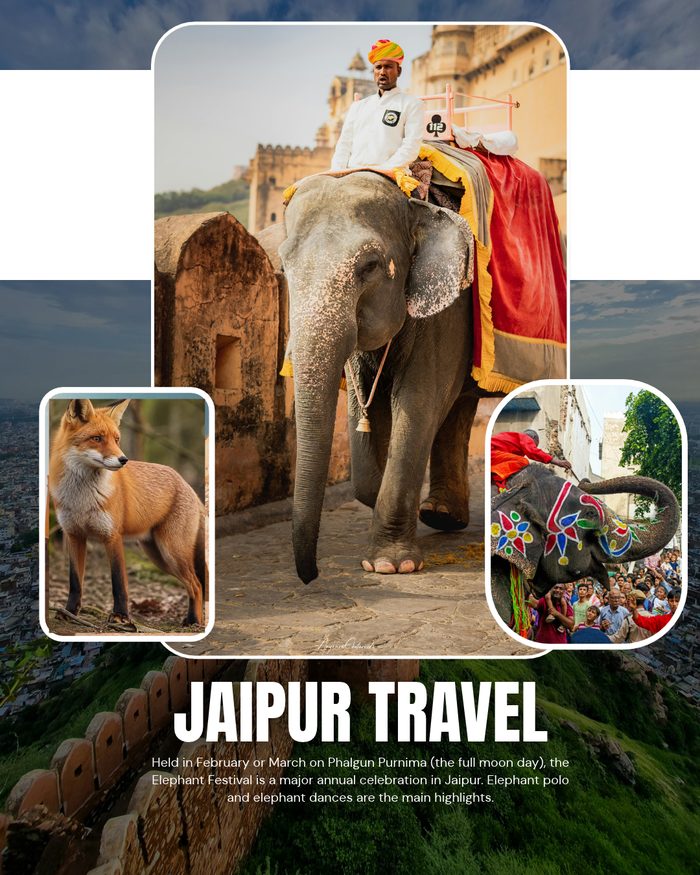
1080 × 1350 pixels — a 4:5 portrait. Not a square.
This matters because the most-repeated advice about Instagram posts — in Canva tutorials and beyond — is that they're 1080×1080 squares. That stopped being the whole truth years ago: Instagram's feed has supported 4:5 portrait since 2017, and portrait posts occupy more screen area in the feed, which is why so many Canva "Instagram Post" templates — including this one — ship at 4:5. The template name says "Instagram Post"; the dimensions say "portrait." If you specifically need a square (for a grid aesthetic or a profile-grid puzzle, say), don't assume — check the template's dimensions, or start from Create a design → Custom size → 1080 × 1080, which is free (we verified custom sizes in our resize test).
What's free vs what's Pro — the honest boundary
| Feature | Free plan? | Our evidence |
|---|---|---|
| Browsing & using crown-free IG post templates | ✅ Yes | 16 of first 20 results crown-free |
| Editing text & layout | ✅ Yes | Headline and body edited without prompts |
| Replacing template photos with your own | ✅ Yes | Upload auto-cropped into rounded frame |
| Downloading the image (PNG) | ✅ Yes | 2.76 MB PNG, exact template dimensions |
| Posting directly to Instagram from Canva | ⛔ Pro/Business | Click → Business paywall |
| Scheduling posts (Content Planner) | ⛔ Pro/Business | Schedule click → same paywall |
Our honest take
Canva's free tier handles Instagram post creation generously — light crowns, full editing, honest exports. The paywall only rises at the exact moment of publication, which is a shrewd place to put it: that's when you're most motivated to pay. But the workaround costs almost nothing. Download, open Instagram, post. The scheduling gap is real for anyone running multiple accounts or a strict content calendar — that's the one user profile for whom Pro genuinely pays for itself here.
As for the square myth: it's a small thing, but it's the kind of small thing that separates tutorials that repeat specs from articles that measure files. Your feed thanks you for the extra 270 pixels of height.
And if your visual content extends beyond the feed, our Canva poster test pulled the full print price ladder — and discovered who actually prints Canva's posters (not Canva).
Wrapping up
This is the fourth Canva category we've pulled apart on a free account, and the crown-density pattern now has four data points: brochures at 15%, Instagram posts at 20%, invoices at 40–50% — and the deeper you scroll any gallery, the denser the crowns. If you're weighing Canva Pro for the publishing features, read what Canva Pro actually costs first; if you want the other locked-door-we-found story, it's the one-click Resize paywall. And if you're putting your post to work for a business, our Canva QR code test shows how to make the image scannable. Four tests, one rule: screenshots or it didn't happen.
This guide is one of our 18 free-account Canva tests — crown counts, measured exports, print prices and paywalls, all in one place.